QR Code Not Working? Fix Common Scanning Issues
Start Free Trial →I’ve seen too many businesses lose potential customers because their QR codes simply don’t work. That’s exactly why I created mobiQode — to ensure every QR code works perfectly, every single time, without any technical headaches.
QR codes can be incredibly useful for sharing information with people. They are a low-tech solution with a large number of use cases — from web links and contacts to images, videos, documents, and PDFs.
But there can also be times when QR codes fail. It can be frustrating when you try to scan a QR code and it just doesn’t work even after multiple tries. But there are ways to fix this problem. Let’s look at the different ways to resolve the QR codes not working error.
Top Reasons Behind QR Codes Not Working (and How to Fix Them)
1. QR Code Is Too Small
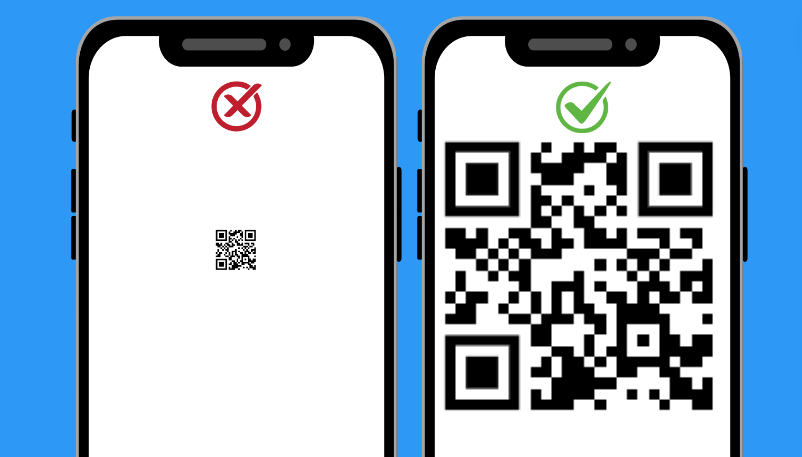
When QR codes are too small, scanners have difficulty reading the information. This can directly affect the number of scans, leading to frustrated customers. The problem usually arises when you save the QR code image in PNG or JPG format or screenshot the code instead of downloading it.
How to fix it: QR code minimum size should be 2cm × 2cm, whether on printed material or digital screens. They should also not be so large that customers can’t scan them from close distance. Always get test prints before publishing.
2. QR Code Is Too Dark or Placed in a Dark Environment
The QR code must be properly visible for camera phones to scan. If the surrounding light is too dim, or if the QR code background blends with the actual code, smartphones may be unable to accurately detect all the black and white squares.
How to fix it: Place your QR code in a well-lit area. The background colors should not be too dark or similar to the QR code colors. The pixels must stand out against the background and other design elements.
3. QR Code Is Too Blurry
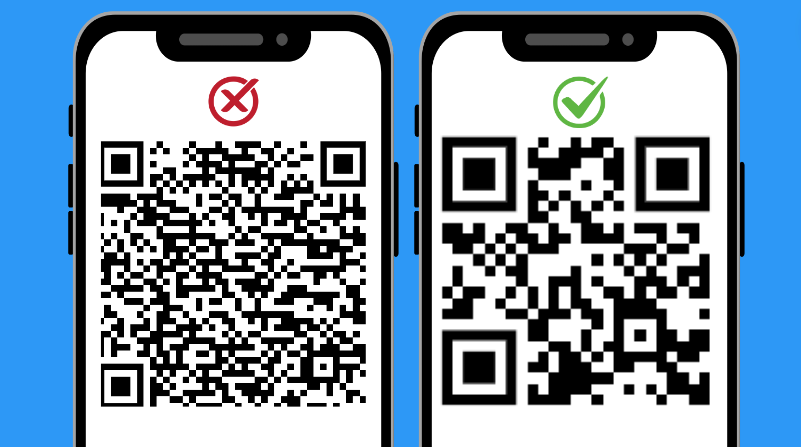
Sometimes the QR code looks good while designing, but when printed or displayed on a wide digital screen, it gets pixelated and blurry. A blurry QR code is unusable regardless of which QR code scanner app is used. This usually happens when the image dimensions are smaller than required or the image quality is low.
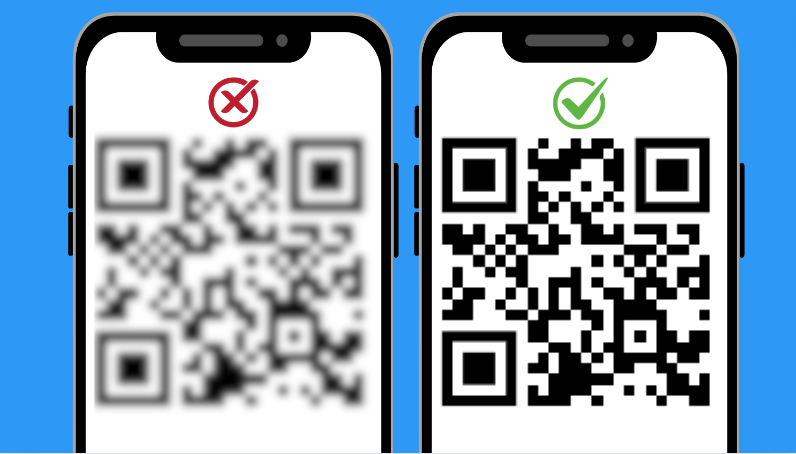
How to fix it: Download high-quality QR code images that scale up or down without losing quality. For digital screens, use JPG or PNG. For printing, use PDF, EPS, or SVG formats.
4. Expired QR Codes
If you used a free QR code generator, there is a chance your QR code isn’t working because it has expired. Free tools can have scan limits or time limits — and the most frustrating part is that you won’t realize your QR codes have expired until your customers notify you.
How to fix it: For professional or business use, switch to a quality QR code generator that supports QR codes indefinitely. With mobiQode, you can create QR codes that never expire on paid plans — and our support team is always available if issues arise.
5. QR Code with Too Much Content
The black and white squares encode the information you want to share. If your QR code is overloaded with too much content, it can lead to longer scan times or an inability to scan at all.
How to fix it: If sharing a long URL, use a URL shortener to keep the code less crowded. To share a lot of information at once, set up multi-URL landing pages to simplify accessibility for end users.
6. Missing or Broken Links
One of the top reasons QR codes stop working is broken or missing links. When users scan QR codes that lead to broken links, they are shown a 404 error — directly impacting user experience.
How to fix it: Always re-check links and ensure they are up-to-date. If using a link shortener, ensure it offers unlimited support. Consider using a dynamic QR code generator to edit or update the linked URL anytime.
How to Troubleshoot QR Codes: Step-by-Step
If a QR code fails during a campaign, it can mean lost customers and missed opportunities. Before you discard it, run through this methodical process:
Step 1: Eliminate environmental issues
Check the scanning conditions first — lighting, glare from glossy surfaces, or shadows that prevent cameras from detecting the code.
Step 2: Verify device compatibility
Test on both iOS and Android, and try a dedicated QR scanning app to rule out native camera limitations.
Step 3: Confirm the content is accessible
Even if the QR code scans, the destination might be the problem. Test the link for accuracy, check that it loads on mobile, and ensure it’s not behind paywalls, logins, or regional restrictions.
Step 4: Review technical specifications
If the code works in some cases but not others, investigate the format, resolution, and error correction level. Higher error correction can help codes remain scannable even if partially damaged or obscured.
Step 5: Assess for design interference
Custom QR codes with brand colors or logos can be visually appealing, but too much modification can interfere with scannable patterns. Compare your design to a standard black-and-white code to spot potential issues.
Spot QR Code Problems Early with Analytics
One of the biggest challenges small businesses face is discovering there’s an issue only after customers complain. By then, the damage is done — lost traffic and missed leads.
QR code analytics help you detect issues before they escalate. Tracking scan activity over time can reveal sudden drops that may indicate a broken link, an expired code, or poor signage placement.
With mobiQode’s built-in tracking, you can monitor:
- Total number of scans and trends over time
- Peak scan days and hours
- Device types and locations of your audience
If you notice engagement dropping unexpectedly, you can investigate the cause — whether it’s a technical error, a content issue, or a change in user behaviour — and fix it quickly.
How to Prevent QR Code Problems Before Launch
Small businesses often skip thorough QR code testing in the rush to publish — leading to costly reprints and campaign delays. Here’s a pre-launch framework to get it right the first time:
- Start with high-quality generation tools: Use a professional QR code generator like mobiQode that allows you to choose file formats, set error correction levels, and create dynamic codes you can edit later.
- Consider the scanning environment: A QR code on a product label faces different challenges than one on a billboard. Account for viewing distance, lighting, and possible obstructions during design.
- Plan for scalability: If you intend to reuse the code across campaigns, dynamic QR codes let you update the linked content without changing the printed code.
- Think beyond aesthetics: Custom colors and logos should enhance, not hinder, scanning. Maintain strong contrast between the code and its background.
- Test for resilience: Check that the code still scans if partially smudged, folded, or displayed on a low-resolution screen.
Run Tests on QR Codes Regularly
There can be many reasons why QR codes stop working suddenly. While you can’t completely avoid them, you can proactively address these issues before they become major problems. Test your QR codes regularly and ensure you can scan them and view the encoded content both before and after publishing.
You can also use mobiQode’s QR code generator to track scan analytics. That way, if the number of scans suddenly decreases, you can re-check the QR code and ensure it is functioning properly.
Conclusion
Unresolved QR code problems lead to lost scans, lost leads, and lost trust from customers. The right system and regular testing keep your scanning process smooth and dependable. With mobiQode’s dynamic QR codes, you can update a broken link without generating a new code — making problem-solving faster and avoiding costly reprints. Get started from $5/mo and stay in control of your campaigns.
Stop Losing Customers to Broken QR Codes
Start Free Trial →14-Day Free Trial · Plans from $5/mo · No Credit Card Required
Frequently Asked Questions
Why won’t my QR code scan?
Multiple issues can cause scan failures — the code may be too small, the print is blurry, contrast is too low, or the code is positioned incorrectly. Broken links, content overload, and poor lighting are also common causes.
How do I fix a blurry QR code?
Use high-resolution file formats — SVG for print, PNG or JPG for digital use. Avoid resizing low-quality images as this results in pixelation. Download the QR code at its proper dimensions and verify through testing before printing. If already printed, reprinting at the correct resolution is the only option.
What do I do if my QR code expired?
Create a new QR code with a platform that provides limitless scanning and ongoing validity. mobiQode’s dynamic QR codes allow you to update destination links without replacing the existing code — avoiding reprints entirely.
Can I test my QR code before printing?
Yes. Test your QR code on different devices, in various lighting conditions, and at different viewing distances. This confirms proper scanning functionality for real-world usage before committing to a print run.
What is the most common reason QR codes stop working?
Broken or incorrect links, expired QR codes, poor print quality, and low contrast are the most common causes. Environmental factors like bad lighting or glare also contribute. Regular testing and tracking analytics are the best ways to identify and fix problems early.