Need sharp, scannable QR codes?
Generate High-Res QR Code →A company launched its biggest campaign, executing every aspect of the project perfectly.
Expectation: Clicks, website visits, and orders to pour in.
Reality: Disappointment with an underwhelming response.
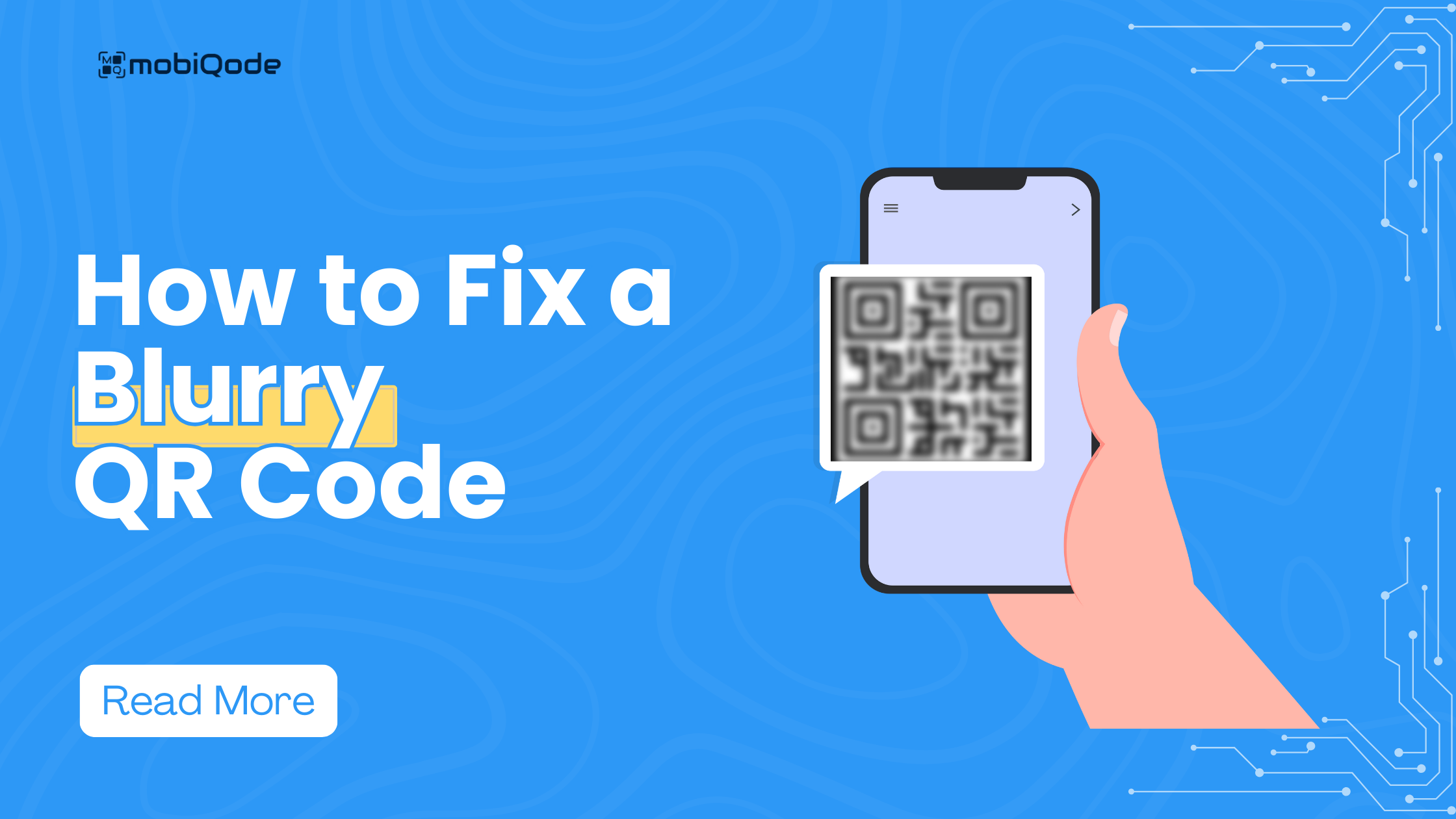
The problem was hidden in plain sight — a blurry QR code in the printed ad. Unclear enough to be non-scannable for smartphone cameras. The result: potential leads moved on without a second glance.
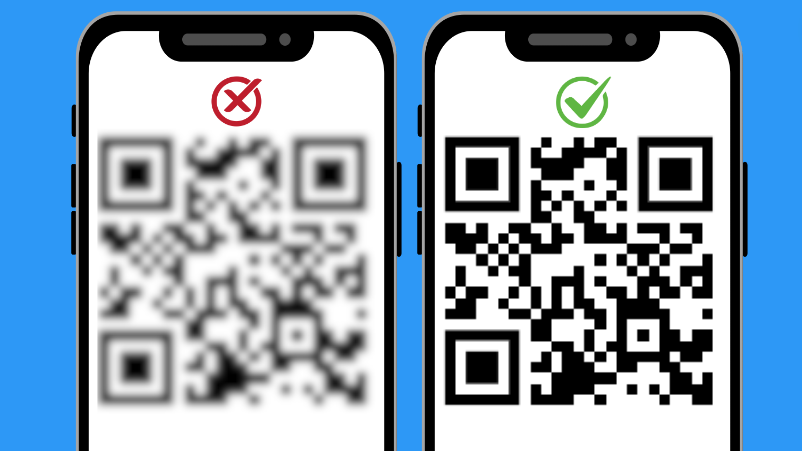
Blurry QR codes are like incomplete messages — they hold the potential for exciting information, but their degraded quality makes it impossible for QR code scanners to decode them. Blurred QR codes lead to missed deals, inaccessible websites, and user frustration. The good news is that blurry QR codes are fixable. Let’s look at what causes them, how to fix them, and how to prevent them from happening in the first place.
What Are Blurry QR Codes?
QR codes are widely used to give instant access to payments, information, and engagement. Since they are an essential tool for any business, problems with their quality can have a significant impact on results.
Video — How to Fix Blurry QR Codes
Impact of Blurry QR Codes on Your Business
Blurry QR codes cannot be scanned by customers, and the consequences go beyond a single failed scan. Here is how they affect your business:
⚠️ Missed Opportunities
Brands lose potential leads, payments, and survey responses every time a blurry code fails to scan.
😤 Frustration and Abandonment
Users leave and may share the poor experience with others, directly damaging your brand reputation.
📉 Poor Customer Perception
Poor quality in something as basic as a QR code signals a lack of care and professionalism to your customers.
🔓 Erosion of Trust
Repeated encounters with unreadable codes lower customer trust over time — a significant blow to long-term business growth.
Major Causes of Blurry QR Codes
Understanding why QR codes blur is the first step to fixing and preventing the problem. Here are the most common causes:
Design Issues
Poor design choices — such as highly complex patterns, improper color contrast, or excessive decorative elements — can directly affect QR code readability. Complex codes with intricate shapes have smaller modules (squares) that are more prone to blurring, especially at smaller sizes. Codes with poor contrast have colors that don’t stand out clearly against each other, making them difficult for scanners to distinguish.
Low-Quality Printing
Printing at low resolution results in foggy, indistinguishable patterns. The choice of printing material also matters: reflective surfaces bounce light back into the camera, glossy materials spread light unevenly, and textured surfaces distort the printed pattern. None of these allow for reliable scanning. Using cheap paper or incompatible materials can also cause ink to bleed, smudging the squares and making the code unreadable.
Poor Image Resolution
QR codes rely on intricate patterns of black and white squares. If the image is low resolution or highly pixelated, those patterns become blurry and unreadable. Wrong resolution can also lead to stretching or overcompression of the pattern — particularly when the code is forcefully resized to fit a desired format — resulting in low pixel quality and scanning failure.
Image Proportion
QR codes have an optimal size to encode data effectively — usually 2 cm x 2 cm as a minimum, depending on scanning distance. Stretching or shrinking the code during download or printing distorts the quality of the squares and leads to blurring. QR codes can still be scanned when smaller than the recommended size, as long as the distance between the code and scanner is less than 5 cm.
Physical Damage and Degradation
For printed QR codes, environmental factors like exposure to heat, moisture, dust, and direct sunlight can degrade the label over time. Physical damage such as scratches, tears, or folds makes it difficult for scanners to read the pattern. A faded or deteriorated code will not be effectively captured by a camera, making scanning impossible.

Digital Sharing Factors
Digitally shared QR codes face a different set of risks. Sharing through social media platforms or email can trigger automatic image compression, lowering the quality of the code. The recipient receives a file that is already degraded — exhibiting blurriness even before any printing occurs. Always share QR codes as PNG or SVG files, and avoid re-sharing screenshots of QR codes.
Image Compression
Downloading a QR code from a website might result in a compressed image, introducing visual irregularities that distort the sharp edges scanners depend on. To minimise this risk and maintain image clarity, always download QR codes in formats that support lossless compression, such as PNG — and avoid JPEG entirely for QR codes.
Low Contrast
If the QR code’s squares blend too much with the background, it can appear blurry — especially in low-light conditions. QR codes should use high-contrast colours like black on white for optimal clarity. Brand colours can be used as long as they maintain strong contrast against the background and don’t blend into the code pattern.
Top Solutions to Fix Blurry QR Codes
Most blurry QR code problems are straightforward to fix once you identify the root cause. Here are the most effective solutions:
Use High-Resolution Images
Use high-resolution images when creating QR codes — at least 300 x 300 pixels for digital use, or 300 DPI for print. This ensures maximum detail and clarity whether scanning on-screen or from physical materials. Never scale up a low-resolution QR code image; always regenerate from the source at the correct size.
QR Code Sharpening Tools
Image sharpening tools have limited effectiveness for QR codes. They can slightly improve contrast or edges, but cannot restore the crisp module boundaries that scanners need to decode the pattern reliably. If your QR code is blurry, regenerating it at a higher resolution from the original source is always the more reliable fix. Photo editing software like Photoshop or Illustrator can be used as a last resort for minor contrast adjustments, but should not be the primary solution.
Keep QR Code Designs Simple
Optimise your QR code to use a simple design rather than complex patterns, inverted colours, or blended background designs. Simple QR code designs reduce the risk of blurriness and ensure optimal scanning performance. You can still include your brand logo at the centre — just keep the surrounding pattern clean and high-contrast.
Protect the Code
For printed QR codes exposed to environmental conditions, lamination is one of the most effective protective measures. Alternatively, choose weather-resistant or UV-resistant printing materials, and place codes in protected areas where they can be scanned without risk of physical damage. For digital codes, always be mindful of file size, alignment, and format before sharing to prevent compression degradation.
Improve Printing Quality
Ensure that all circulated QR codes are printed in high resolution and at the correct dimensions. Choose reliable printing partners who understand the requirements for QR code materials. Design images in universally compatible dimensions and formats so they can be shared and printed consistently across different platforms and surfaces.
Use the Right Image Format
Save your QR codes in uncompressed formats like PNG for digital use, or vector formats like SVG for print materials. SVG files scale to any size without any loss of quality — making them ideal for large-format printing on banners, signage, or packaging. Avoid JPEG for QR codes; its compression algorithm introduces visual distortions that make scanning unreliable.
Test the Code Before Deploying
The most important step is to test every QR code yourself before it goes live — on multiple devices and in the actual lighting conditions where it will be used. This instantly surfaces any issues that can be fixed before they reach your audience, preventing the reputational and financial damage that a failed QR code in a live campaign can cause.
Use a Premium QR Code Generator like mobiQode
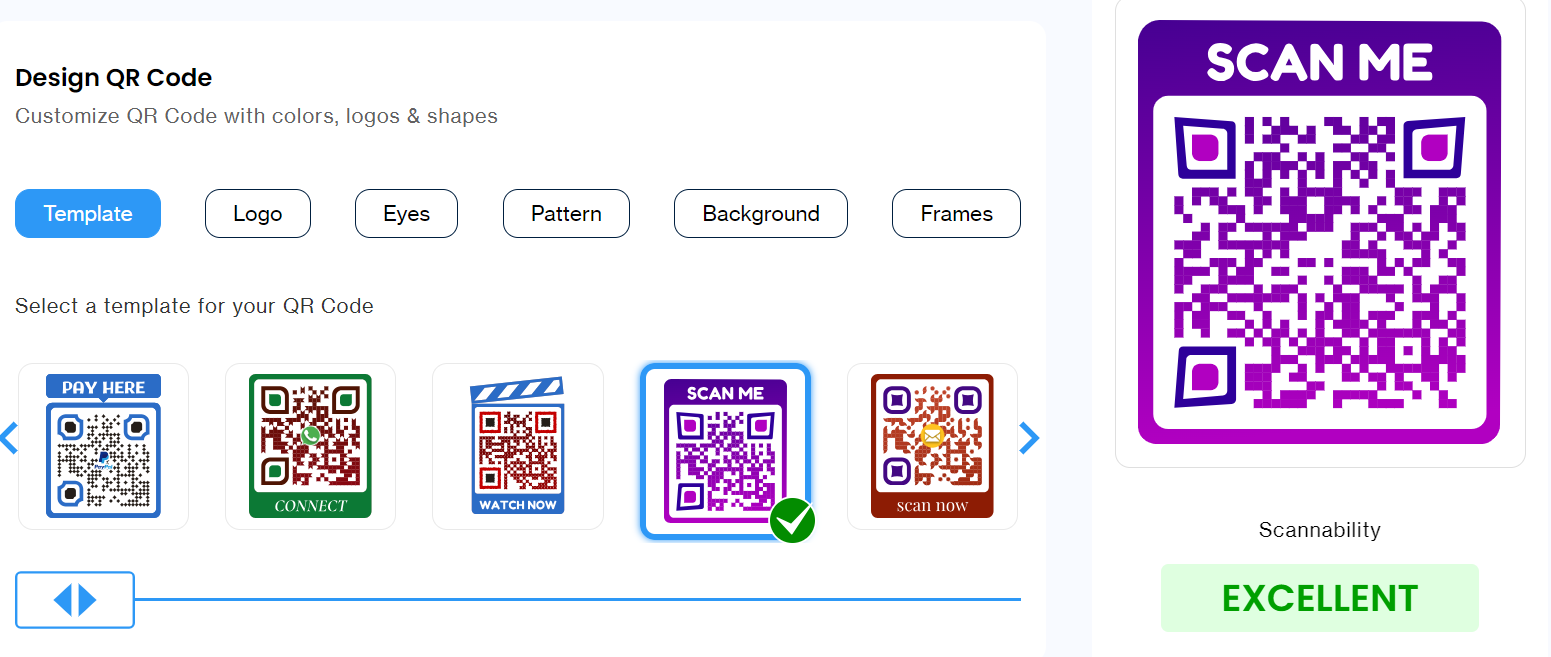
Select a QR code generator like mobiQode, which always generates high-resolution QR codes optimised for both print and digital screens. mobiQode also measures scannability for every QR code you generate — so you never end up distributing a blurry or unreadable code.
Best Practices for Maintaining Clear QR Codes
- Maintain high contrast between the QR code and its background. Black on white is ideal, but any strongly contrasting colour combination works.
- Ensure the QR code is large enough to scan comfortably from a reasonable distance. As a general rule, the code should be at least 2 cm x 2 cm, with larger sizes for greater scanning distances.
- Include a clear white margin (quiet zone) around the QR code. This buffer zone prevents surrounding elements from bleeding into the code and causing scanning errors.
- Use a vector format like SVG when creating or saving your QR code for print. Unlike pixel-based formats, vector formats maintain sharpness and clarity at any size.
- Avoid placing QR codes on dusty, dirty, or greasy surfaces. Grime can obscure the pattern squares and prevent reliable scanning.
- Avoid cluttering your QR code with excessive logos or design elements. These additions can interfere with scanning accuracy and reduce the error-correction capacity of the code.
- If mass-producing QR codes, ensure printing consistency across all copies. Slight variations in ink density or alignment can affect scannability at scale.
Generate High-Quality QR Codes with mobiQode
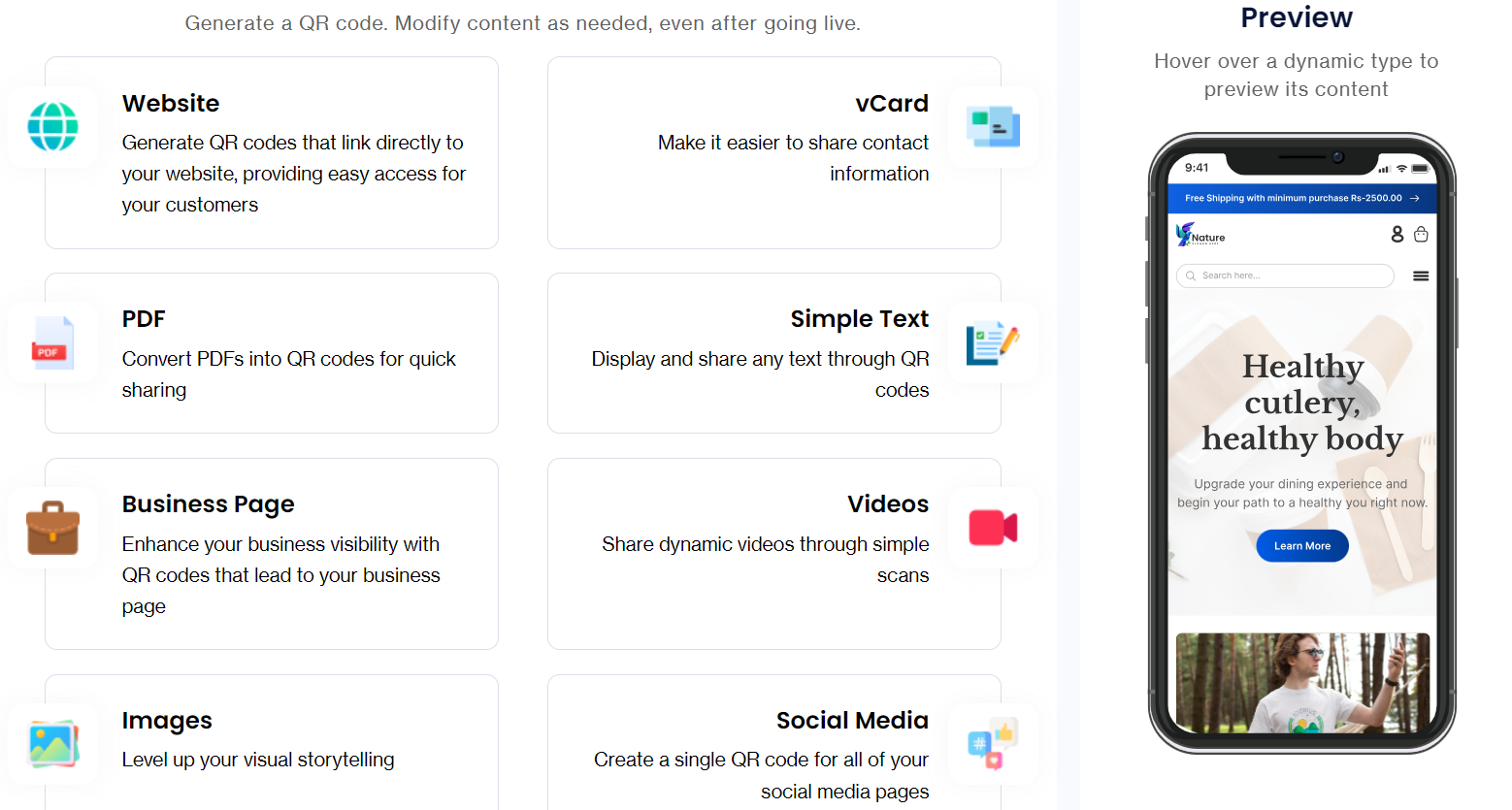
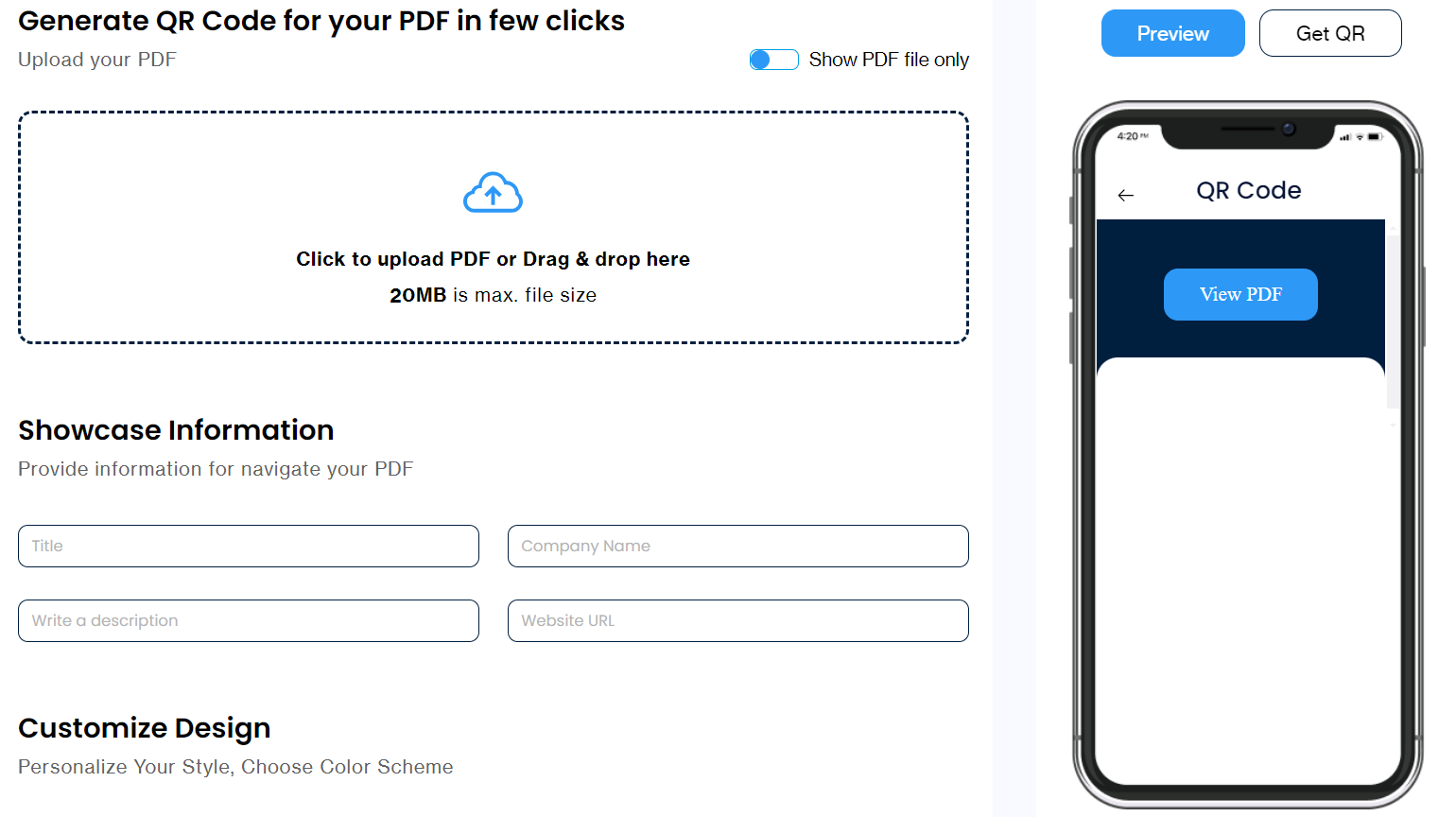
If you want crystal-clear QR codes that won’t leave your customers frustrated, use mobiQode’s QR code generator to create high-resolution, scannability-tested QR codes in four simple steps:
Ready to create crystal-clear QR codes?
Start Your Free 14-Day Trial →No credit card needed · High-res output · Scannability score included
Conclusion
Blurry QR codes can be the hidden reason behind engagement problems, failed campaigns, and lost business. The causes — poor design, low resolution, bad printing, environmental damage, or digital compression — are all preventable with the right approach.
Using high-quality images, the correct file formats, simple designs, and a reliable QR code generator like mobiQode eliminates the risk before it reaches your audience. Test every code before it goes live, protect printed codes from environmental damage, and monitor scan analytics to catch any issues early.
Check all your QR codes for quality now — and if you need to create new ones, mobiQode’s free trial lets you generate custom, high-resolution, scannability-tested QR codes with no commitment required.
Frequently Asked Questions
What are quick fixes for a blurry QR code that won’t scan?
Clean your camera lens, improve the lighting, and hold your phone steady at the right distance. If the code itself is blurry, regenerate it at a higher resolution — use PNG for digital or SVG/PDF for print — and ensure it is sized appropriately for its intended use. Testing across multiple devices before publishing prevents this problem entirely.
Why does my QR code look blurry after downloading?
You likely downloaded it in a low-resolution or compressed format. When exporting, choose SVG or PDF for print materials, or a high-resolution PNG (at least 300 DPI) for digital use. Avoid JPEG for QR codes — its compression algorithm distorts the sharp edges that scanners depend on to read the pattern.
Why is my QR code blurry when printed?
The most common causes are printing at low DPI, using incompatible materials (reflective, glossy, or textured surfaces), or printing from a low-resolution source file. Always print QR codes at a minimum of 300 DPI, use a vector source file (SVG or PDF) wherever possible, and test the printed code before mass distribution.
Can a blurry QR code be fixed online?
Not reliably. Image enhancement tools can slightly improve contrast or edges, but cannot restore the crisp module boundaries that QR scanners require. The correct fix is always to regenerate the code at a higher resolution from the original source — not to attempt to sharpen a degraded image after the fact.
What resolution should a QR code be?
For digital use, a minimum of 300 x 300 pixels is recommended. For print, aim for at least 300 DPI at the final printed size. For large-format printing — banners, signage, packaging — use a vector format (SVG or PDF) which scales to any size without any loss of quality.
What size should a QR code be?
The minimum recommended size for reliable scanning is 2 cm x 2 cm (approximately 0.8 inches square) for close-range scanning. For every additional metre of scanning distance, add approximately 1 cm to the code size. Large-format codes on billboards or signage should be sized proportionally to the expected viewing distance.
Can a PDF be converted into a QR code?
Yes. PDF QR codes work by hosting the PDF online and encoding the link into the QR code. When scanned, users are directed to the PDF automatically. mobiQode’s PDF QR code generator handles this directly — upload your PDF, generate the code, and share it without needing any third-party hosting.