Printing a QR code may sound simple. Just paste it into your design and hit print. But if you want scannable, high-quality, long-lasting QR codes, there are rules to follow. Get them wrong and your QR could become blurry, unreadable, or useless.
Read on to learn the entire process of choosing the right format, materials, and sizes for printing, and testing. We will also show how mobiQode’s QR code generator supports print-ready outputs so your codes look sharp in all formats.
Why Printing QR Codes Properly Matters
A poor print job can render a brilliant QR code useless. Even if the code is correct, if it is blurred, distorted, low contrast, or printed on a shiny surface, many phones will not scan it. The QR code must work for users.
When done right, printed QR codes bridge the physical and digital worlds. They guide people to websites, menus, contact details, videos, or any online resource, all in a single scan.
Best Practices to Follow for Printing QR Codes
When printing QR codes, there is no room for error. A distorted code is a missed opportunity. Every detail matters with printed QR codes — from printing material to the contrast and color.
Proper File Format
Use vector formats like SVG or EPS for crisp and clear QR code printing, especially for larger codes. These formats can be scaled to any size without losing quality, ensuring your QR code remains sharp and scannable.
Avoid using JPG or PNG for large-scale printing, as these file formats can pixelate when scaled up. mobiQode lets you download QR codes in print-ready formats so you do not lose quality.
Contrast is Key
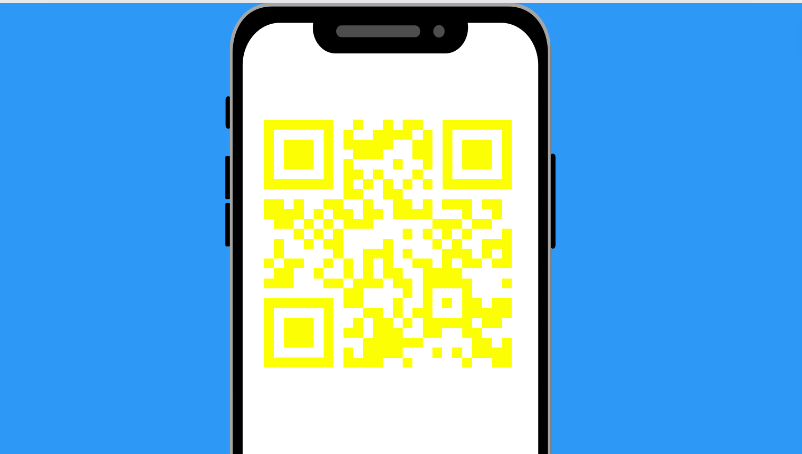
Maintain a strong color contrast between the QR code’s background color and squares — they shouldn’t be too similar. Black on white is the gold standard for optimal readability. Leave a blank margin around the QR code to help prevent any interference while scanning.
If unsure about a specific color combination, print QR codes with variations on a test page and scan them using your phone to see which offers the best readability. If you try fancy colours or a logo inside the QR, test with real phones first.
Correct Material Selection
Glossy surfaces can cause glare and interfere with scanning. Opt for matte papers/finishes to ensure the QR code is visible and easily readable by QR code scanner apps. Scanners do not work well on glossy surfaces — avoid surfaces that reflect light.
If using a home printer, ensure it can handle the type of paper or material you’ve chosen for the QR code. Experiment with different paper weights and finishes to find what works best for your printer. Test in advance on textured or curved surfaces (fabric, bottles). Any distortion in such surfaces can break scanning.
Use Good Printing Methods
300 DPI or higher is recommended to keep edges sharp. Use quality printers and settings (photo or fine detail mode). Consider professional print shops or offset printing for large runs for better results. Stay away from blurred printing or low-resolution images.
Placement and Finishing Touches
When placing the QR code on your print material, ensure there’s some empty space around it. This prevents any text, images, or cutting lines from interfering with the code’s readability.
You can also add a thin-colored border or margin around the QR code to make it stand out visually and improve scannability.
Branding and Designing
Your QR code should align with your brand’s visual identity. Colors and logos can add personality but prioritize function over fancy. Scanner apps need a clear code to read.
Keep designs simple, avoiding intricate details or too many colors that might confuse the scanner app.
What Printing Materials Should Be Used for QR Codes?
Matte Paper
Matte paper is the all-rounder for flyers, brochures, packaging, and most everyday QR codes. Its smooth, non-reflective surface avoids glare and ensures clear scanning.
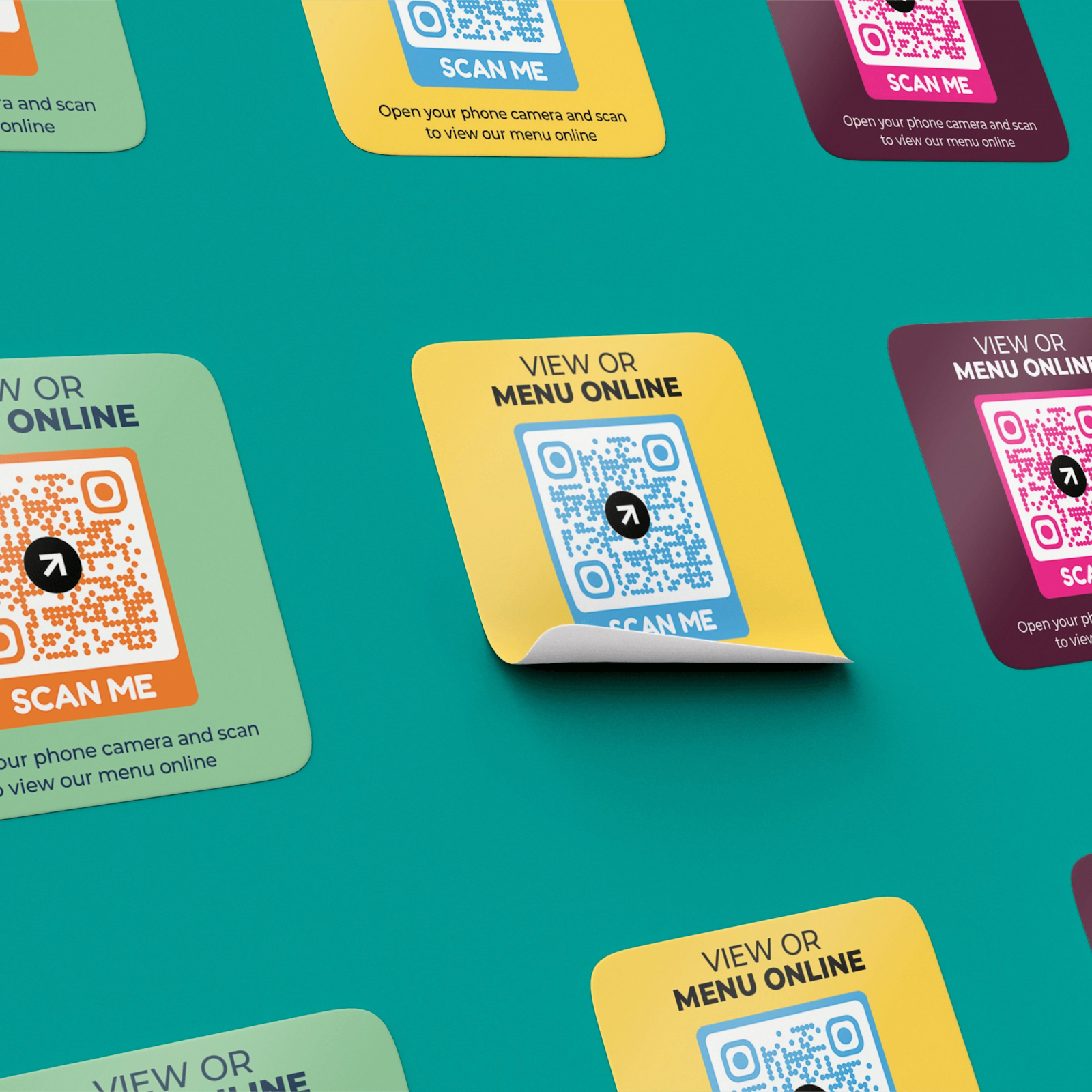
Waterproof Vinyl Stickers
QR codes on waterproof vinyl stickers are perfect for outdoor use, products, or anywhere exposed to moisture. Their durable, water-resistant material protects the QR code from extreme weather conditions and ensures long-lasting readability.
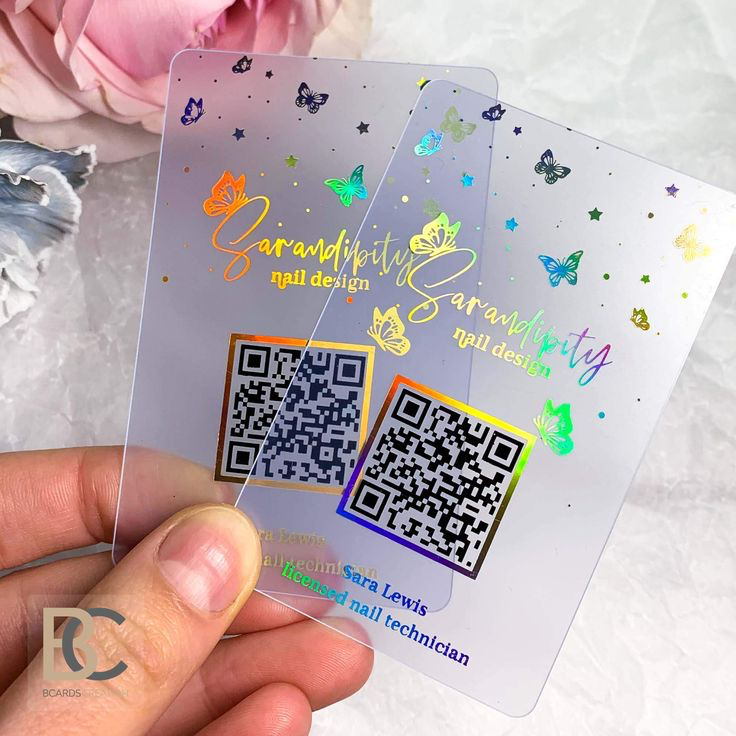
Tear-Resistant Plastic Cards
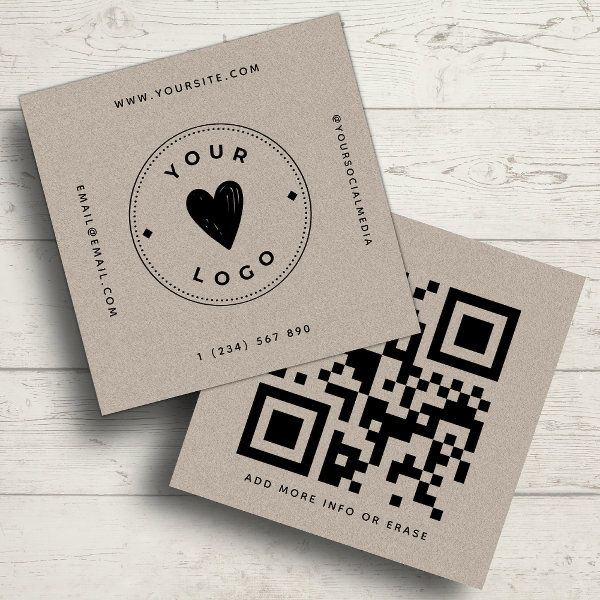
QR codes on plastic cards are ideal for high-traffic areas (like transportation hubs, pedestrian walkways, tourist attractions, and more), keychains, or business cards that must last a long time. The sturdy plastic construction withstands wear and tear, keeping the QR code intact and scannable even with frequent use.
Fabric Labels
Explore heat transfer paper or iron-on patches for clothing or textiles. These materials integrate the QR code into the fabric, creating a scannable design that complements your clothing/product.

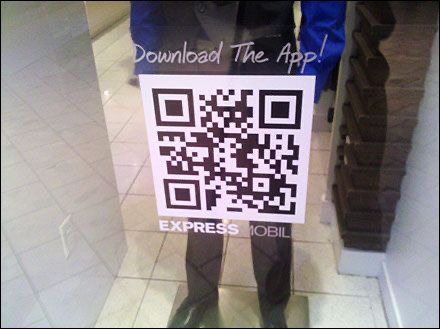
Clear Labels
Opt for clear labels for glass surfaces like windows or storefronts. The transparent material allows the QR code to be clearly visible without obstructing the view through the glass, making it ideal for window displays or product packaging.
Static vs Dynamic QR Codes: Print Edition
Static QR Codes
The content is fixed forever. As soon as you print them, you cannot change what they point to.
FIXED · CANNOT EDIT AFTER PRINTDynamic QR Codes
They redirect through a service. You can update the destination even after printing them. mobiQode offers permanent dynamic QR codes that you can edit anytime, ideal for printed materials that may need future updates.
EDITABLE · UPDATE WITHOUT REPRINTINGIf you want flexibility (e.g., change link later), go dynamic. Learn more about dynamic QR codes.
Setting the Right Size and Format
For QR codes to be scanned easily, they need to be the right size and format. Here’s a breakdown of what to consider:
Size
There’s no strict minimum QR code size, but aim for at least 2 cm (0.75 inches) wide for reliable scanning. The recommended size is 3 cm (1.25 inches) wide for most applications. These measurements are approximate — always test before final printing.
| Use Case | Recommended Size | Notes on Scanning Distance |
|---|---|---|
| Business cards | ~1 cm × 1 cm (0.4 in) | Works if scanned close |
| Flyers / brochures | ~1.5–2 cm × 1.5–2 cm | Good for hand-held scanning |
| Posters / signboards | 5–10 cm or more | For scanning from a distance |
| Vehicle wraps / banners | 10–20 cm+ | Needs clear visibility from afar |
File Format
For crisp, high-resolution printing, especially for larger codes, choose vector formats like SVG or EPS. These formats can be scaled to any size without losing sharpness, ensuring your QR code remains clear and scannable. The PNG format works well for QR codes with transparent backgrounds. The JPG format is more suitable for small QR codes that require minimal space.
Common Mistakes to Avoid
Printing QR too small or too close to the edges
Using colours that do not contrast enough
Placing the QR code over busy backgrounds
Printing on reflective materials without testing
Not accounting for error correction (if the logo or part is obstructed)
Skipping test scans before full printing
How to Print Your QR Code: Step-by-Step Process

Generate Print-Ready QR Codes with mobiQode
Create high-quality QR codes with mobiQode’s QR code generator and never miss a single scan opportunity. Our codes ensure sharp QR code prints with zero distortions, guaranteeing flawless readability every time. Get your first print-ready QR code today.
Every detail matters when printing QR codes — from material choice to contrast. We built mobiQode to make generating print-ready codes effortless.
Founder, mobiQode
Conclusion
Printing QR codes beautifully and effectively is part art, part technique. When you follow the right format, material, size, and testing steps, your code can smoothly guide people from paper to the digital.
With mobiQode, you get print-ready exporting, dynamic (editable) QR codes, and high reliability so your printed codes stay useful for years.
Now, print your QR codes with confidence, scan them flawlessly, and let your audience interact smoothly with your brand.
Print Perfect QR Codes Every Time
Start Free Trial →14-Day Free Trial · Plans from $5/mo · No Credit Card Required
Frequently Asked Questions
Can I print a QR code with a regular home printer?
Yes. Just use high resolution (300 DPI or more), good contrast, and a test scan. If the printer supports vector files, even better.
What is the smallest size a QR code can be printed?
You can go small (about 1 cm × 1 cm (~0.4 in)), but that works only for close scans. For flyers or posters, use larger sizes.
Can I change the QR code destination after printing?
Only if it is dynamic because static codes are fixed. mobiQode’s dynamic QR codes help you edit the destination anytime without reprinting.
What file format is best for printing QR codes?
Vector formats like SVG or EPS are ideal. They scale without losing quality. Use PNG only if high resolution.
Will adding a logo inside the QR code break scanning?
Not necessarily, but you must test. QR codes support error correction, so a little logo is usually okay. Just do not cover key parts.
Can QR codes get damaged over time?
Yes. Fading, scratches, dirt — all can affect scannability. Use durable materials, or reprint when needed.
Do QR codes expire if printed?
No. The printed QR doesn’t have an “expiry.” But if you use dynamic QR and the service is deactivated, scan redirects may fail. With mobiQode, QR codes never expire, and your print keeps working.