Struggling to convert attention into actual engagement? A giant QR code on billboards may seem as a suitable option to make a difference. Only if the code pushes customers enough to scan them!
While your marketing team will work hard to spark curiosity, it’s the design of the QR code that will ultimately drive action. The more eye-catching, distinctive and user-friendly the code, the higher the chances of turning glances into clicks.
The good news? Crafting such a QR code isn’t complicated or time-intensive. Just a few simple steps and you will have the code ready to earn clicks and engagements.
Create Your First QR Code — Free for 14 Days
Start Free Trial →What is a QR Code?
Quick Response Codes (QR codes) are a grid of black and white squares that can store a large amount of data for easy access. These codes can store more information than barcodes and handle four data forms: binary, kanji, numeric, and alphanumeric.
While Denso Wave invented QR codes in 1994, their initial uptake was very low. However, in 2002, the first mobile phones with in-built QR code readers were introduced in Japan, marking the growth of QR codes. Since then, QR codes have become a fast and convenient way to access URLs and other data.
A QR code offers a safe and secure way to ensure privacy while sharing data. The different types of data that can be stored include:
- Contact information
- Text
- Website links
- Pictures
- Videos and much more
How to Create a QR Code on Any Device
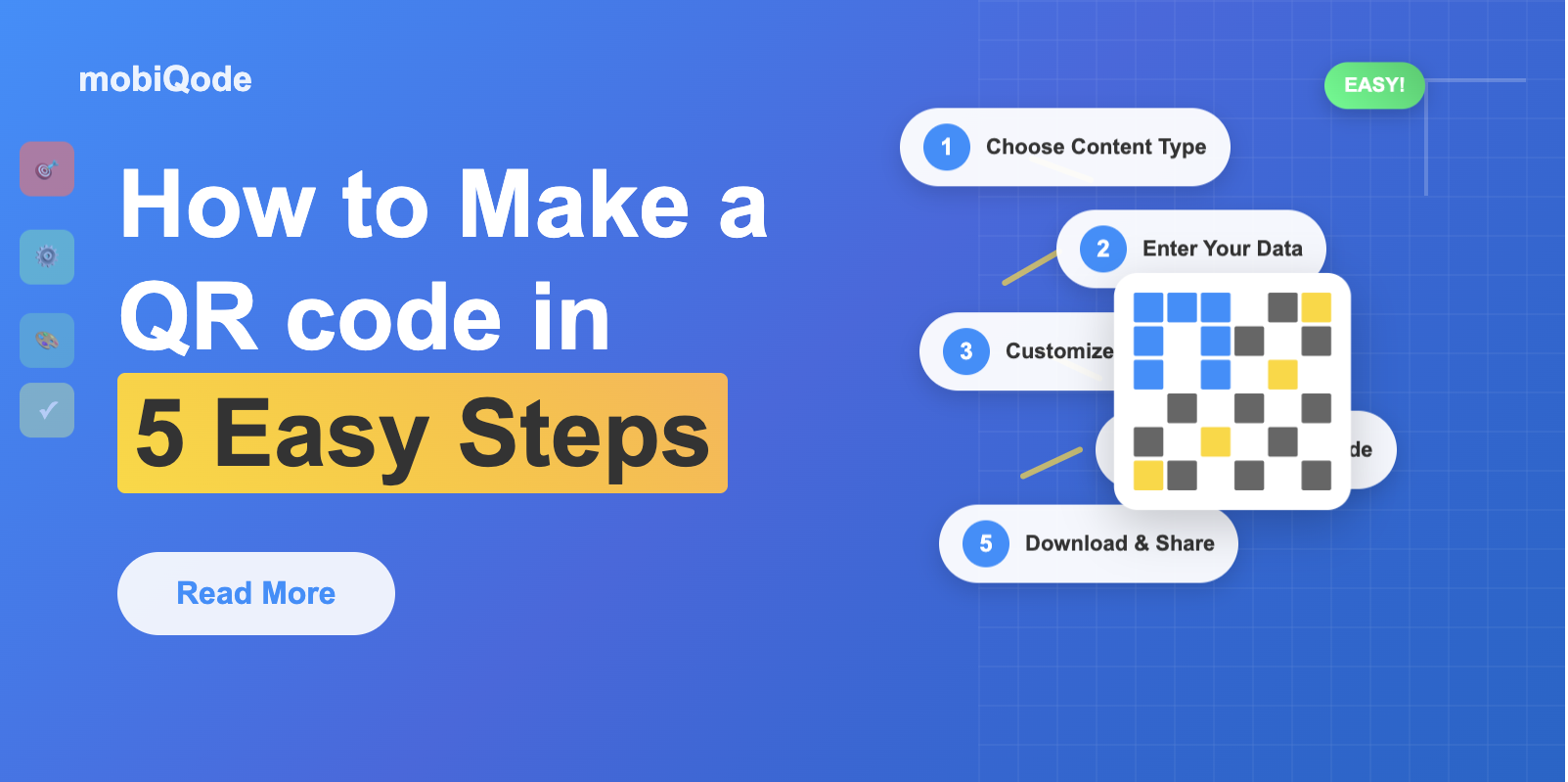
Step 1: Sign Up
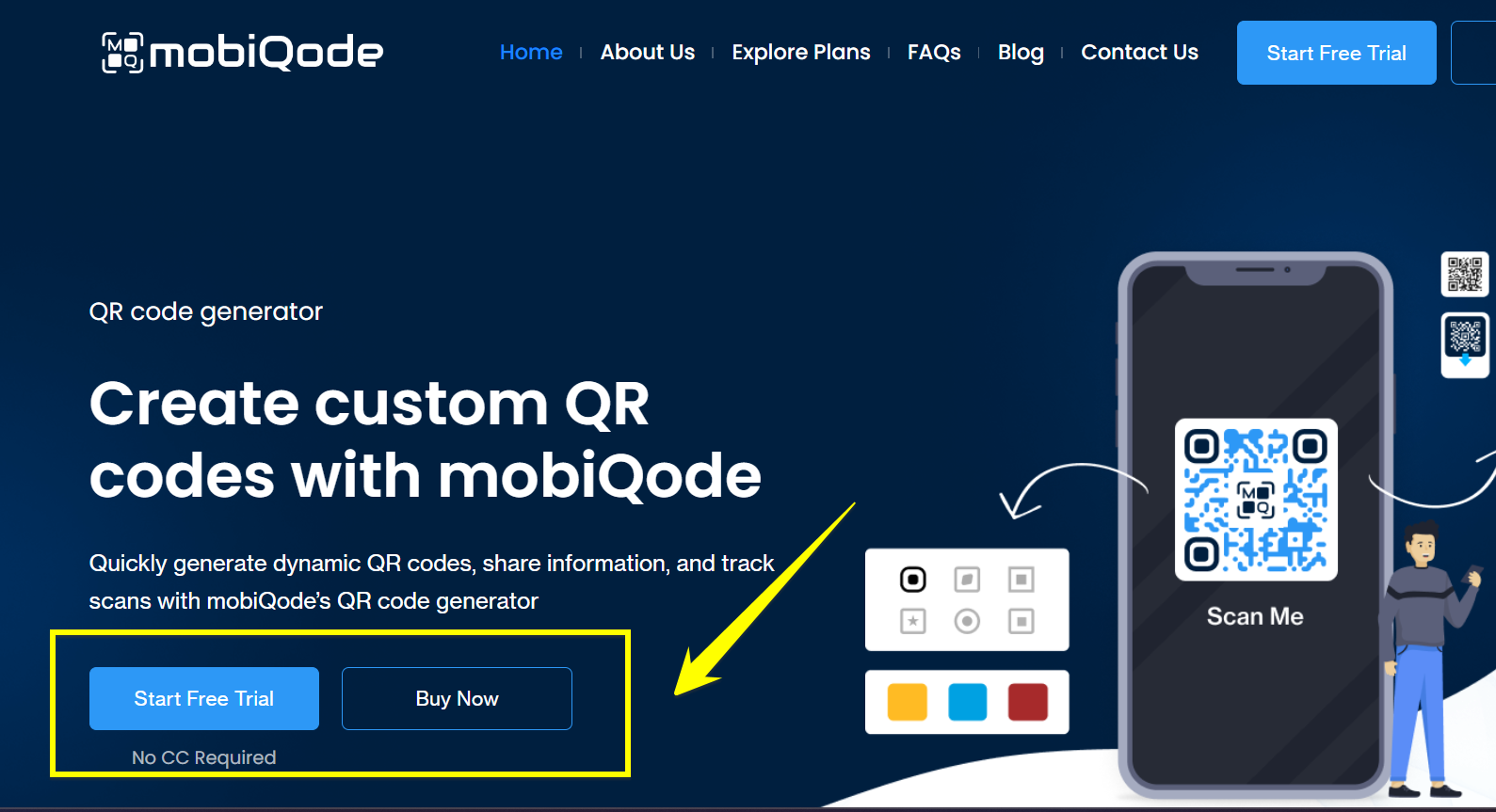
Head to mobiQode and click on the ‘Start Free Trial’ option on the homepage. You can either continue with Google or Facebook or manually fill in the information to register. Access mobiQode’s QR code generator on any browser.
Step 2: Choose Your Data Type
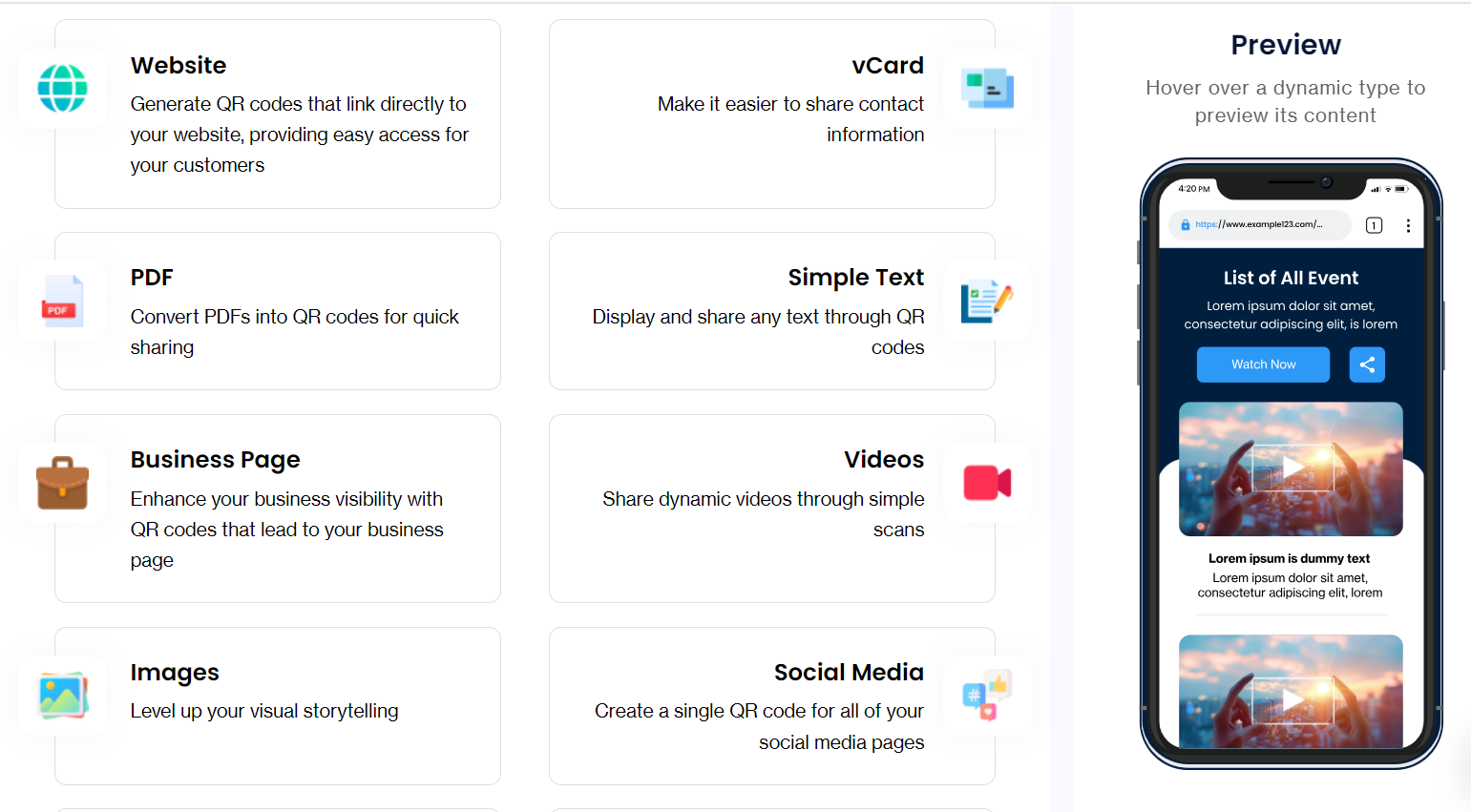
Select the type of QR code you need. mobiQode supports a wide range of data types for different use cases:
| Data Type | QR Code Purpose |
|---|---|
| Website | The QR code will be linked to the specific website you want to provide access to |
| vCard | The QR code generated with this information will share contact information |
| The QR code for PDFs will allow easy sharing of content in PDF format | |
| Simple text | Share text through QR code by selecting this option |
| Business page | Generate a QR code to lead the audience to your business page |
| Videos | This QR code will be dedicated to the purpose of sharing videos |
| Images | Generate the QR code with this option to share albums |
| Social media | Pile up all the social media presence platforms in one QR code with this option |
| Get the Facebook page-specific QR code to share with your patrons | |
| Wi-Fi | Allow your guests to access Wi-Fi with a single QR code generated with this option |
| Application | Prevent the audience from downloading fraudulent applications with this QR code that directs them to the Play Store or App Store page |
| Restaurant menu | Support your environment friendly mission through a digital menu with a QR code generated with this option |
| Custom Page | Select this option to generate mobile and desktop optimised custom pages from existing templates |
| Digital business card | This option will provide you with a smart and shareable card for instant connection |
Creating a QR code for a link:
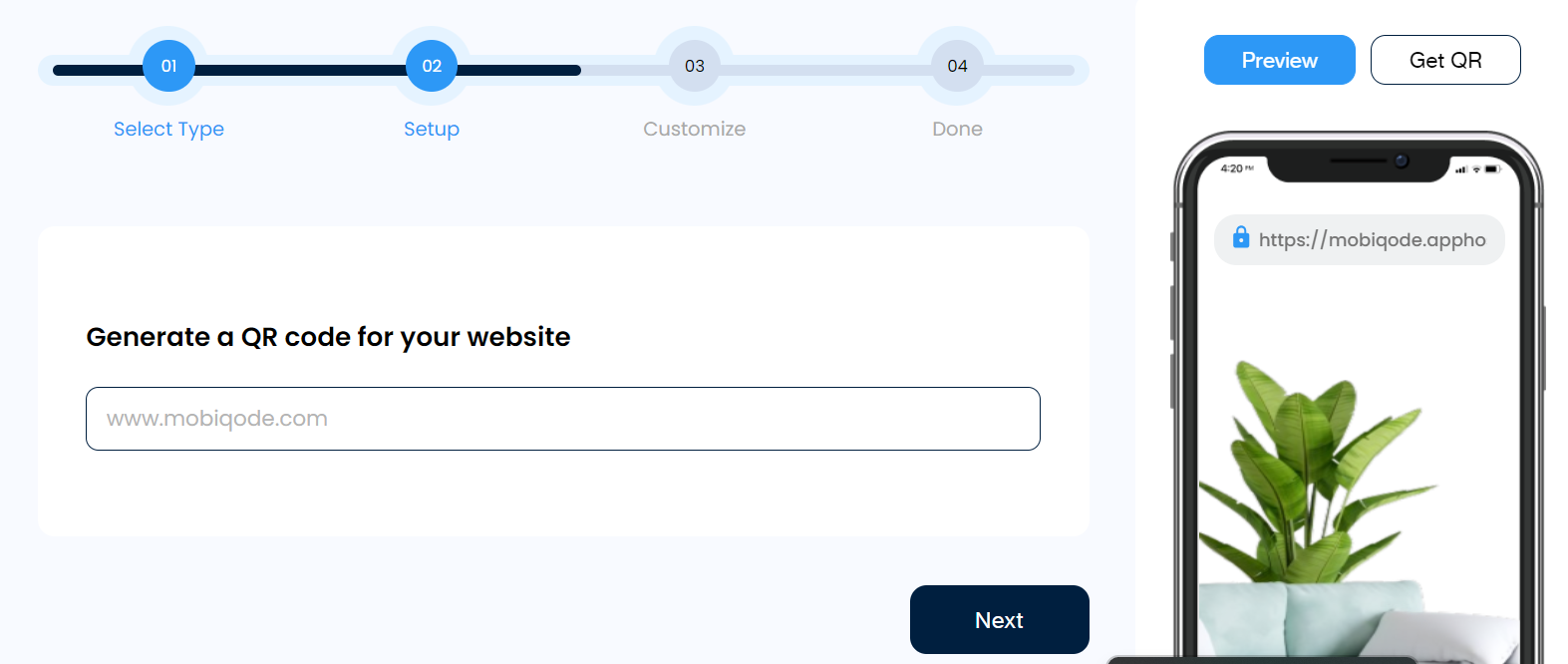
Link QR codes can quickly convert any URL into a QR code. Copy the site address from the address bar and paste it into the field under the website tab.
Creating a QR code for large PDFs:
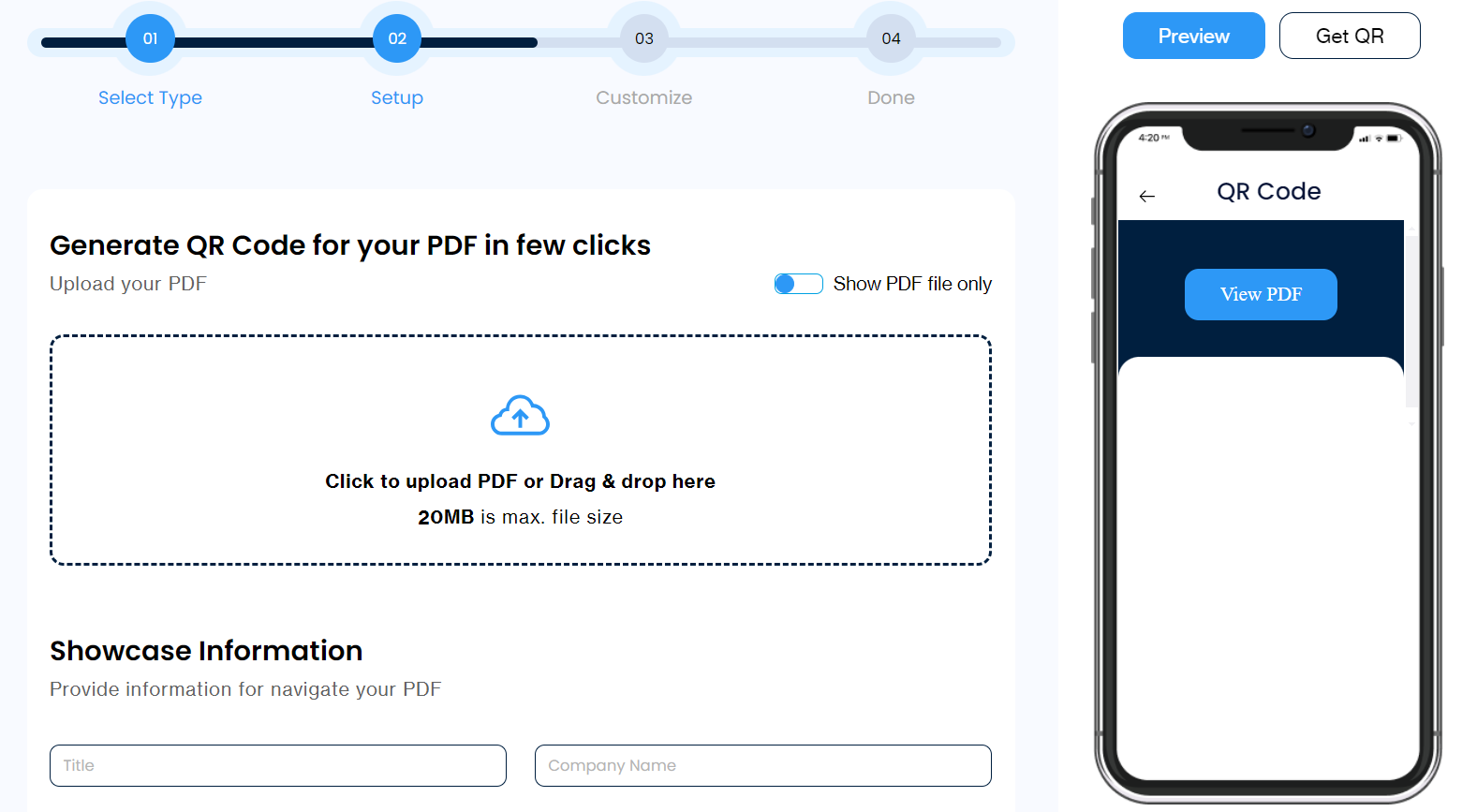
PDF QR codes let you upload PDFs, manuals, and large documents to generate QR codes for sharing files. Head to the PDF tab and upload the documents you want to share to generate your QR code.
Creating a QR code for social media pages:
You can instantly create and share QR codes for all your social media profiles. Click the social media tab, enter your account URLs, and you are done. A QR code will be generated within a few minutes for you to share. You can also personalize your QR code by choosing your desired color scheme and logo.
Apart from these, mobiQode supports many other data types. You can click the option that best suits your needs and proceed further to create QR codes.
Step 3: Customize Your QR Code
mobiQode lets you customize the design of your QR codes to fit your brand and needs. The QR code maker lets you design your QR codes with colors, logos, shapes, patterns, and frames so that every QR code generated is unique, tailored to meet your needs, and pleasing to the eyes.
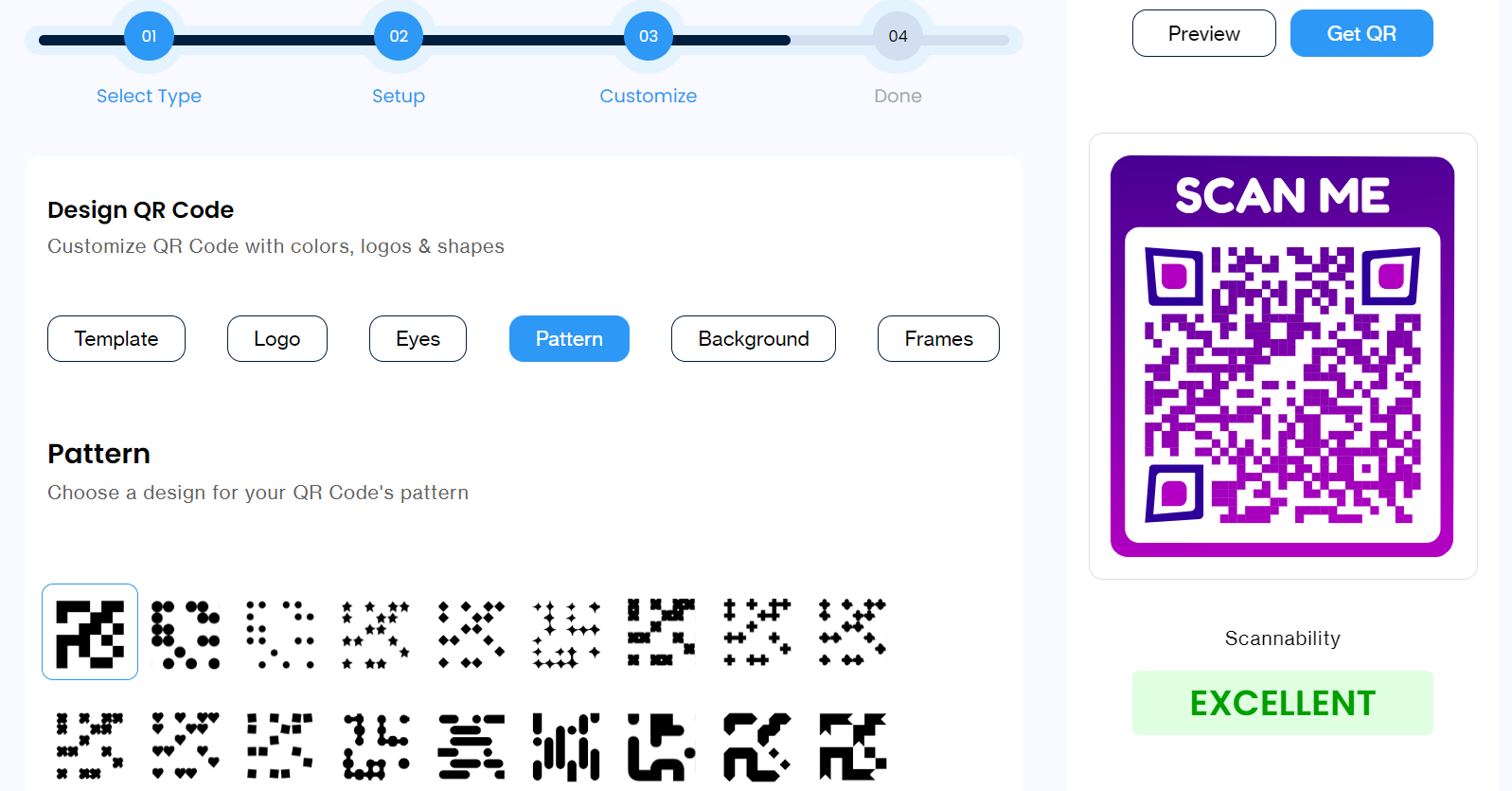
Or, if you don’t want to customize your QR code, you can skip this step and head to the next.
Step 4: Download Your QR Code
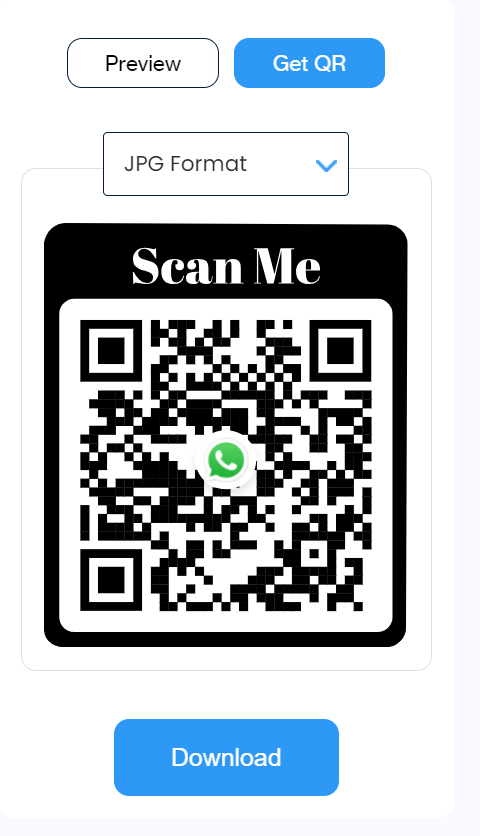
Select download after you have completed all your design changes. The downloaded image file is shareable and will be in JPG or PNG format.
Step 5: Start Sharing Your QR Code
Now that you have downloaded your customized QR code, it is time to share it with your target audience. Add your QR code strategically to marketing materials: lead magnets, whitepapers, print ads, website, social media, and email signatures.
How Do QR Codes Work?
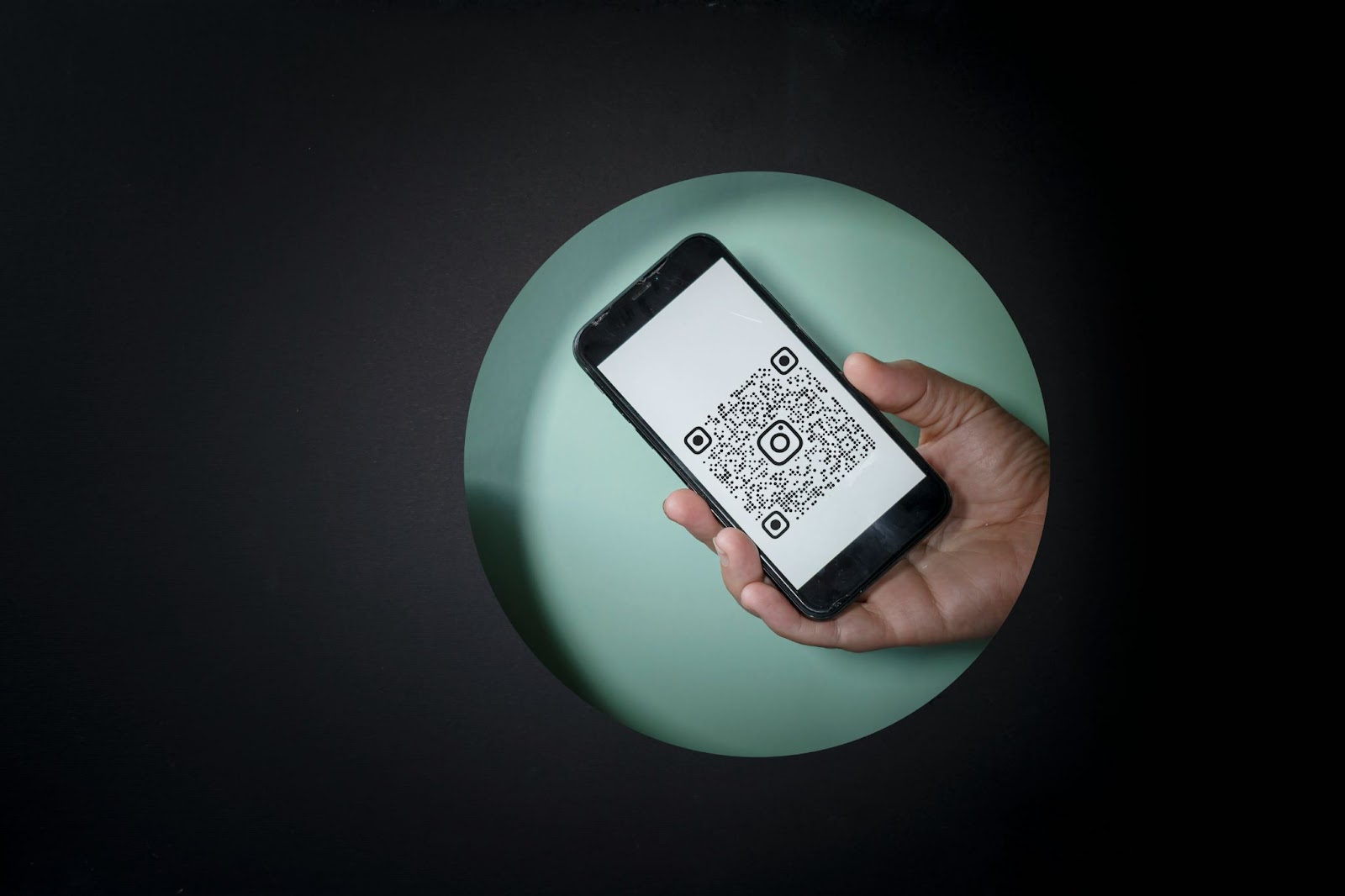
A QR code is a unique arrangement of black and white squares, like a crossword puzzle for your smartphone. Pointing your phone’s camera at a QR code quickly translates the pattern into meaningful information, such as a website link, restaurant menu, or digital business card.
QR codes consist of several parts: data (a grid of dots representing binary code), position markers (squares in the corners for orientation), a quiet zone (blank space for clarity), and optional logos. These codes reflect light in a pattern that an optical sensor reads and converts into electronic signals decoded by a processor.
QR codes store data such as web links, text, or images. Most camera apps on Android and iOS can scan QR codes, or you can also use a QR scanner app. When scanned, a QR reader deciphers the code, triggering an action, like opening a URL in the phone’s browser.
Types of QR Codes
There are two types of QR codes: Static and dynamic.
Static QR codes can only be modified by recreating and reprinting the code. They contain the actual information rather than a link. Static QR codes do not use URLs, and all the relevant information is encoded directly into the QR image. Static QR codes cannot be edited after printing and do not collect scan statistics.
Dynamic QR codes can be edited or updated without replacing the entire code. They contain a URL that redirects users to an online resource and allows tracking of various metrics. Dynamic QR codes utilize short URLs and can collect scan statistics (i.e.) details about the number of scans made, the geolocation, date, and time of each scan, and the details about the operating system used to make the scans.
Take a look at our detailed comparison of static vs dynamic QR codes.
Tips to Design Your QR Code for More Scans
Clear Call-to-Action
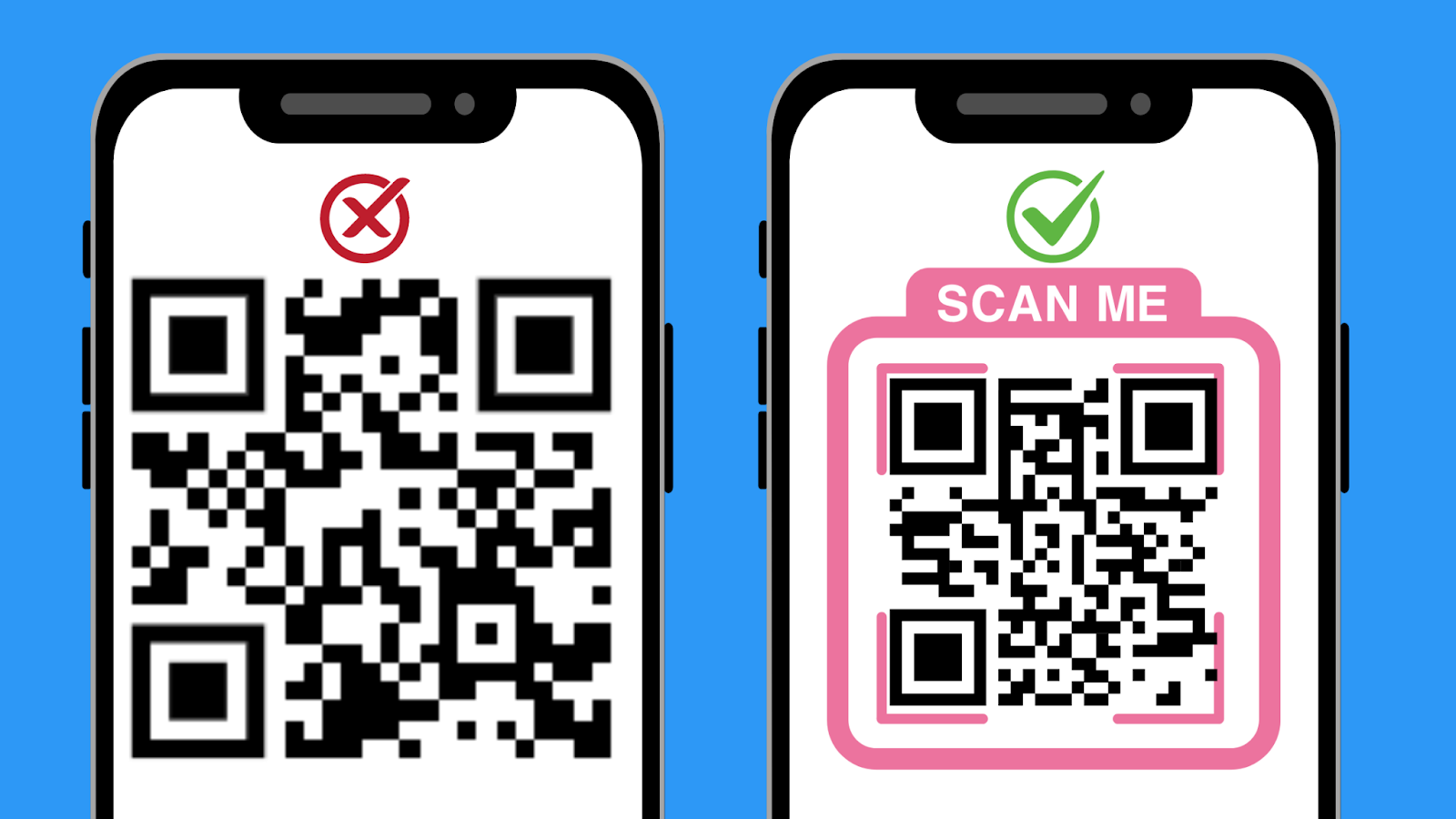
A QR code without any purpose hampers its usage heavily. Your audience will only know what to do with the QR code if you clearly state its purpose and benefits. A good call-to-action (CTA) for a QR code should be clear, concise, and directly related to the action you want the user to take.
Here are a few examples of good CTAs:
- Scan to Pay Securely
- Download Our App
- Unlock Your Discount
- Save Our Contact
- Register Now
Make it Visually Appealing
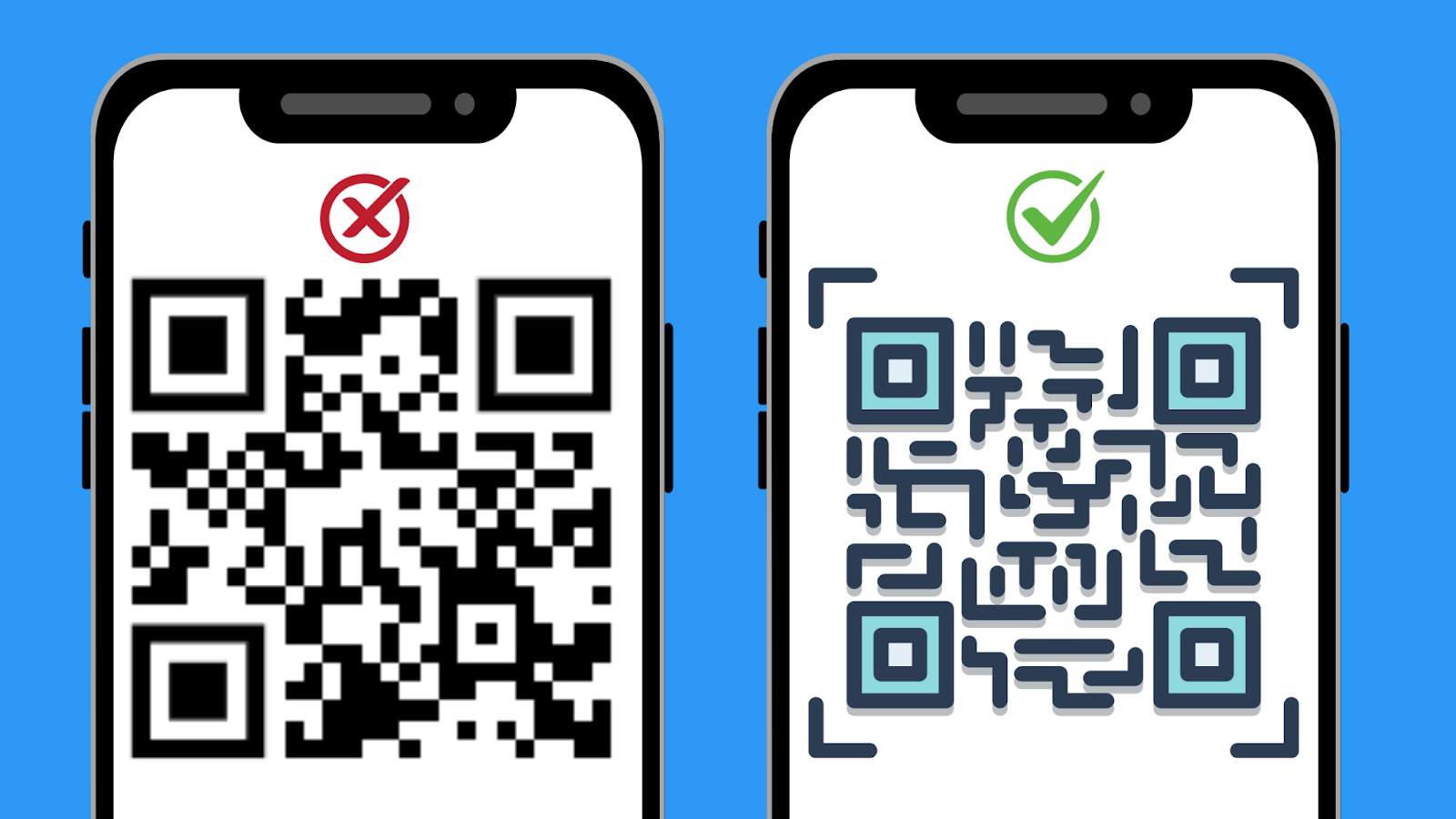
Today, standout marketing has become a crucial aspect for businesses. So, a plain black-and-white QR code may not match your brand aesthetic. So, using visually appealing colors to create QR codes keeps your brand’s look consistent and increases user engagement.
For example, a fashion brand could use pastel colors in its QR codes to match its soft and elegant image, ensuring its QR codes blend seamlessly with its marketing materials while maintaining brand consistency and improving user interaction.
Add Incentives and Benefits
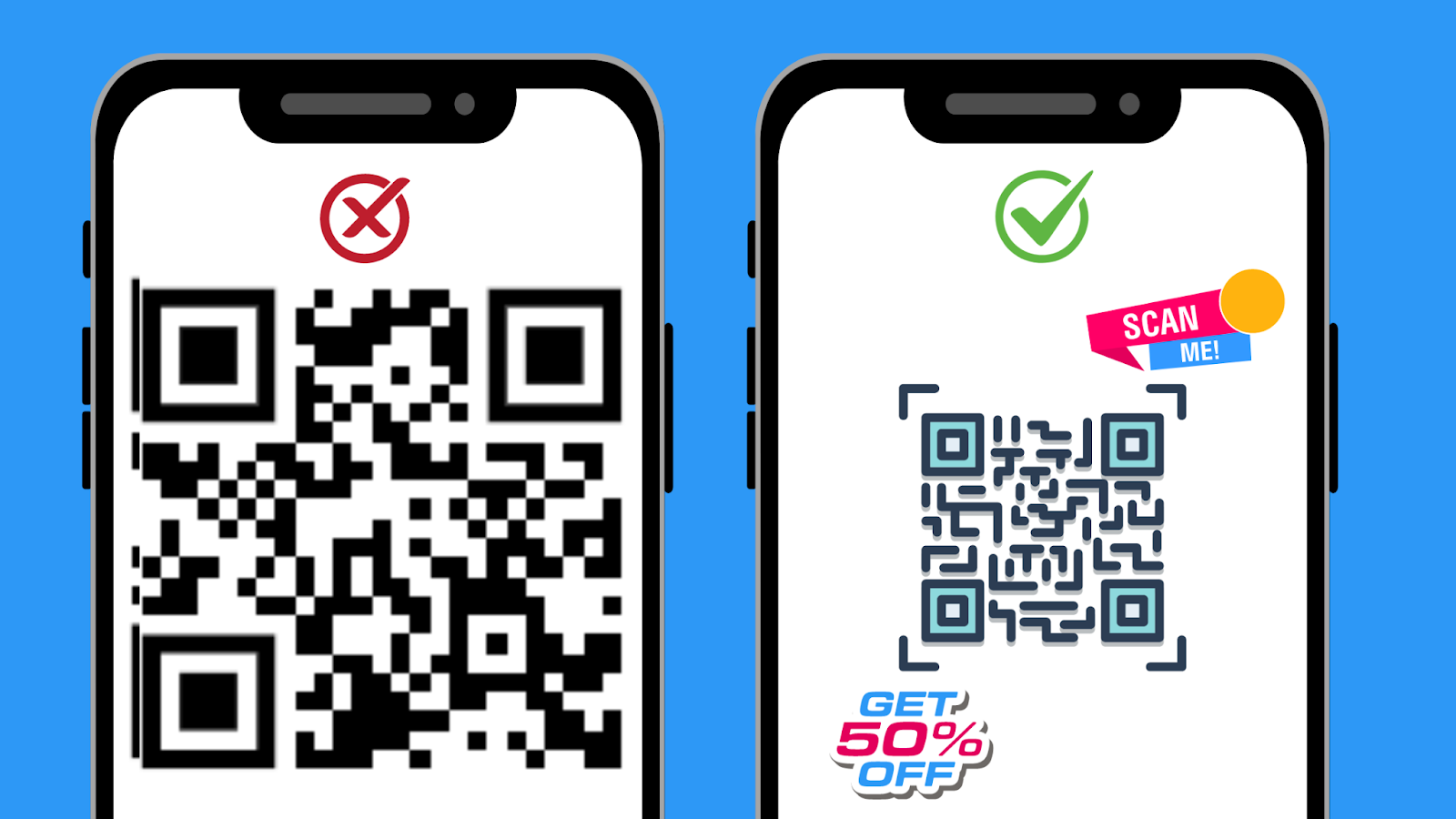
To increase QR code scans, offer your audience valuable incentives such as discounts, loyalty points, or free eBook downloads. By providing tangible benefits, you create a strong motivation for users to interact with your QR codes.
For example, a restaurant might offer a 10% discount on the next meal when you scan a QR code on the receipt, or a retailer could provide exclusive access to a limited-time sale.
Additionally, loyalty programs that reward points for each scan can develop long-term customer engagement. These strategies boost the number of scans and enhance user experience and satisfaction.
Shape the Code
Choose from the different patterns to represent the black and white squares in the code. It helps differentiate from the competitors.
Optimise the Size
Ensure that the QR code being designed is specific to the industry-specific use with respect to size. The minimum size depends on factors like scanning distance, the printing location, and other factors.
Include a Logo
Add the company logo to keep the code brand aligned, trustworthy, and reliable. However, place the logo only at the centre and keep solid colours behind the logo.
Maintain the Quiet Zone
The quiet zone refers to the blank margin around the QR code. It eases the scannability of the code. Hence, use solid colours and avoid any designs in this space.
How to Use a QR Code Correctly
Using QR codes effectively involves strategic placement, ensuring mobile optimization, and providing clear instructions.
Here are some best practices to ensure your QR codes are used efficiently:
Strategic Placement
Position your QR codes in areas where people can scan them, such as on product packaging, flyers, posters, newspaper ads, or menus. Avoid placing them in difficult or unsafe locations to scan, like moving vehicles or short TV ads.
Optimize for Mobile Devices
Ensure the destination page is mobile-friendly. Since users will scan the code with their phones, the landing page should be optimized for a seamless mobile experience, including quick load times and easy navigation.
Use it with Purpose
A QR code can become a good marketing tool only if it serves a concrete purpose. For instance, a restaurant can use a QR code on their menu, allowing customers to quickly access detailed descriptions of each dish, view nutritional information, and even place their order directly from their smartphones. It can make the dining experience smoother and more convenient.
Test Across Devices
Make sure various devices and apps can scan your QR code. Test it with different QR code readers to ensure compatibility and ease of use.
Ensure Readability
Your QR code should be large enough and have sufficient contrast against the background to be easily scanned. Avoid placing it on highly patterned backgrounds that could interfere with scanning.
Track and Analyze Performance
Use tracking tools to monitor the performance of your QR codes. Analyzing metrics such as scan rates, user engagement, and conversion rates will help you understand their effectiveness and make necessary adjustments.
QR Codes vs Barcodes
Barcodes and QR codes are machine-readable codes that store data but differ significantly in structure and functionality.
Barcodes
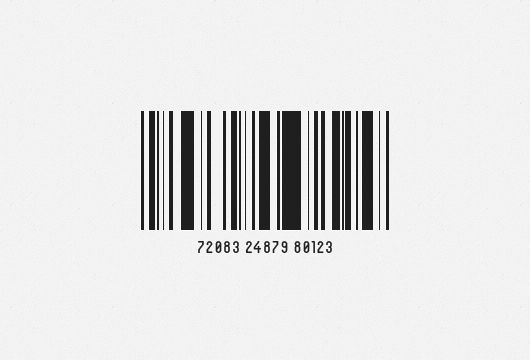
Barcodes have a series of parallel black and white lines of varying widths and spacings, usually accompanied by numbers printed below. These lines represent different data, such as product type, size, and color, and are primarily used for product identification and inventory tracking.
Barcodes come in two types: linear (1D), which stores data horizontally, and two-dimensional (2D), which stores data horizontally and vertically. However, barcodes have limitations, including a lower data capacity and vulnerability to damage, which can render them unreadable.
QR Codes

QR codes are two-dimensional barcodes of black and white squares arranged in a grid pattern. They can store more data than traditional barcodes, including URLs, text, and multimedia files. QR codes are designed to be scanned using a camera, making them easily accessible via smartphones and other mobile devices. They feature higher data redundancy, allowing them to remain scannable even if up to 30% of the code is damaged.
QR codes offer enhanced security with encryption capabilities and can be scanned from any angle or orientation. These features make QR codes more versatile and robust for various applications, including marketing, payment systems, and inventory management.
QR Code Best Practices
Avoid Overcrowding
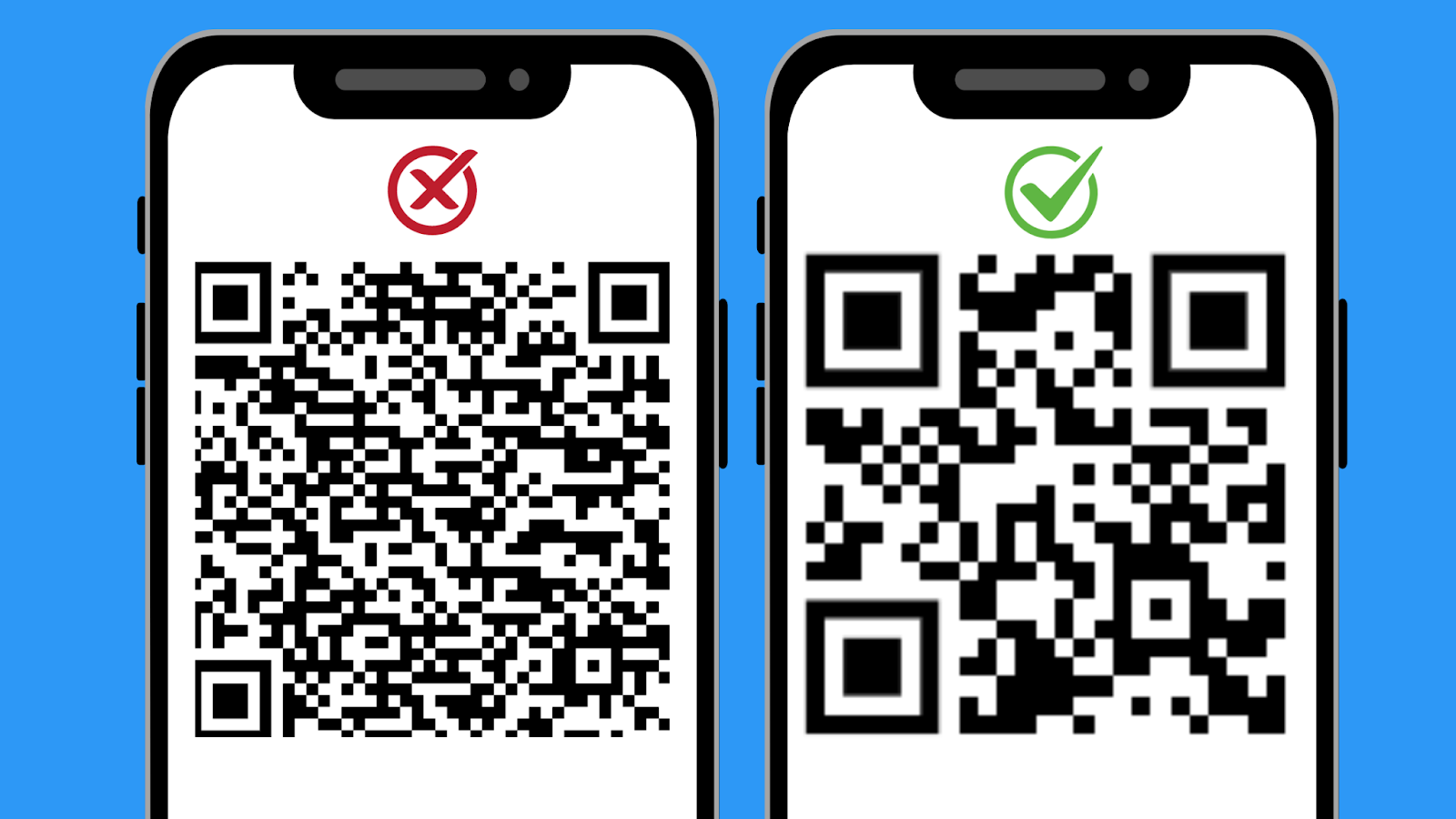
While designing your QR code, remember to keep it simple and neat. Do not clutter the QR code with too many design elements or text. Also, the visual noise around the QR code should be reduced to make it easily scannable.
Ensure There Are No Expired QR Codes
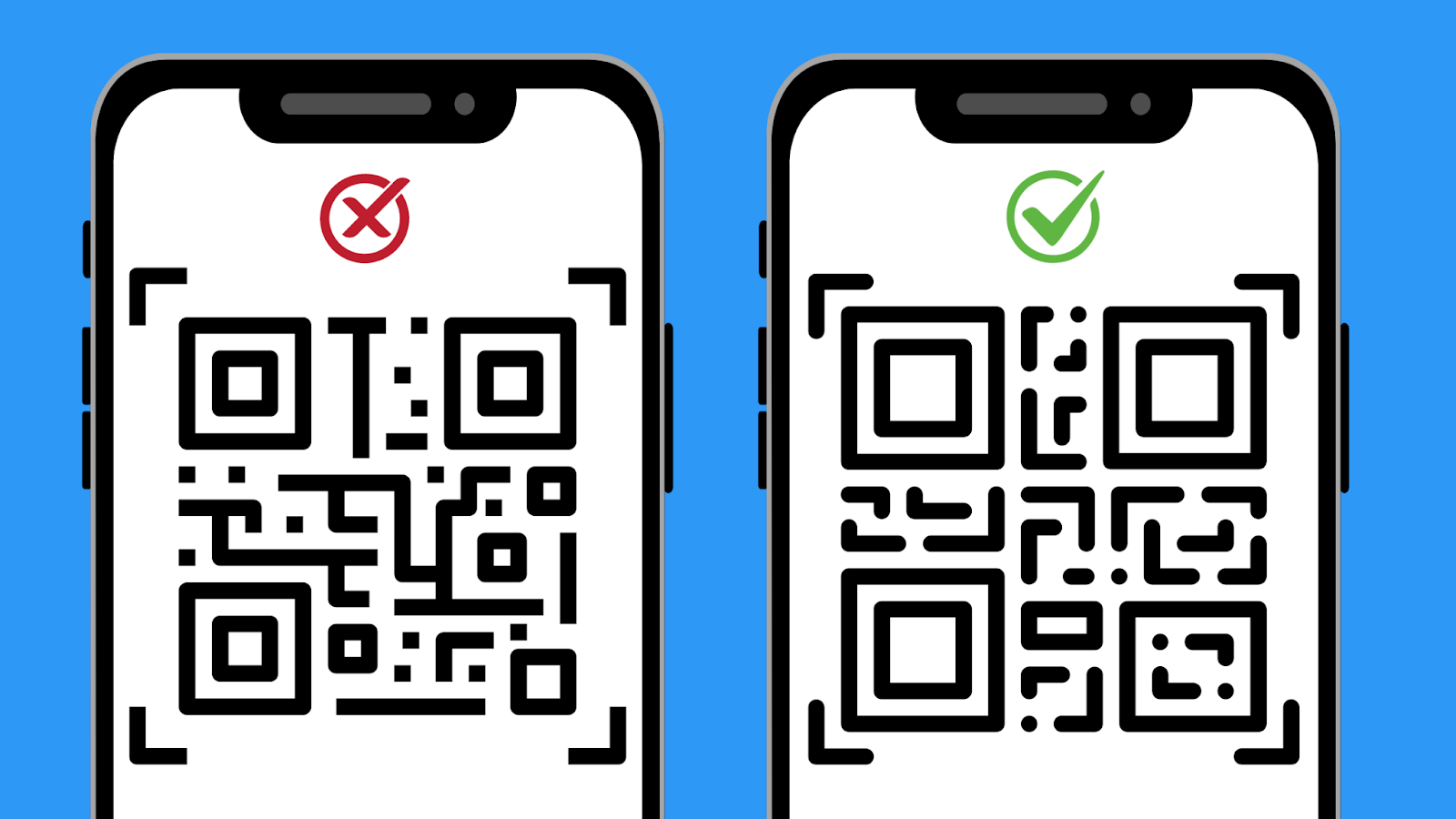
Regularly check your QR codes to ensure they still work and lead to the right place. Expired QR codes can frustrate users and harm your brand’s image. For printed materials that stay in circulation for a while, consider using a QR code management platform that lets you update the URL without changing the code.
If you use a low-quality free QR code generator, then there are chances that your QR code might expire and you may not be aware of it. So, consider using high-quality, reliable QR code makers like mobiQode.
Avoid QR Codes with Broken Links
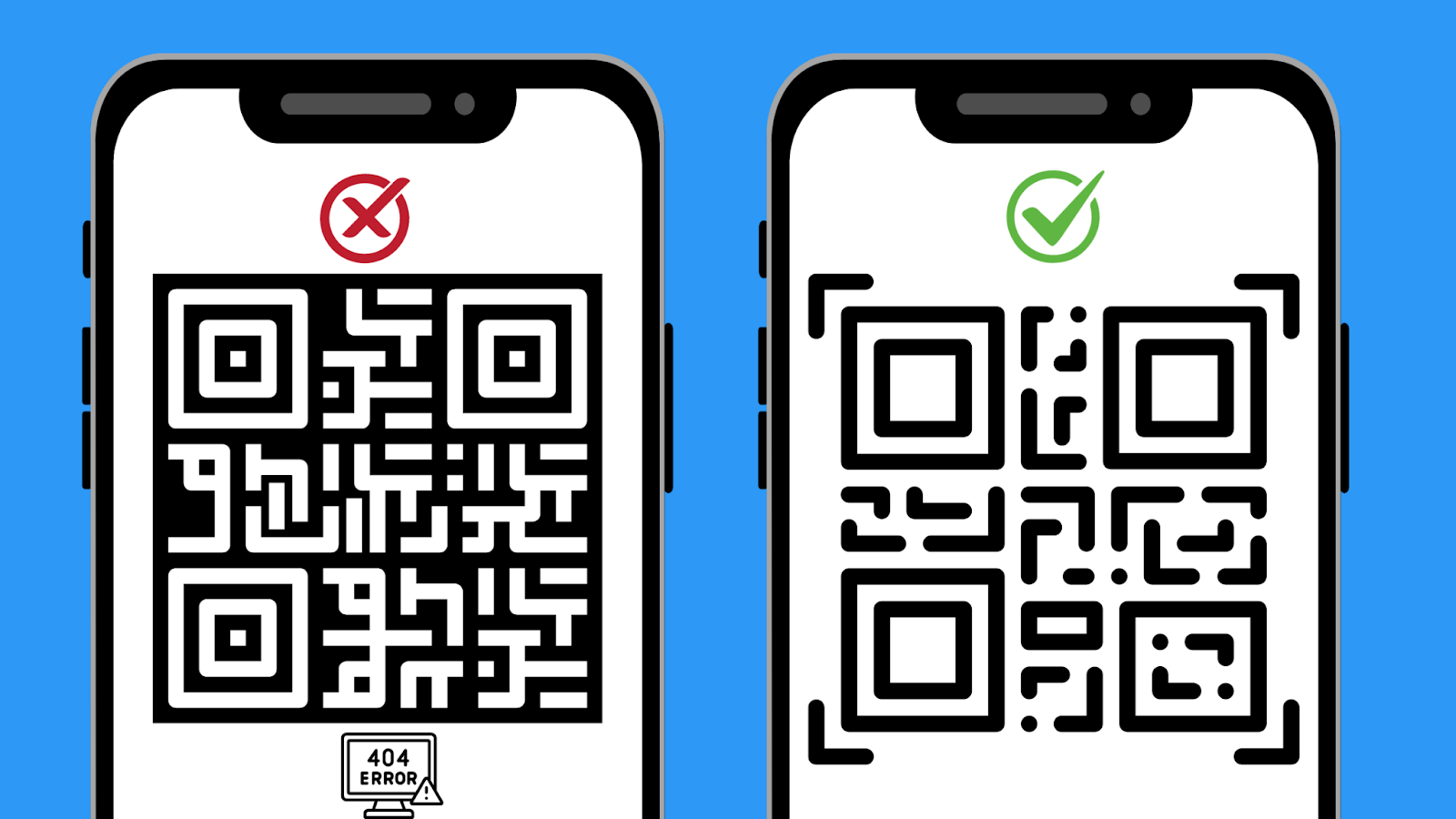
To keep user trust and campaign effectiveness high, avoiding QR codes with broken links is essential. Regularly test your QR codes by scanning them with different devices to ensure they work correctly.
For long-running campaigns, use dynamic QR codes to update content without altering the code, preventing broken links if URLs change. Establish regular checks, especially before major events or marketing efforts, to quickly identify and fix broken links.
Remember, an expired or broken QR code can frustrate users and harm your brand’s reputation more than not using one.
Conclusion
Creating a QR code is a quick and easy process involving a few steps. The generated QR codes can be easily customised to make them product, industry, and use specific. These can be designed by including thoughtful elements and adding the CTA.
For all the individuals and professionals looking to generate the QR code safely and securely, mobiQode is right here for you. Capable of generating high-resolution and dynamic QR codes, there are so many interesting options waiting to be explored.
Create Your Custom QR Code in Under 2 Minutes
Start Free Trial →14-Day Free Trial · Plans from $5/mo · No Credit Card Required
QR codes are the bridge between the physical and digital world. We’re making it simple for everyone to create, share, and connect.
Founder, mobiQode
Frequently Asked Questions
Where should businesses place their QR codes to increase scan rates?
Placing the QR code on product packages, business cards, posters and flyers, storefronts, email footers, tabletops, and other such areas can increase scan rates.
Which industries use QR codes?
QR codes are used in industries like retail, healthcare, real estate, restaurants, hospitality, education, events, and others.
How to ensure the generated QR code works properly?
The generated QR code will work properly by avoiding:
- Wrong size
- Low contrast
- Broken link
- Poor quality
- Over-customisation
- Expired code
Do QR codes necessarily require the internet to access the information?
The QR codes will require an internet connection if they are linked to online content such as websites, uploaded videos, and others. For the QR codes with simple information like text, contact, and Wi-Fi credentials, the internet connection is not mandatory.