Never generated a QR code before? We’re here to help. In this guide, we explore what Google Drive QR codes are, how to generate one, and all the use cases you need to know.
Create Google Drive QR Codes With mobiQode
Start Free Trial →What Is a Google Drive QR Code?
A Google Drive QR code encodes information linked to a specific file or folder on Google’s cloud storage service. Once scanned, it quickly directs users to the associated content without needing to search or type a URL manually.
This technology streamlines file sharing and access, especially for collaborative work or distributing documents. Creating a QR code for your Google Drive folder comes with several key benefits:
- Instant access to required files on both web and mobile devices
- Instant file sharing with stakeholders such as colleagues and clients
- Fewer errors from manually typing complex Google Drive folder paths
- Unique QR codes to organise and distinguish multiple folders
How to Generate a QR Code for a Google Drive Folder
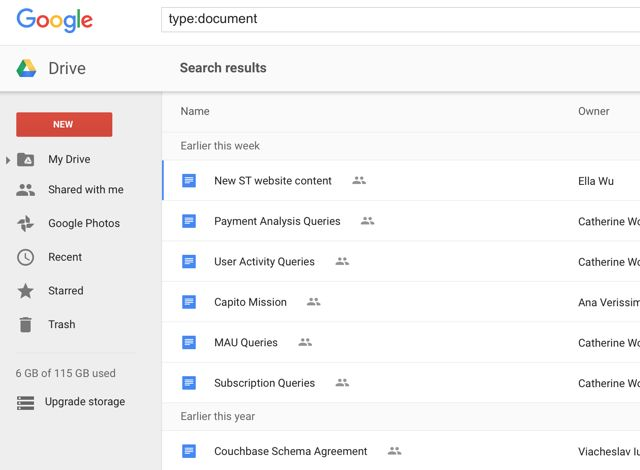
Step 1: Select Your Google Drive File
Log in to your Google Drive and select the file or folder you want to share.
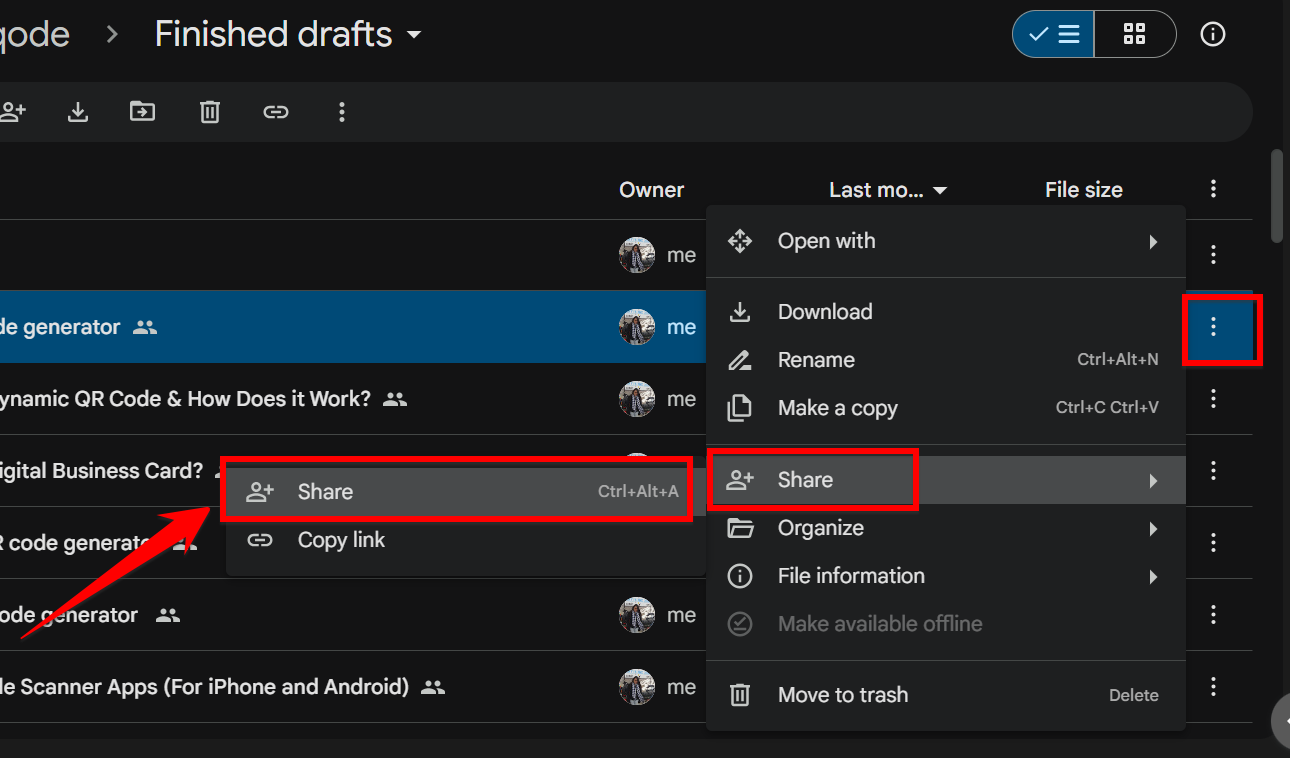
Step 2: Open the Share Menu
Click the three dots (or right-click on the folder) and select Share from the drop-down menu.
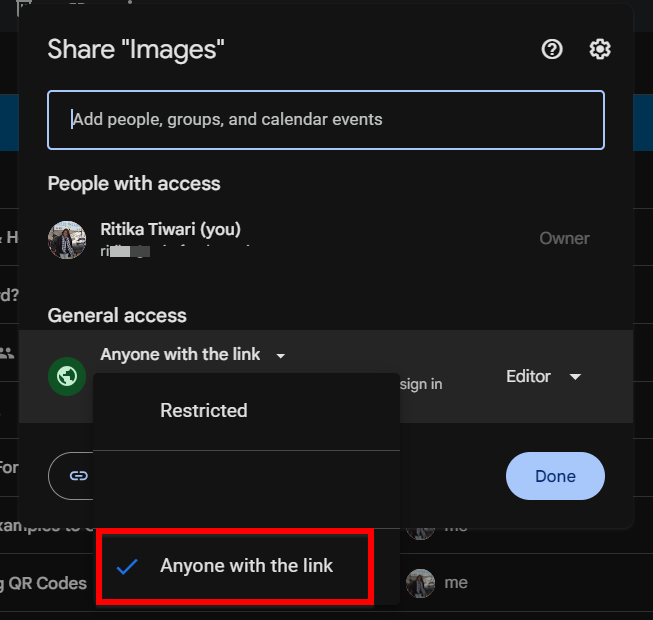
Step 3: Set Access to “Anyone with the Link”
In the pop-up box, go to General access and select “Anyone with the link.”
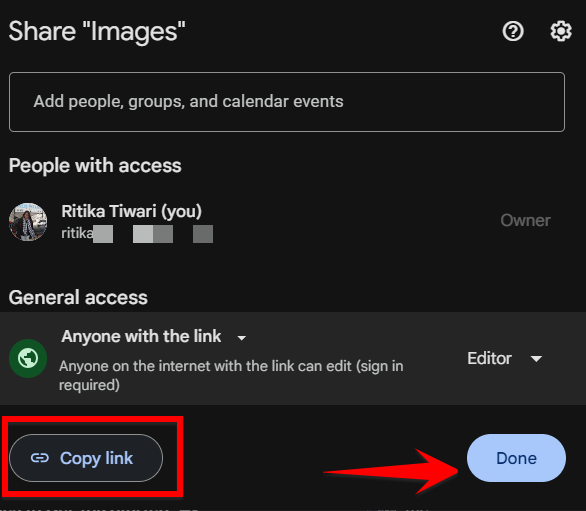
Step 4: Copy the Sharing Link
Once the access is set, click Copy Link.
Step 5: Log In to mobiQode and Create a QR Code
Sign in to mobiQode’s dashboard and click Create QR Code.
Step 6: Select the Website QR Code Type
Since you are creating a link QR code, select the Website option on the tool.
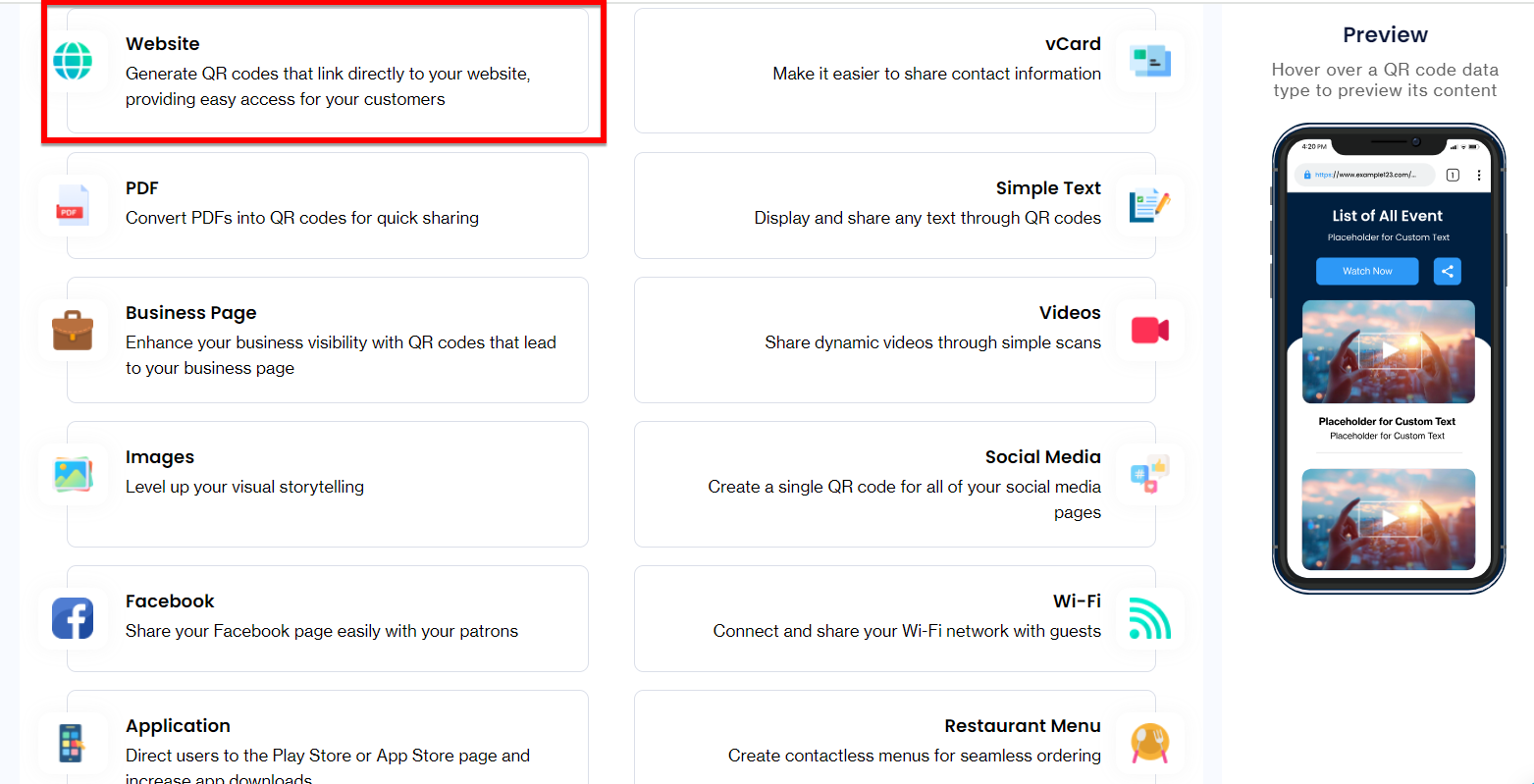
Note: mobiQode specializes in creating dynamic QR codes, so you can edit them anytime even after they have been generated.
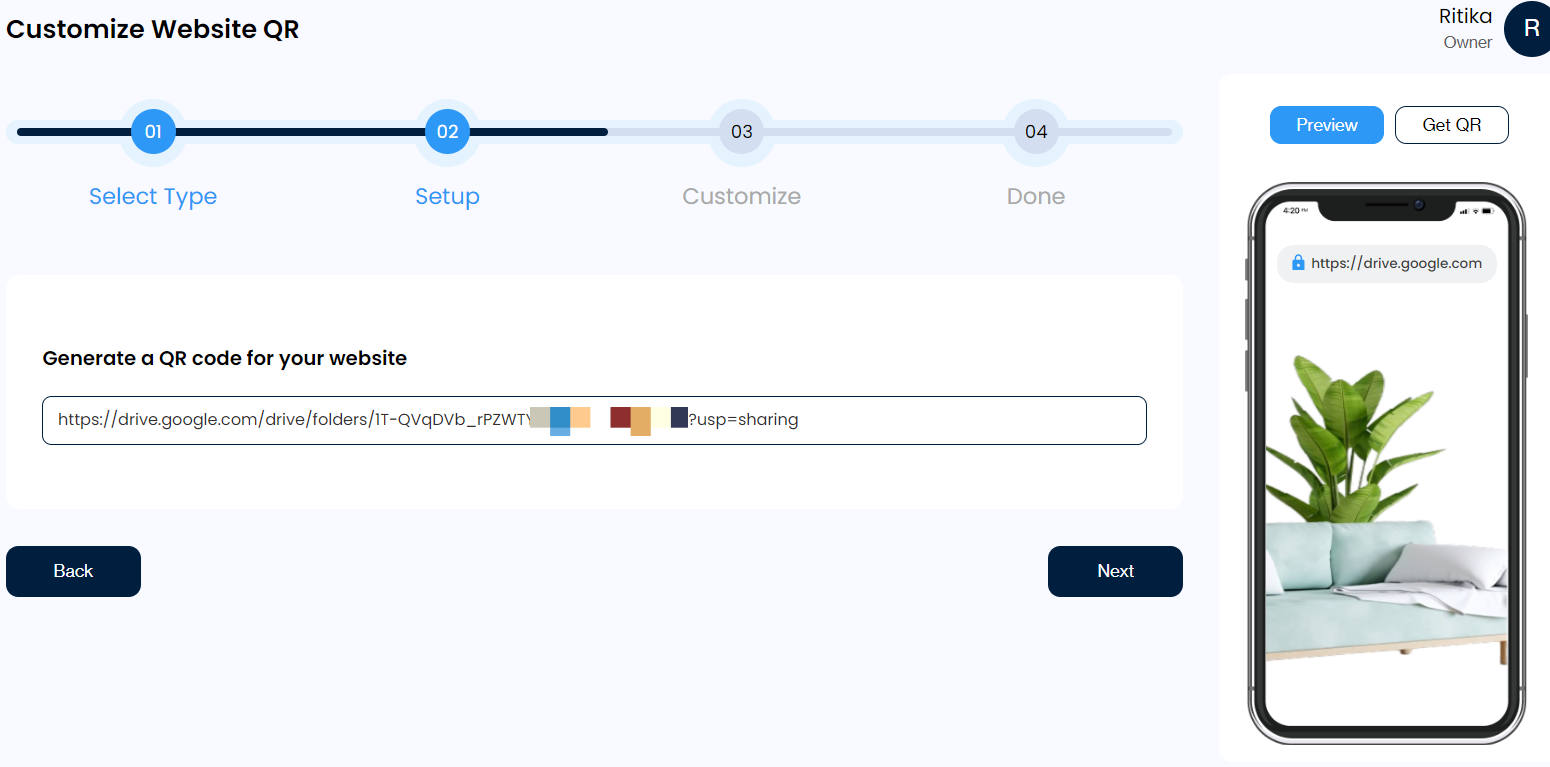
Step 7: Paste Your Google Drive Link
Paste your Google Drive sharing link into the URL field and click Next.
Step 8: Customize Your QR Code
Choose from various designs, colors, and patterns for your Google Drive QR code to match your brand.
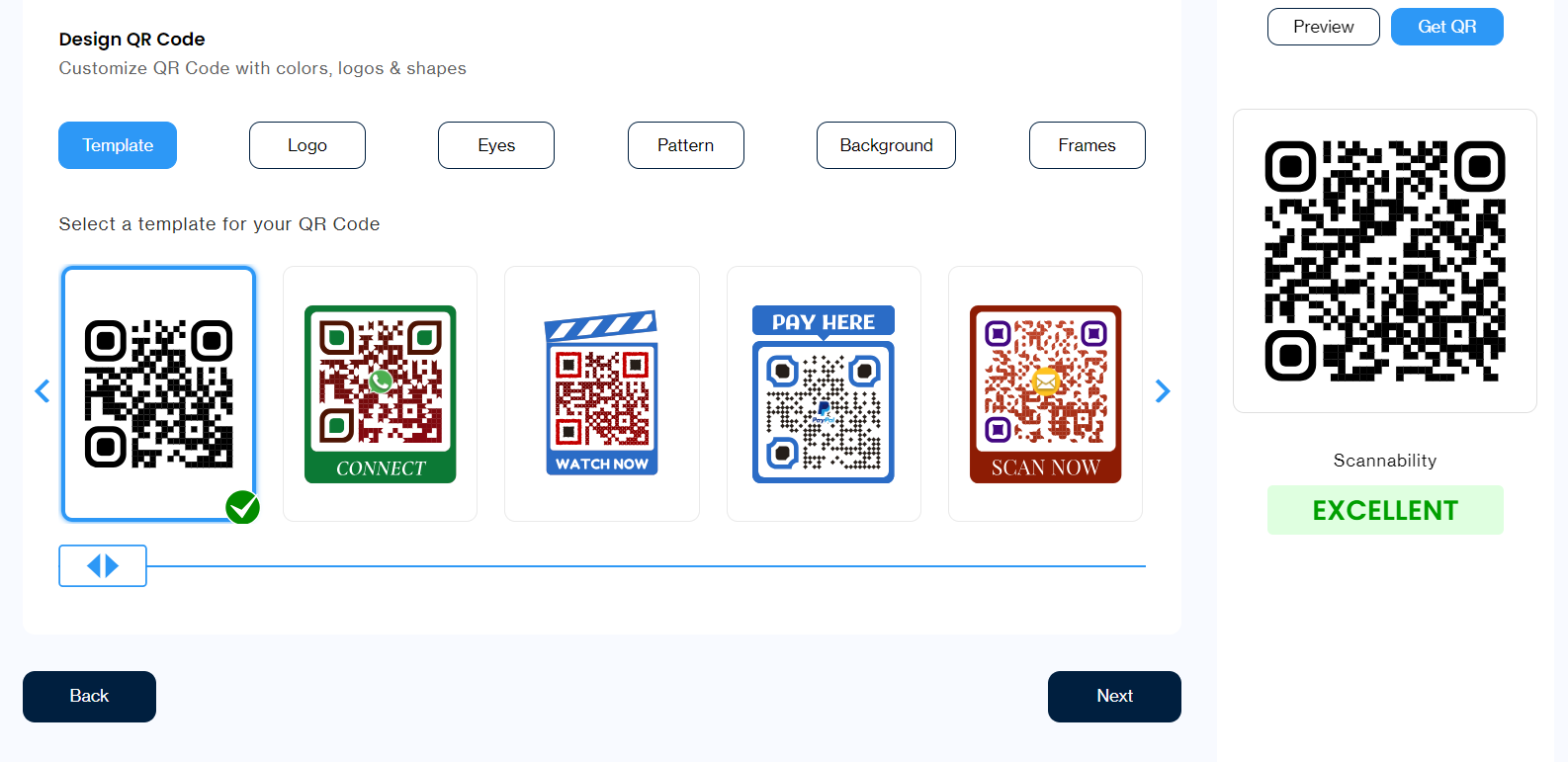
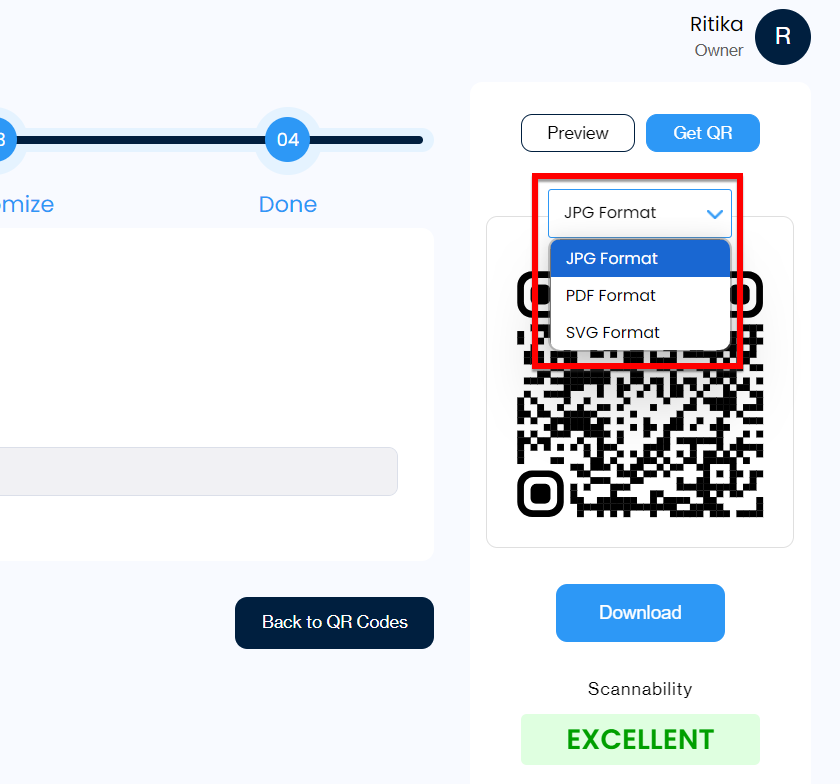
Step 9: Download Your QR Code
Click Download and choose your preferred file format — JPG, SVG, or PNG. Before sending the QR code to clients, test it on various phones. Make sure it is not a blurry QR code — use a QR code scanner app to verify.
Use Cases for Google Drive QR Codes
Generate a QR Code for a Google Form
By generating a code for your Google Form, you create an instant access point for respondents. Place these codes on event posters or flyers, conference badges, digital displays in high-traffic areas, and social media posts. Participants scan and open the form immediately, leading to higher response rates and faster data collection — ideal for event feedback, customer surveys, or quick polls.
Create a QR Code for a Google Doc
Use QR codes on business cards to link to your resume, or in presentations to provide access to supplementary materials. Attendees can scan and view the document instantly, eliminating printed handouts. QR codes for Google Docs also streamline sharing in educational settings — class notes, syllabi, product manuals, or guides — while ensuring everyone always accesses the most up-to-date version.
Make a QR Code for a Google Sheet
Create QR codes for project trackers, event schedules, or inventory lists. Team members scan to view real-time updates, ensuring everyone works with the latest information — useful for project timelines, event itineraries, inventory tracking, and real-time budget updates.
Google Drive File Types You Can Create QR Codes For
QR codes can be generated for various Google Drive file types, enabling quick access across different use cases:
📝 Google Docs
Share documents, notes, and instructions instantly. Recipients access the content without typing a URL or downloading anything.
📊 Google Sheets
Share real-time data — project trackers, budget estimates, and inventory lists. Users always see the most current figures.
📑 Google Slides
Make presentations instantly accessible at conferences, training sessions, or educational events without manual sharing.
📋 Google Forms
Simplify data collection for polls, registrations, or feedback. QR codes remove friction and improve response rates.
📁 Folders & Shared Drives
Give access to an entire collection of documents in one scan. No more searching through directories or sharing multiple links.
Conclusion
Google Drive QR codes offer a practical approach to document and folder sharing — eliminating the need for manual URL entry, reducing sharing errors, and making files accessible from both print and digital materials. Dynamic QR codes add flexibility by letting you update the destination link even after the code is printed, and built-in tracking shows how and where users are accessing your files. With mobiQode, you can generate, customize, and manage Google Drive QR codes for any file type in minutes.
QR codes for Google Drive take file sharing from clunky to seamless. One scan, instant access — no more hunting through emails for links.
Founder, mobiQode
Create QR Codes for Google Drive, Docs & Sheets
Start Free Trial →14-Day Free Trial · Plans from $5/mo · No Credit Card Required
Frequently Asked Questions
How do I create a QR code for a Google Drive file?
In Google Drive, open the file’s sharing settings and copy the shareable link. Log in to mobiQode, select the Website QR code type, paste the link, customize the design, and download the code.
Can I create a QR code for a Google Drive folder?
Yes. The process is identical to creating one for a file — open the folder’s sharing settings, set access to “Anyone with the link,” copy the URL, and paste it into mobiQode’s QR code generator.
Do I need to make the file public to share it via QR code?
The file does not need to be fully public. Set the access to “Anyone with the link” in Google Drive’s sharing settings — this allows people who scan the QR code to view the content without requiring a Google account login.
Can I update the destination after the QR code is printed?
Yes, with a dynamic QR code from mobiQode. You can update the destination link from your dashboard at any time — the printed QR code continues working and directs users to the updated file or folder.
Can I track who scanned the QR code?
Dynamic QR codes track scan data including total scans, device type, and approximate location. Individual user identity is not tracked by default — the data remains anonymous unless the linked destination collects user information directly.