Create your digital business card — starting free
Start Free 14-Day Trial →Video – How to create a Digital Business card
A well-designed digital business card is essential for maximizing your networking potential. When your digital business card looks fantastic, it establishes a solid first impression, encourages prolonged engagement, and improves connections with your audience.
Creating a sleek and efficient business card is much easier than you think. All you need to do is to follow these 4 easy steps.
What is a digital business card?
The purpose of a digital business cards is simple: to help you connect with potential clients, co-workers, and partners and create a healthy professional rapport.
They can include basic contact details like phone numbers and email addresses and links to your social media profiles, websites, portfolios, and other relevant resources. These eco-friendly cards can be easily updated, ensuring that your contacts always have access to your most current information.
With Mobiqode, your digital card uses a dynamic QR codes that’s editable anytime. You can update your details, links, or design without changing the QR code, keeping all details always current.
Mobiqode cards also support interactive landing pages with CTAs, social links, and even two-way contact forms–making your card as engaging as it is shareable. Plus, you get built-in analytics to see how people interact with your card, who scanned it, how often, and from where. This helps you track engagement in real time.All free business cards you make on Mobiqode are accessible across all devices and can even be saved to Apple Wallet for quick, one-tap sharing whenever you need. They streamline your networking efforts by showcasing everything about you and your business.
Five steps to create a digital business card
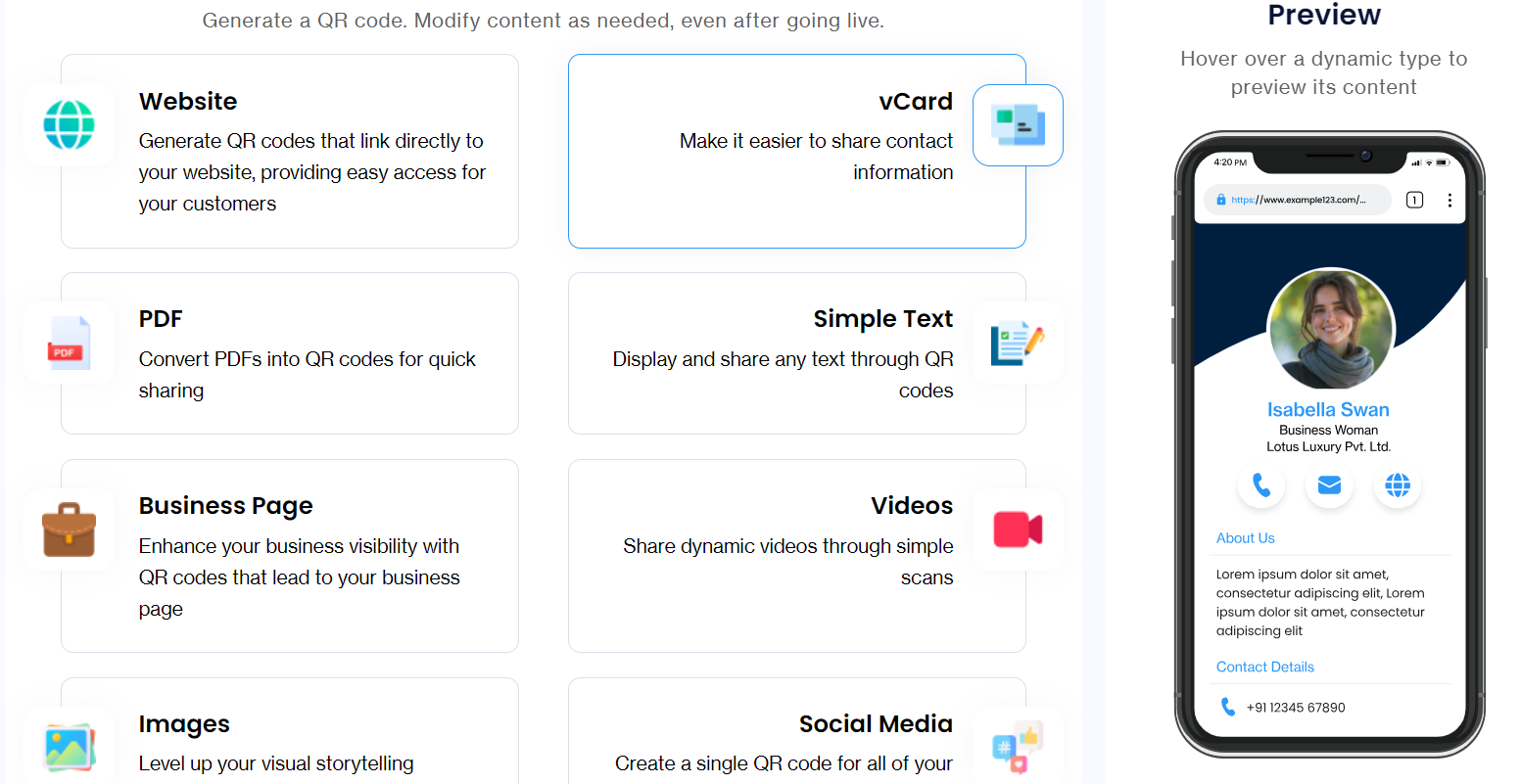
Open mobiqode, click on vcard or Digital Business card and then Sign up and choose a digital business card template
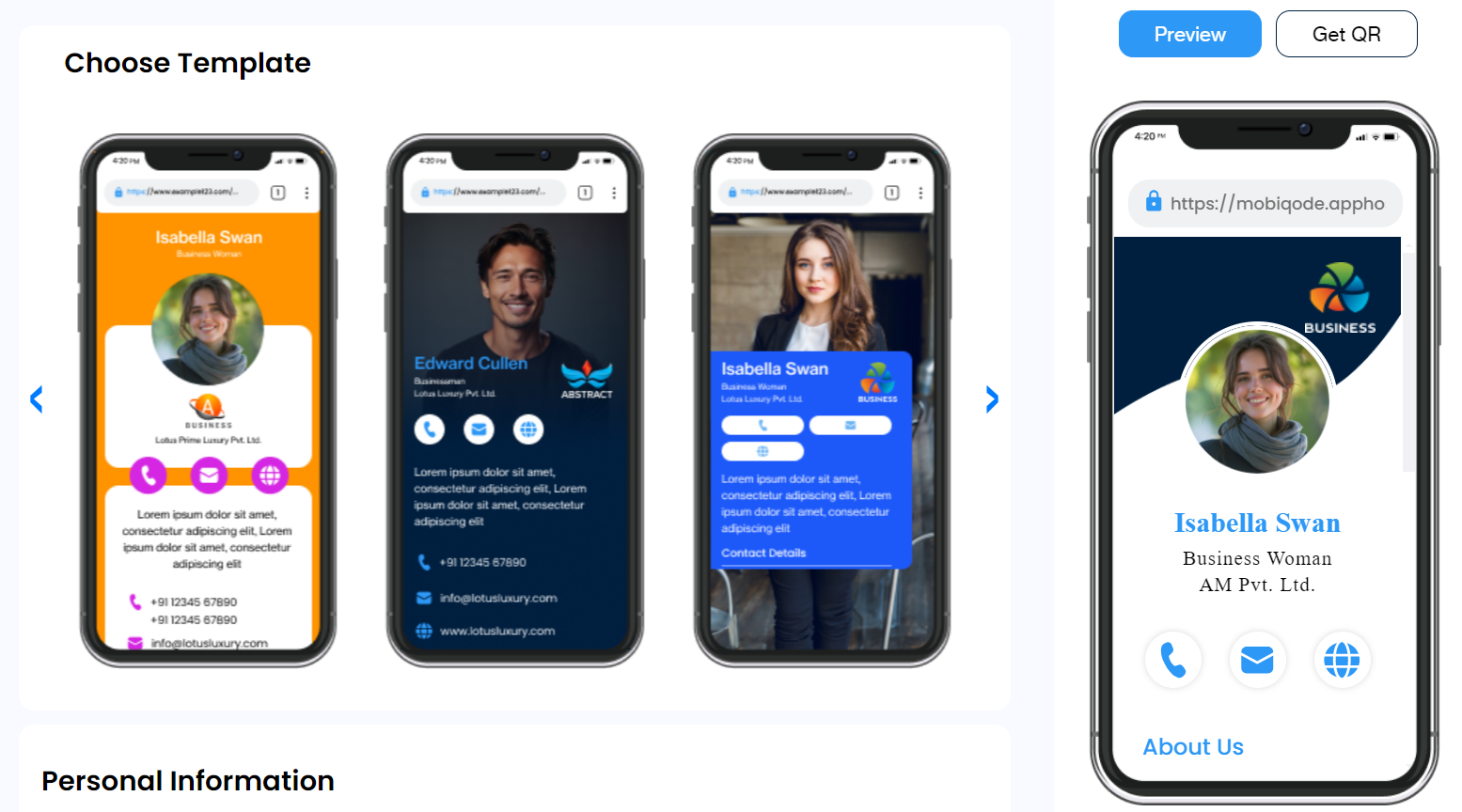
Open Mobiqode’s digital business card generator by clicking on vcard or Digital Business card and sign up to get started. You’ll find a wide range of templates to choose from, each made for specific professions like freelancers, marketers, realtors, designers, and more.
All of the digital business card templates are fully customizable, letting you adjust colors, layouts, and fonts to match your personal or business style. You can also choose to start from scratch and build your card entirely your way.
Add and customize your info
Once you’ve picked a design, start adding your professional details like name, photo, company name, job title, logo, and a short bio. Then, move to the contact section and fill in your phone number, website, email address, and location. You can also link your social media handles or even embed another QR code to make it easy for people to connect with you.
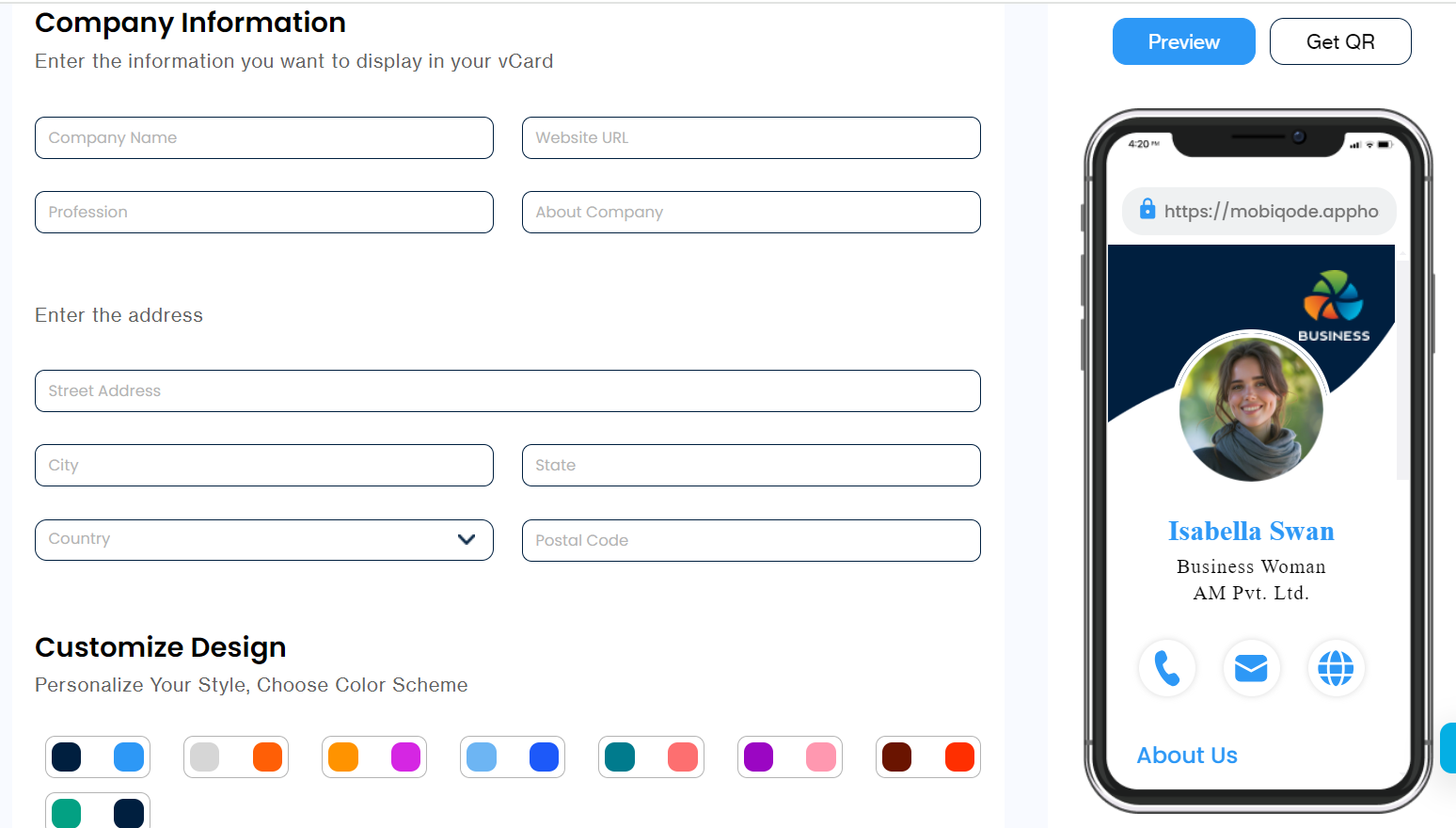
mobiQode lets you take this even further. You can add interactive fields like social media buttons and CTA buttons such as ‘Book a Call’ or ‘Visit Website.’ You can also embed a short intro video or portfolio preview to make your card more engaging and personal.
Finally, ensure to add a two-way contact form so prospects can reach out to you directly—perfect for capturing leads without extra tools. You must also rest assured that Mobiqode is fully GDPR-compliant, ensuring your data is securely stored and protected at all times.
Design for brand consistency
Now that you have selected/created a template, it is time to fill in all your relevant information. You can head to the ‘Profile Information’ section and fill in all the necessary information, like:
- Your name
- A professional headshot of yours
- Your company name
- Your professional designation
- Your logo
- A brief professional bio
You can use Mobiqode’s color picker to match your exact brand palette and maintain visual consistency. Choose from curated font and layout presets designed to suit modern brands.
Pro tip: Stick with clean fonts like Helvetica or Arial and use subtle, brand-aligned colors for a sleek and professional look.
Generate and preview your dynamic QR code
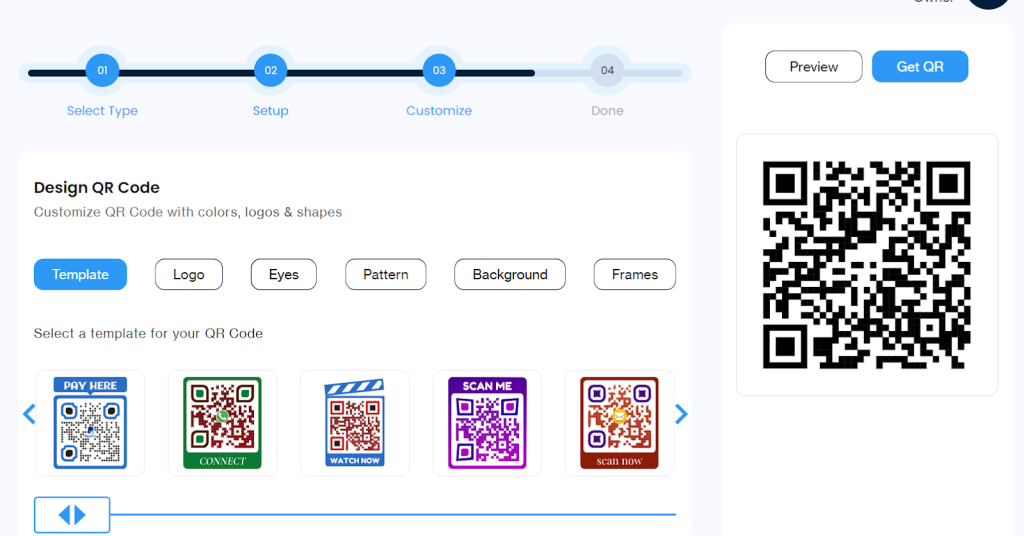
Once your card looks perfect, it’s time to generate your dynamic QR code.
A dynamic QR allows you to update your card’s information anytime without needing to reprint or recreate a new code. Unlike static QR codes, Mobiqode’s dynamic QR automatically reflects any edits you make (whether it’s updating your phone number, adding a new link, or changing your role). This makes it ideal for professionals who frequently update their profiles or portfolios.
Preview your card and QR to ensure everything looks sharp before sharing.
Share and track performance
Now, you’re ready to share your card. You can share it via QR scan, Apple Wallet, or a direct link.
Add your QR code to your email signature, resume, product packaging, social bios, or event booths for quick scanning and instant access.
Mobiqode also helps you track your card’s performance. You can view scans, clicks, and form submissions directly in your analytics dashboard. For deeper insights, you can even integrate with Google Analytics using UTM tracking to understand where your leads are coming from.
How mobiQode’s advanced features make your card more powerful
- Dynamic QR codes: Mobiqode’s dynamic QR lets you update contact info, job title, or links anytime without reprinting. If you’ve changed companies or launched a new site, your QR instantly reflects it, keeping your card always up to date
- Two-way contact sharing: Recipients can share their details back through lead capture forms on your card. It’s a quick, built-in lead capture tool ideal for freelancers, agencies, and event marketers
- Real-time analytics: Track scans, views, locations, and engagement in Mobiqode’s analytics dashboard. Identify which events or campaigns perform best and focus where it matters most
- Apple Wallet integration: Save your card to Apple Wallet for instant, offline sharing from your iPhone or Apple Watch. It’s perfect for professionals who network on the go
- Custom landing pages: Each card includes a mobile-friendly landing page with your bio, links, videos, and CTAs like ‘Book a Call’ or ‘Visit Website’
- Team templates: Businesses can use branded templates so every employee card stays consistent. Apply brand colors, logos, and layouts while allowing personal details for each team member
How to share your digital business card
Once your Mobiqode digital business card is ready, sharing it is effortless. At events, simply open your card on your phone and let people scan your QR code. Here are different ways to share it –
- Add your QR or link wherever your audience connects with you most
- Include it in your email signature so every email becomes a networking touchpoint
- Add it to your LinkedIn bio to let followers explore your profile instantly
- Drop it in PDF proposals to help clients save your contact with one scan, or place it in social media banners to boost visibility
You can also save your card to Apple Wallet or Google Wallet for instant, offline sharing anytime. Whether you’re at a meeting, event, or coffee shop, your contact details are always just one tap away.
Tips to design your business card
Here are some specially curated tips to help you design a digital business card that creates a strong positive impression.
Focus on the design essentials
Here are some design aspects you can focus on while creating your e-business card.
- Font selection: Opt for clean, sans-serif fonts like Arial, Helvetica, Open Sans, or Verdana. These fonts are easy to read and convey a modern aesthetic. Avoid decorative or overly stylized fonts that can distract from your information
- Color palette: Choose a minimalistic color palette with 2-3 colors that complement each other. Shades of blue, gray, or muted tones often work well for a professional and modern appearance. Ensure your text contrasts sharply with the background for readability
- Whitespace and layout: Use whitespace to create a clean and uncluttered design. Arrange your information logically and use grids or alignment tools to maintain a balanced layout. Minimalist designs often have more impact than overcrowded ones
- Logo and graphics: If using a logo or graphics, ensure they are high-resolution and fit the overall design. Avoid crowded or intricate graphics that can overwhelm the card. A simple, well-placed logo will enhance brand recognition than heavily-designed ones
- Consistency across platforms: Consider how your e-business card will appear on different devices and platforms. Test the design on both desktop and mobile screens to ensure readability and visual appeal are maintained
- Size and format: Keep the card size standard and practical for digital sharing. PDF or PNG formats are commonly used for e-business cards due to their compatibility and quality. Ensure the file size is optimized for quick loading and sharing.
Use a professional headshot
A professional headshot is essential for making a positive first impression with your digital business card. Choose a well-lit setting with a neutral background to ensure you are the focal point. Dress in an attire that reflects your professional image, and maintain a natural, approachable expression.
Ensure the photo is high-resolution and captures you from the shoulders up. A professional headshot adds credibility and personalizes your digital presence, enhancing your card’s effectiveness in networking and building connections.
Use clickable social media icons
With digital business cards, you can add clickable social media icons to boost your professional image and make it easy for contacts to connect with you. You can consider including icons for
- Professional networking (LinkedIn, Indeed)
- Popular social platforms (Facebook, Twitter, Instagram, TikTok)
- Content sharing (YouTube, Medium, Substack)
- Messaging apps (WhatsApp, Telegram, Slack)
Adding these icons improves your digital card’s visual appeal and allows contacts to choose their preferred method of staying in touch.
Use QR codes
You can also add QR codes to your digital cards as they help businesses in many ways. They improve how customers interact, simplify payments, and boost marketing. QR codes quickly send users to websites, allow touch-free payments, track how well campaigns work, and give fast access to details.
When making QR codes, focus on simplicity and easy scanning for reliable results. You can use a QR code generator to build custom QR codes that can match your brand identity.
→ Take a look at our complete guide on how to make QR codes in 5 easy steps
Use interactive elements
Interactive elements boost engagement by showcasing rich media like videos and links to social profiles and leaving a lasting impression. They streamline communication with features like one-tap calling or emailing, making follow-ups easier and more immediate.
For instance, using interactive elements you can
- Include a short (15-30 second) video introduction of yourself or your business. This will add a personal touch and help you stand out
- Add a button that allows recipients to easily schedule a meeting or call with you through your preferred calendar app
- Allow recipients to save your contact information to their phone or address book with a single click
Interactive elements make your digital cards a powerful tool for networking and building professional connections.
Add a clear call-to-action (CTA)
Your digital business card should have a clear call to action (CTA). Your CTA could be:
- Visit my website
- Email me
- Call me
- Connect on LinkedIn
CTAs should be easy to see, but they shouldn’t take over the whole card. A clear CTA transforms your card from mere information into a tool for initiating collaboration. It helps people understand what steps to take, maximizing the effectiveness of your card. Consider adding a brief testimonial or an endorsement near your CTA to increase your credibility.
Use consistent branding elements
Maintain design consistency by incorporating elements that reflect your brand identity. It can include using your brand colors, logo, and fonts that align with your overall brand aesthetic. Consistent branding helps reinforce your brand image and professionalism across different platforms and interactions. It also enhances recognition and makes your card visually cohesive and memorable.
Optimize images for your digital business card
When adding images to your digital business card, consider these aspects:
- Choose high-quality images: Select clear, professional photos or graphics representing you or your brand well. Mobiqode supports high-resolution images to ensure your card looks sharp on all devices
- Use an optional file size: Starting with reasonably sized images is always good. Therefore, aim for files under 1MB to keep your card loading quickly
- Use the right format: Mobiqode supports multiple formats like JPEG and PNG. Use PNG for logos or graphics with transparent backgrounds and JPEG for photos
- Crop smartly: Use a cropping tool to focus on the most important parts of your image. For profile photos, focusing on the center of your face will give you better results
- Consider contrast: Ensure your images don’t clash with the background or make text hard to read. You can use a color adjustment tool to help with this
- Test on multiple devices: Use the preview function to see your card’s appearance on different screen sizes before finalizing
Use visual hierarchy
When customizing your digital business card, pay attention to the visual hierarchy. Use size, color, and typography to prioritize important information such as your name, job title, and contact details.
Ensure that key elements stand out while maintaining a clean and organized layout. Visual hierarchy naturally guides recipients’ attention, making your card easy to read and navigate and reinforcing professionalism and clarity in your communication.
Include client testimonials or reviews
To enhance your digital business card with client testimonials, you can follow these approaches:
- Textual testimonials: Add a short quote from a client or colleague that showcases your skills or services, prominently displayed on the card or in a dedicated section
- Links to reviews: Provide links to review platforms like Google/Facebook reviews or LinkedIn recommendations
- Visual testimonials: Include a video testimonial for a more engaging experience, allowing viewers to see and hear recommendations directly
- Logos of endorsements: Display logos of well-known brands or endorsements you’ve received to indicate trust and quality in your services
Showcasing your credibility and expertise through client testimonials or success stories adds authenticity and helps people trust you better. These personal touches give potential contacts a glimpse of the value you offer and the positive impact you have made, making your digital card more memorable.
Include your portfolio
Showcasing your portfolio on a digital business card can effectively improve your skills and projects. You can try including your portfolio or some work samples by using the following aspects:
- Creating a dedicated portfolio section: Create a labeled section like ‘Portfolio’ or ‘Work samples’ to help contacts easily find your work
- Add visual thumbnails: Use images or screenshots to visually represent each project, making your portfolio visually appealing and easy to browse
- Provide links to case studies: You can include clickable links to detailed case studies or project descriptions, hosted on platforms like Behance or LinkedIn, for deeper insights.
- Add embedded media: Utilize multimedia features to showcase videos or interactive presentations that illustrate your work process and project outcomes
- Highlight key projects: You can also choose certain key projects that best showcase your expertise, and provide brief descriptions highlighting your role and achievements
- Testimonials related to projects: Pair portfolio pieces with client testimonials wherever possible to enhance credibility and showcase client satisfaction
- Call to action: Invite further interaction with a clear CTA such as ‘Let’s Collaborate’ or ‘View More Projects,’ encouraging contacts to engage with your portfolio and services
Want to create your digital business card?
Build your own custom digital business card effortlessly with Mobiqode’s user-friendly interface. Experience live activation of your business card in under 2 minutes, complete with tracking and analytics to monitor engagement, with zero ads.
Start your 14-day free trial today with Mobiqode’s powerful digital business card generator—no commitment or credit card is required.
Related videos on mobiQode
Ready to create your digital business card?
Start Your Free 14-Day Trial →No credit card needed · Dynamic QR codes · Real-time analytics