From manually typing lengthy web links to using URL shorteners, we constantly sought efficiency.
But with QR codes, the dynamics of information-sharing changed drastically.
Once generated, QR codes allow people to instantly access data like URLs, contact information, or Wi-Fi credentials on mobile devices. They eliminate the need for manual input, reducing errors and saving precious time.
If you are new to QR codes, you’ve reached the right place. In this blog, we take a look at how to create a QR code on Google Chrome. But first, let’s understand why one must use QR codes to share web URLs.
Why use QR codes to share web URLs
QR codes have revolutionized how we share web addresses, offering a quick and efficient alternative to typing lengthy URLs. Here’s why using QR codes for web links is a game-changer:
- Instant access: Users can open websites with a simple scan, avoiding typos and reducing frustration
- Trackable: If you use dynamic QR codes, you get access to scan analytics, helping you measure user engagement and behavior
- Editable: Dynamic QR codes also allow you to change the destination URL without reprinting
- Enhanced offline-to-online experience: QR codes enable instant access to websites, videos, or product information from print ads, packaging, or in-store displays, creating a seamless connection between offline touchpoints and online engagement
- Versatility: QR codes work across devices and platforms, ensuring widespread compatibility
- Space-saving: QR codes are also perfect for print materials like in-store banners and displays where long URLs are impractical or unsightly
By leveraging QR codes for web URLs, you’re not just sharing a link; you’re offering a frictionless pathway to your digital content, enhancing user experience and boosting engagement.
How to create a QR code on Google Chrome
In this section, you will learn about two approaches that help you create a QR code on the browser.
Method 1: Use the Share feature on Chrome
Step 1: Open Chrome and navigate to the URL you would like to share.
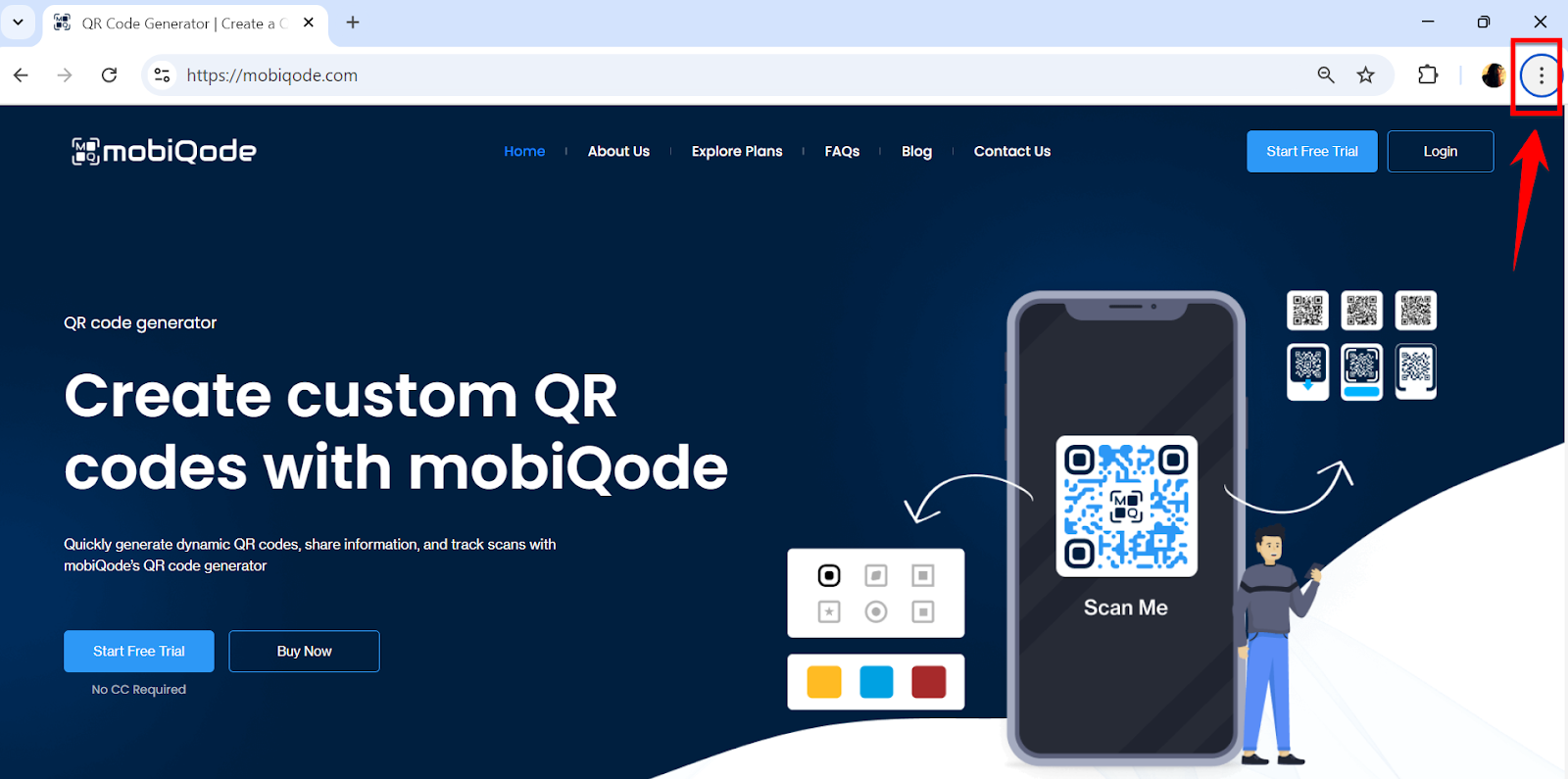
Step 2: Click on the three dots at the top right corner.
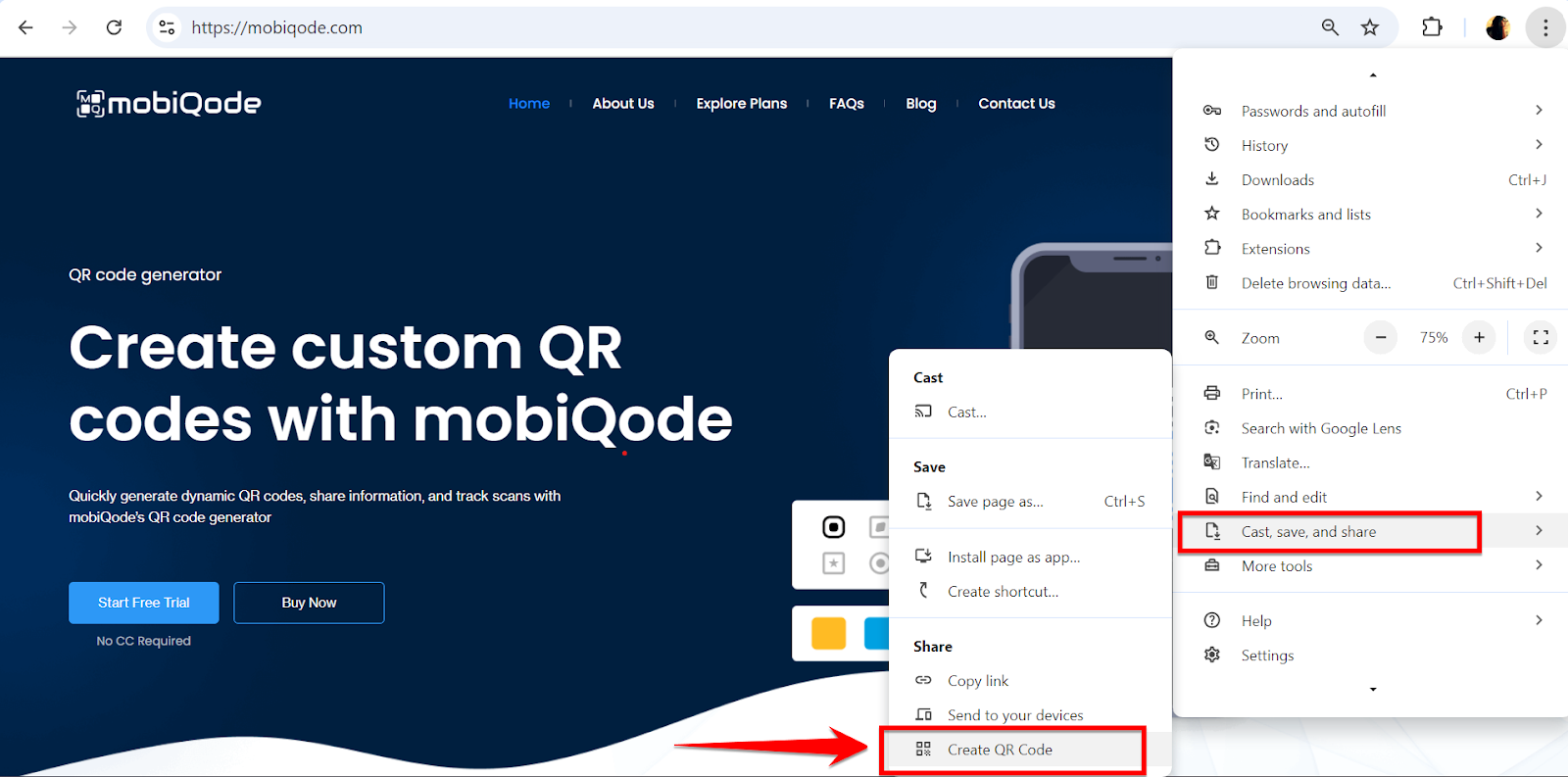
Step 3: In the drop-down, click Save and Share and choose Create QR code to generate one.
Step 4: A pop-up window will appear with your generated QR code. From here, you can copy the QR code link or download and share it with prospects.
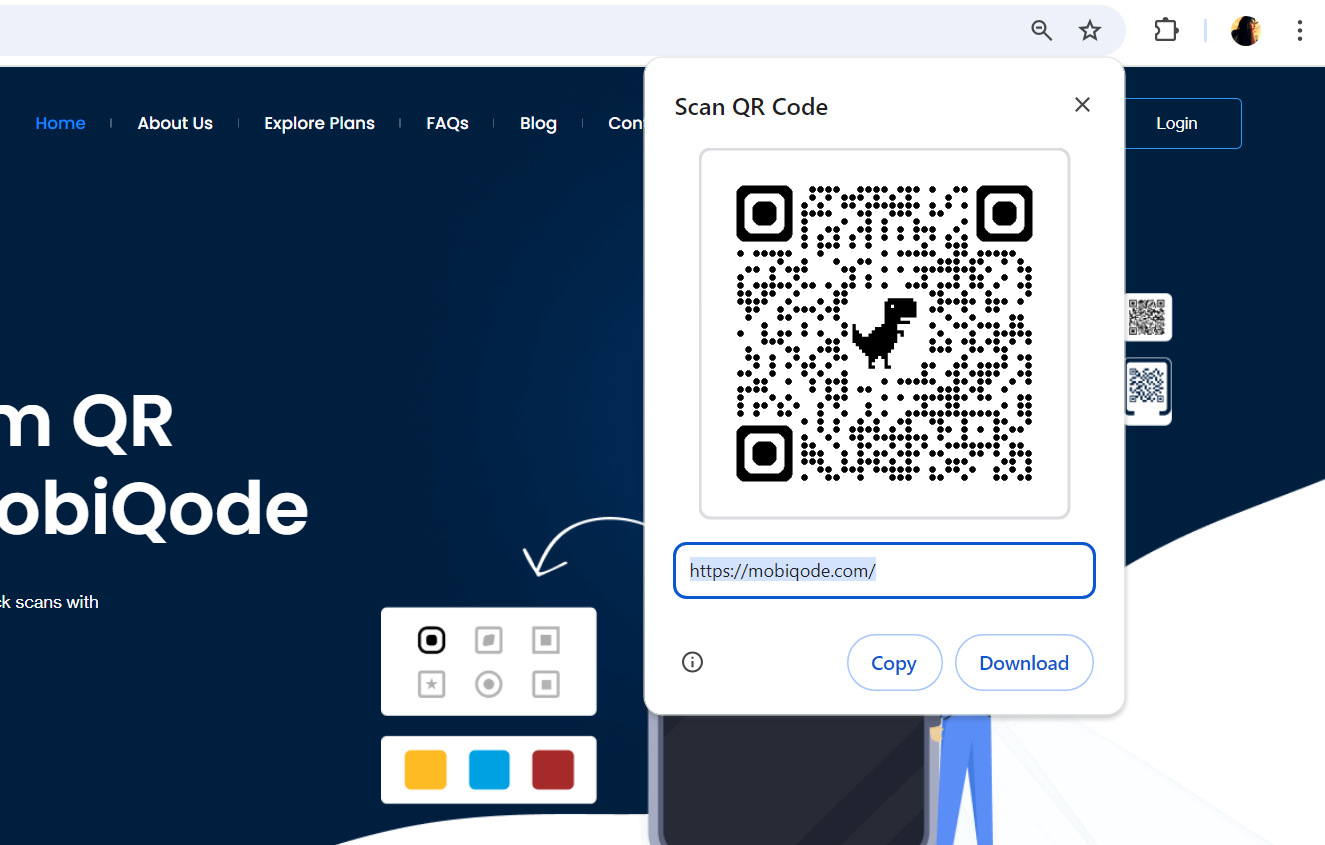
That’s it: you’ve generated a QR code in Google Chrome in four easy steps.
But there’s a catch.
Unlike a dedicated QR code generator, Google Chrome does not offer flexible customization options. Worst of all, you can’t track how many prospects scan your code, keeping you in the dark about its success rate.
Here are the key limitations of Chrome’s built-in QR code feature:
- Static codes only: The tool generates static QR codes, meaning you can’t edit the destination URL after the QR code has been generated
- Browser-dependent: This feature requires Chrome to access, which may not be ideal if you prefer other browsers
- No advanced features: Chrome’s tool lacks advanced options like QR code customization or scan analytics
- Limited to URLs: The native generator is primarily designed for web addresses, limiting its use for other types of data like plain text or contact information
But there’s a better way to make a QR code.
Need Customizable, Trackable QR Codes?
Try mobiQode Free →Method 2: Use a QR code generator
Step 1: Sign up for mobiQode
Create an account on mobiQode to get started with your 14-day free trial.
Step 2: Click Create QR code
From the main dashboard, click on Create QR code.
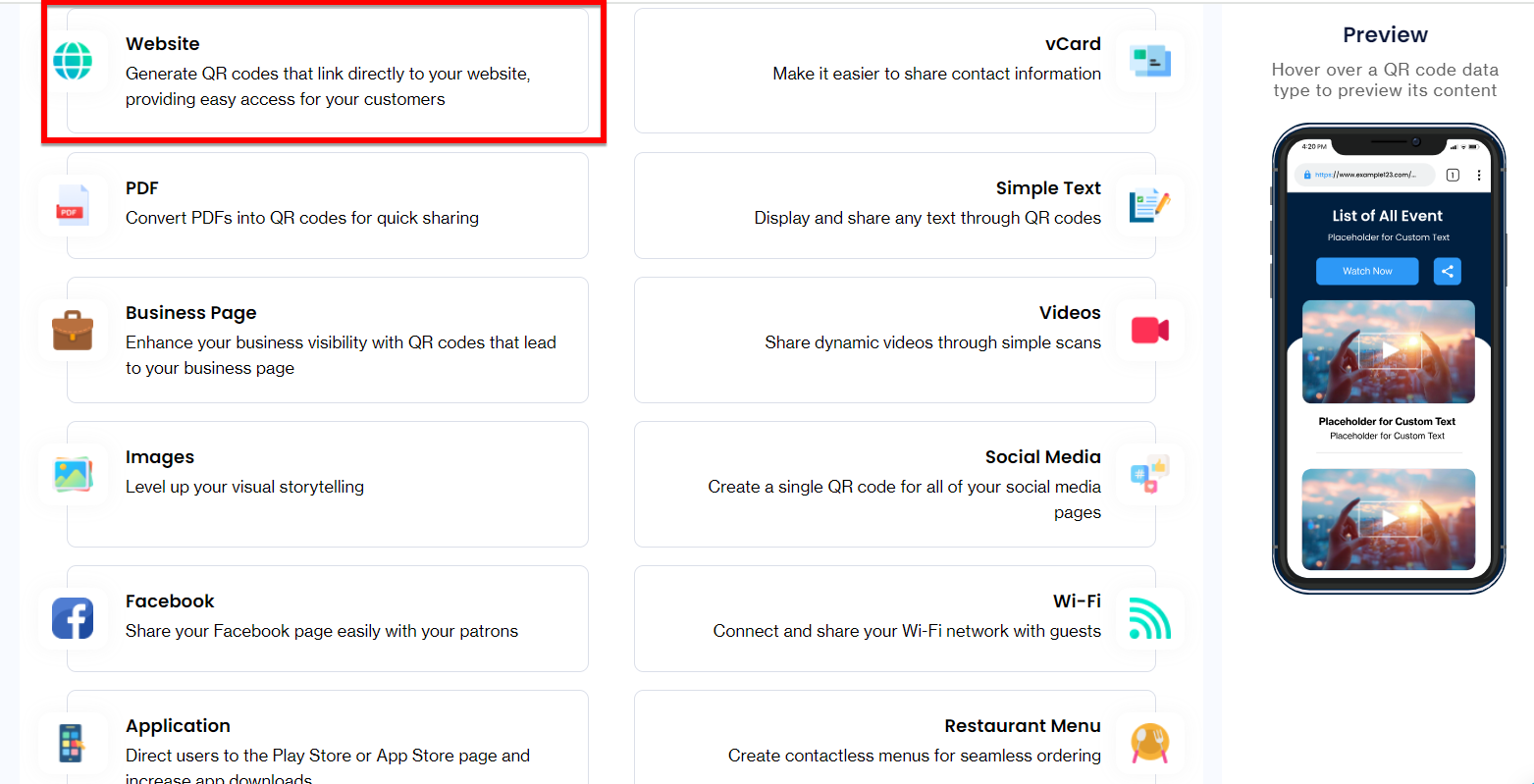
Step 3: Choose the website option
Select the website option to build a link QR code.
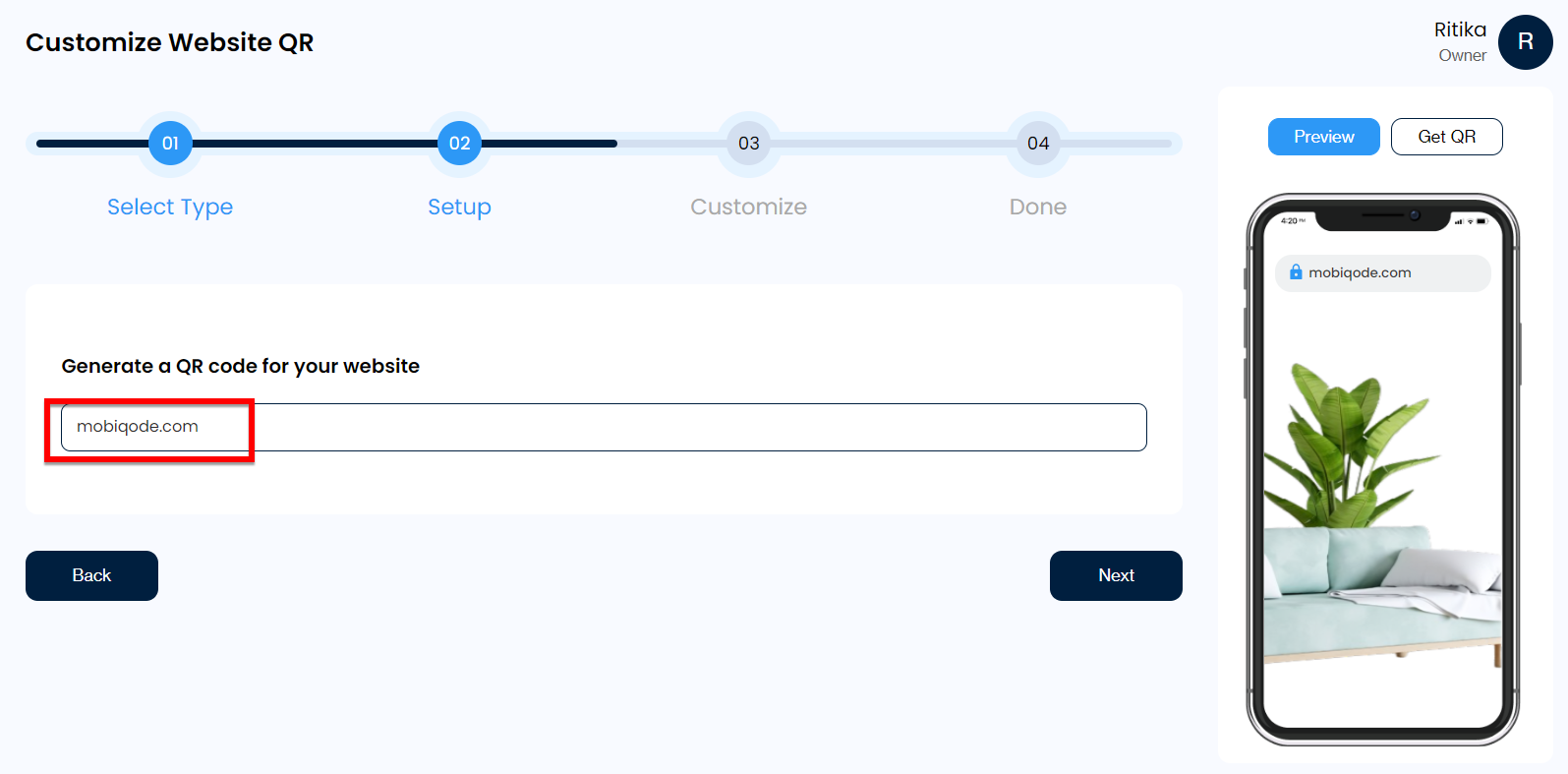
Step 4: Add the URL and click Next
Paste the URL you want to encode in the empty field and click Next.
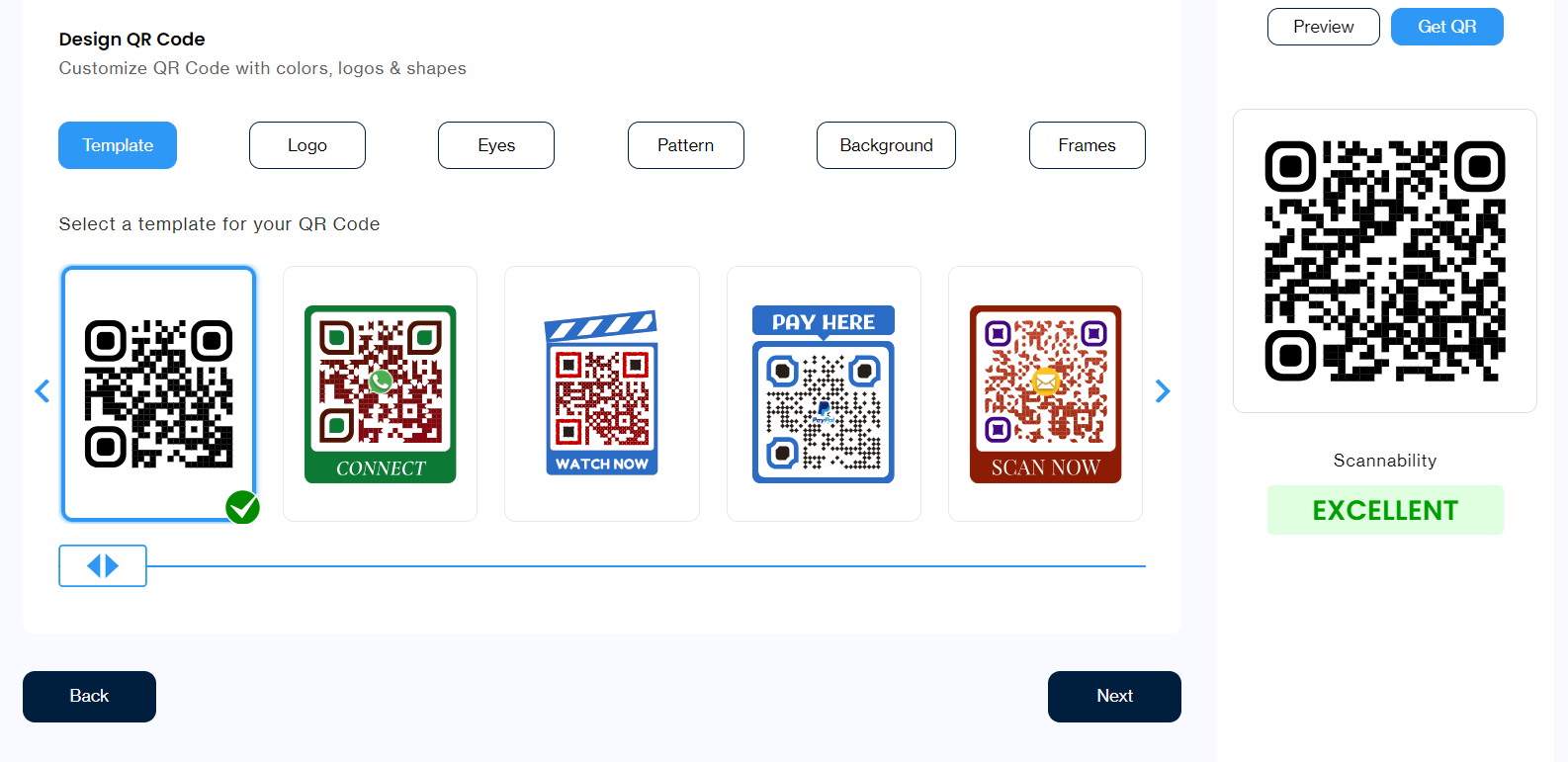
Step 5: Customize your QR code
You will arrive at the customization page, where you can choose the code pattern, colors, and more. You can also add your brand or website’s logo to the QR code.
Step 6: Download your QR code
Click on Download. mobiQode lets you download the code in various formats such as PNG, JPG, and SVG.
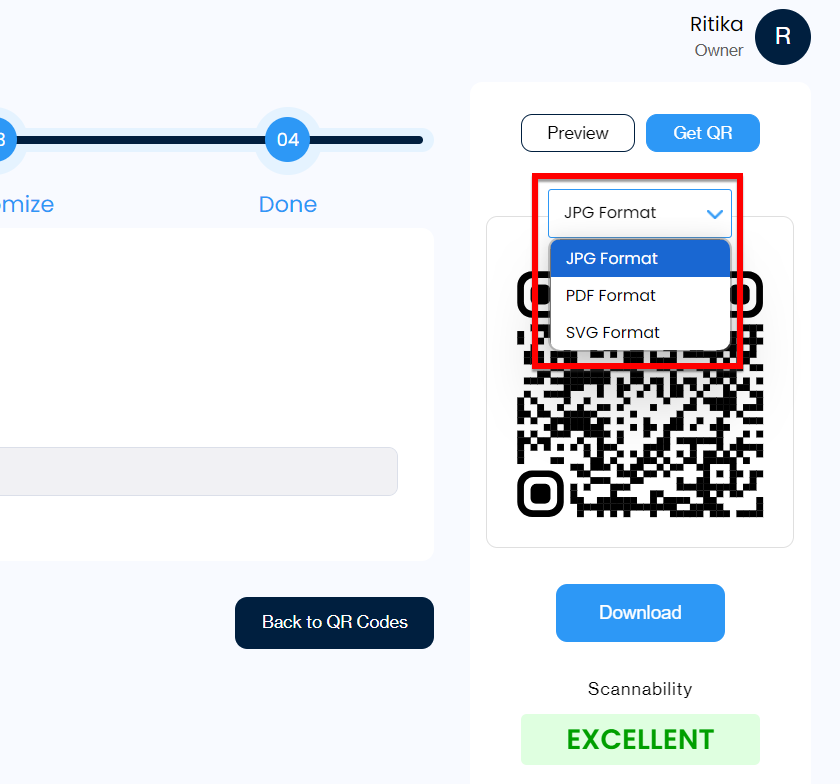
Note: We suggest you test the QR code before sharing it with others. You can use a QR code scanner app to verify that the code works correctly and isn’t blurry.
And that’s it. You’ve generated a dynamic QR code with mobiQode in six easy steps.
Benefits of using dynamic QR codes
Google Chrome only allows you to create static QR codes, which can be cumbersome if you plan to make changes later. That’s why it is recommended to opt for dynamic QR codes. They offer you:
- Flexibility: Update content without creating new codes. Perfect for menus, event details, or promotional campaigns
- Analytics: Track scans, locations, and devices used. This data is gold for analyzing engagement
- A/B testing: Try different landing pages to see what works best
- Error correction: Made a typo? No problem. Just fix it on the backend
- Cost-effective: Save on reprinting costs when information changes
Create a QR code with mobiQode
Creating QR codes with Google Chrome is a simple way to share information quickly, but it lacks customization and tracking. For better results, use a dedicated tool like mobiQode to generate branded, trackable, and editable QR codes. Sign up for mobiQode’s 14-day free trial to explore all the features at length.
mobiQode — Dynamic QR Code Generator
Start Free Trial →Chrome’s built-in QR feature is fine for quick sharing — but when you need branding, tracking, and the ability to edit your codes, you need a real QR code generator.
Founder, mobiQode
Create Customizable, Trackable QR Codes
Start Free Trial →14-Day Free Trial · Plans from $3/mo · No Credit Card Required