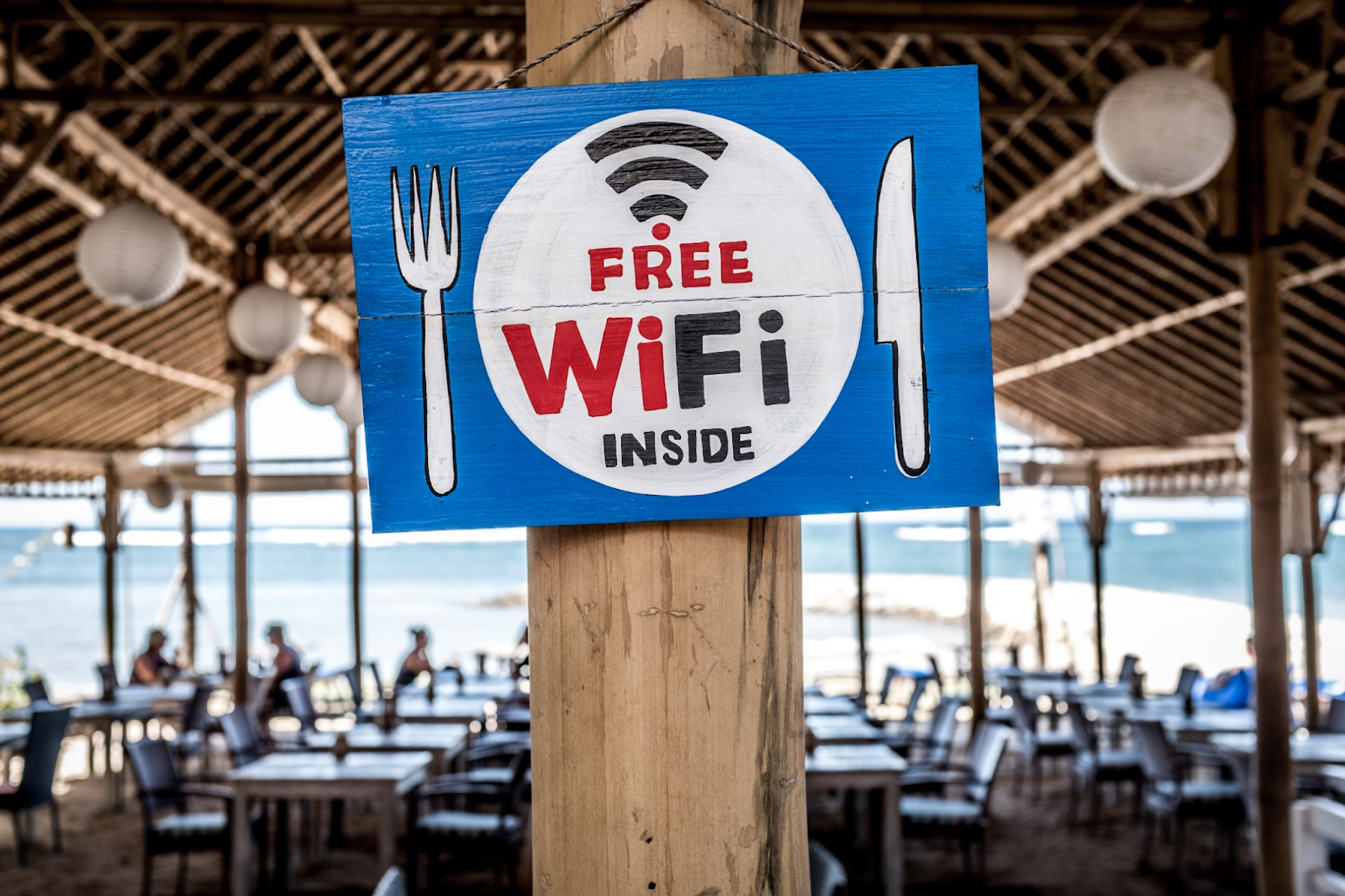
Seamless WiFi accessibility is a necessity in the digital landscape, but how convenient is it to manually share passwords? This method is often inefficient and error-prone.
Sharing WiFi credentials with each user manually is often tedious, be it in personal or professional settings. WiFi QR codes have emerged as a top choice as we seek more seamless and secure ways to remain connected.
With just a quick scan, these QR codes offer the convenience of instant connection. They also offer better security, improve accessibility, and remove tedious manual entry. You don’t need to share passwords verbally or write them down anymore. This is especially useful for public spaces like cafes, restaurants, or events where you have guests.
Let’s take a look at how you can create a WiFi QR code in just a few easy steps.
What is a WiFi QR code
A WiFi QR code embeds information about the WiFi network name and password. It lets you securely share your Wi-Fi access information without sharing your password verbally.
With just a quick scan, it automatically configures the user’s device and connects them to the specified network — there is no need for manual entry.
What exactly does a WiFi QR code contain? Typically, it includes:
- SSID (network name): The network name you want to connect to
- Password: The network’s security key
- Encryption type: The protocol to secure the network, such as WPA/WPA2
The above information is securely embedded in the QR code, allowing for a quick, easy, and secure connection.
How to make a QR code for WiFi in 5 easy steps
mobiQode lets you generate dynamic QR codes, which means you can update QR code information without needing to regenerate or reprint them.
If you don’t have an account already, sign up with mobiQode and start using it instantly with the 14-day free trial by following these five steps:
Step 1: Enter your network name
Log in to mobiQode and access the WiFi QR code generator on a web browser. Enter your WiFi network’s SSID (network name).
Note: Make sure it’s correct, as it is case-sensitive.
Step 2: Enter the network password
Type in the network password for secure access.
Step 3: Choose the encryption type
Choose your WiFi encryption type — WPA/WPA2 or WEP — based on your network’s security needs.
Note: You can check the “WiFi network is hidden” option for added security.
Step 4: Customize your QR code
Customize your WiFi QR code with the “Design Color and Decorate QR Code” options and ensure its scannability. mobiQode’s WiFi QR code generator lets you add brand elements to the QR code, such as brand colors, logos, shapes and patterns, and frames. Each QR code generated is unique and tailored to meet your needs.
Step 5: Save and download
Click the “x” icon to save the design and download your WiFi QR code in JPG, PNG, or SVG format by clicking “Save QR Code.”
You may now print your WiFi QR code for easy access. Use a high-quality printer for clarity to ensure better scannability, and place the QR code in easily accessible areas for seamless connectivity.
Create Your WiFi QR Code With mobiQode
Start Free Trial →Benefits of using WiFi QR codes
Key advantages of switching to a WiFi QR code over manual sharing are:
- Convenient connectivity: Users can instantly join your network with a quick scan without manual password entry
- Seamless updates: Update network details without generating new QR codes every time with dynamic QR codes, ensuring uninterrupted access at all times
- Instant access for business needs: Go live in less than two minutes, ensuring quick response to business offers or events
- Boost customer satisfaction: WiFi QR codes increase customer satisfaction, and guest WiFi is now a prominent part of marketing tactics
- Attract new customers: Freely accessible internet on your premises attracts professionals like freelancers who find it convenient to work or set up meetings
- Save staff time: Save your staff’s time in spelling out long, high-security passwords by letting patrons simply scan the WiFi QR code
- Secure your network: Generate a WiFi QR code with a provider that offers advanced data encryption and GDPR compliance, protecting your and your users’ data
Where can you use WiFi QR codes
Displaying your QR codes at strategic locations can simplify network access. Here are the ideal spots to place your WiFi QR code:
Hotels
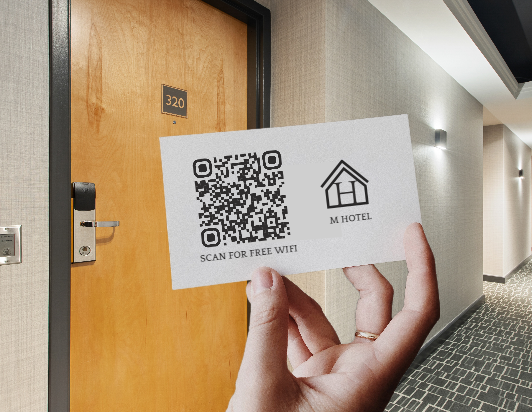
Reliable WiFi is a must for hotels, as many business travellers consider free WiFi a key factor in choosing accommodations. Allowing guests to simply scan a QR code for WiFi access makes managing work and communication from the property convenient.
Restaurants
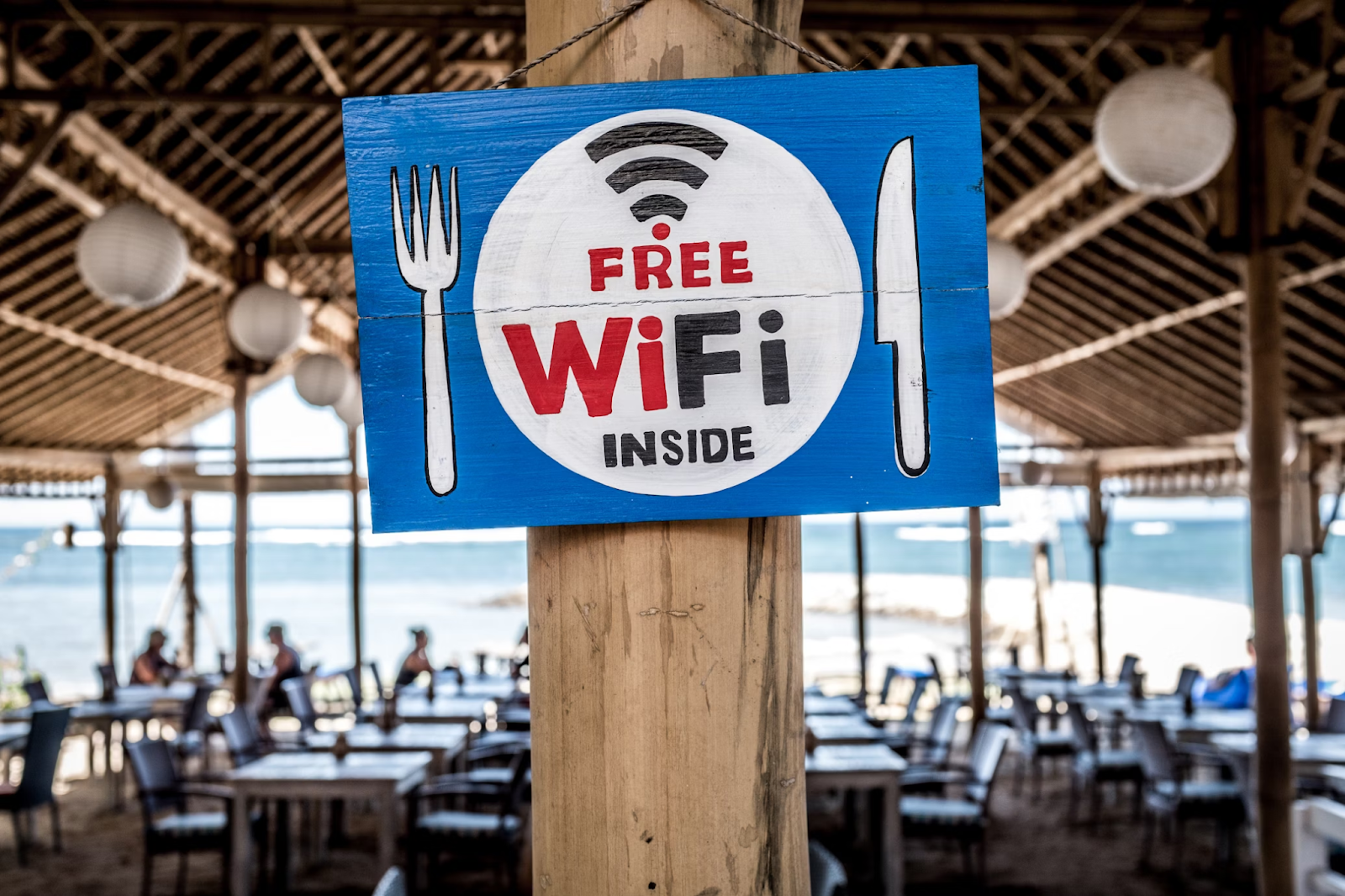
Link QR codes storing digital menus are popular in restaurants to enable customers to place orders directly, speeding up service and reducing physical contact. By placing WiFi QR codes on tables, businesses can allow customers to browse the internet while waiting for their meals, providing a better experience.
Public areas
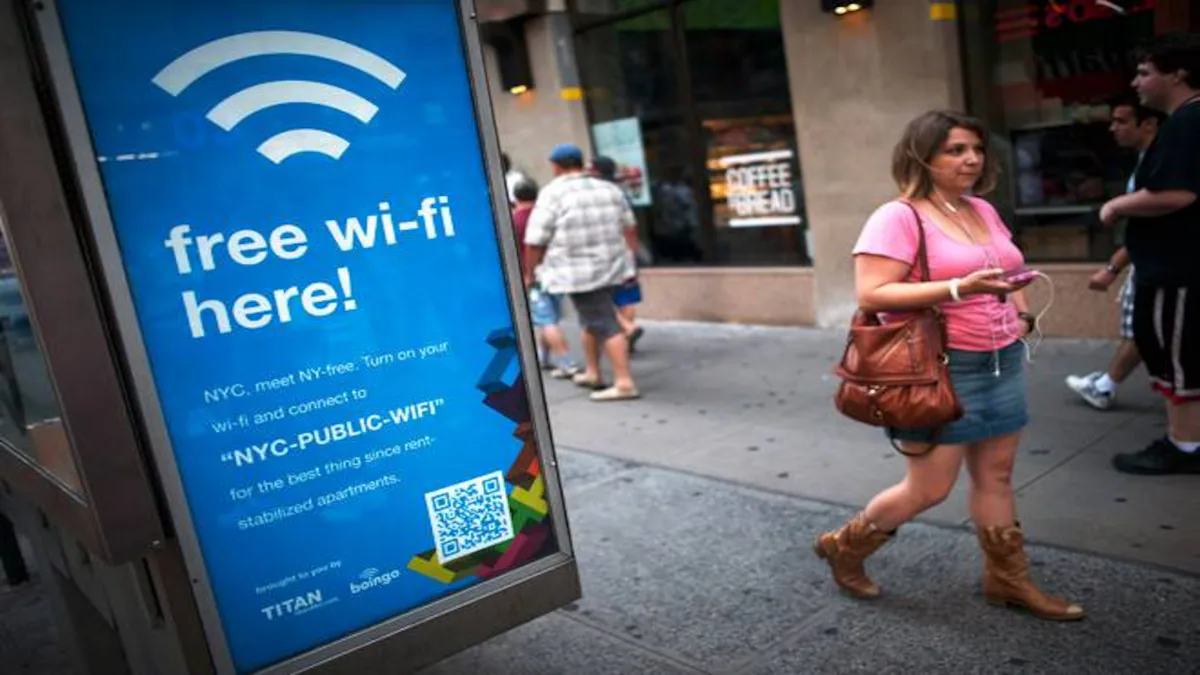
Public spaces like parks, libraries, and transportation hubs often have free WiFi. Using a WiFi QR code generator to offer network access can be a boon to people who frequent these spaces. It makes them self-sufficient and negates the need for technical support.
Educational institutions

WiFi QR codes can be useful at educational institutions. They ensure students and staff have quick and convenient access to online resources, including digital libraries, campus activities, and essential student services.
Healthcare facilities

WiFi QR codes significantly improve the patient and visitor experience in healthcare settings, allowing easy access to the internet while at the facility. Healthcare facilities improve operational efficiency for both patients and employees by letting them scan a QR code for WiFi and use online services to access essential treatment information, educational materials, appointment scheduling tools, medical records, and pre-visit forms.
Best practices when generating your WiFi QR code
Adhering to best practices ensures a secure and accessible network, offering a better user experience to your customers. Keep the following in mind when you create your WiFi QR code:
Make a visual QR code
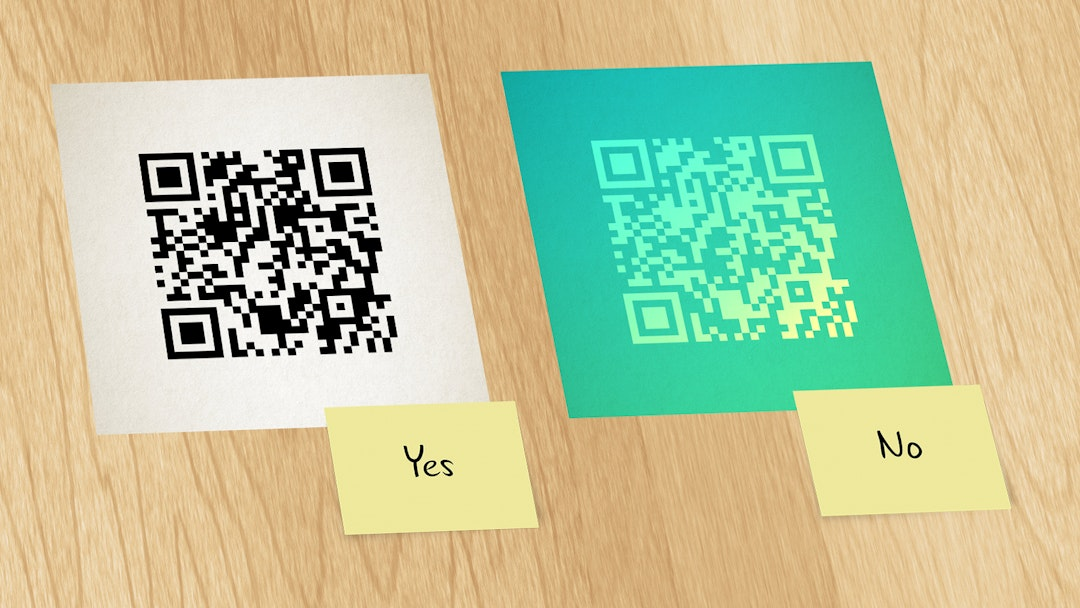
A QR code’s appearance plays a crucial role in its effectiveness. Avoid light colours like yellow and pastel, which can make the QR code difficult for cameras to detect. The key is to ensure strong contrast between the background and foreground. For optimal scannability, use a darker foreground with a white background. Avoid inverting these colours, as it can reduce readability.
Add a logo, image, or icon
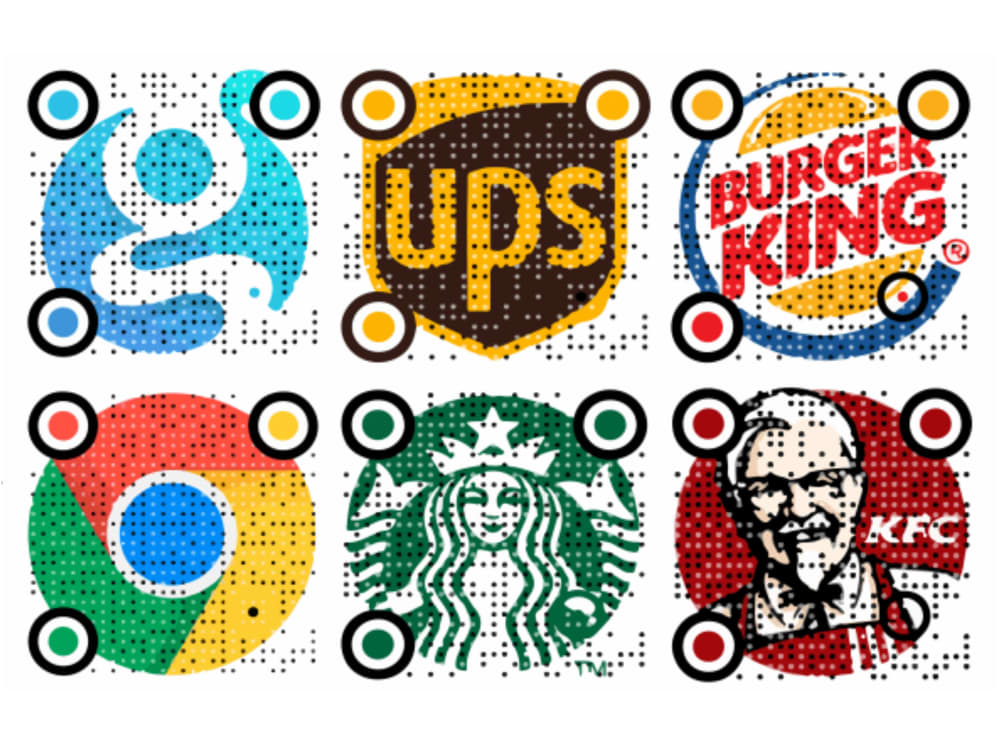
Incorporating a logo or image in your QR code enhances brand visibility and makes the code more inviting and professional. Your brand’s logo can also help customers distinguish your WiFi QR code from generic or spam QR codes, presenting a more authentic and trustworthy identity.
Add a call to action
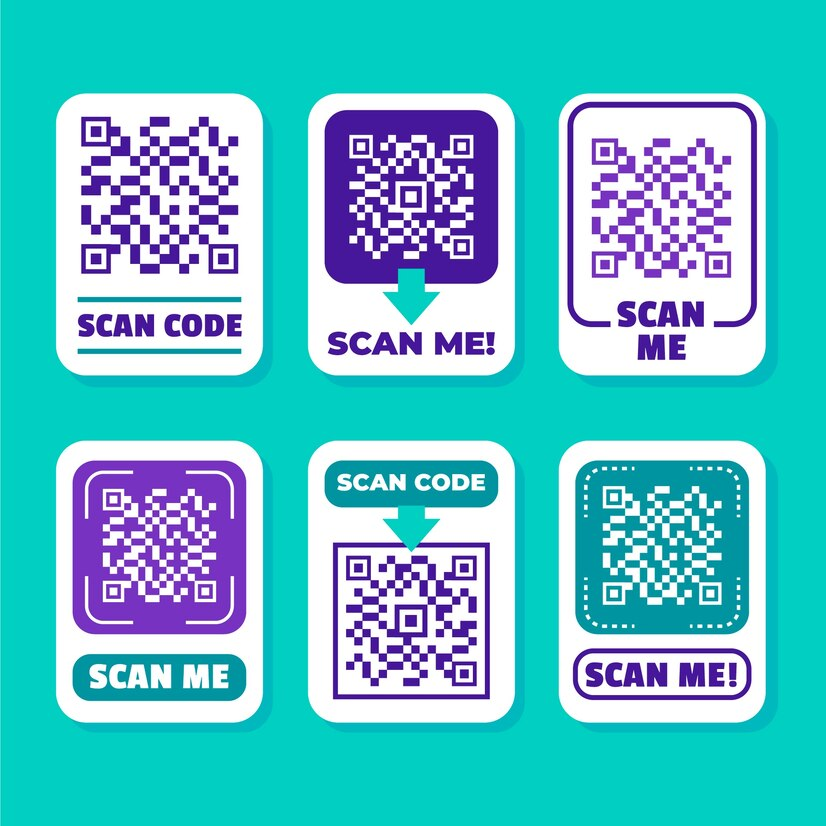
Simply displaying the WiFi QR code may not be enough. Frame it with a clear and customisable call to action (CTA), such as “Scan me” or “Scan for free WiFi.” This small addition can significantly boost the effectiveness of your QR code.
Consider the right QR code size
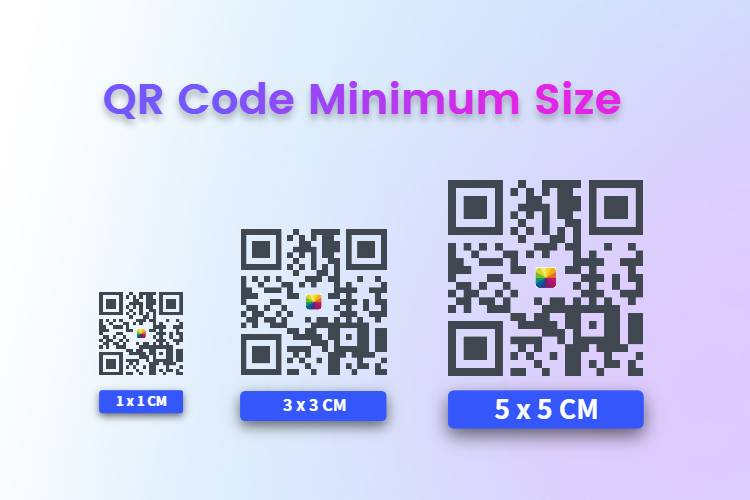
The size of your QR code is critical, as it must be easily scannable from the intended distance. If you’re placing your WiFi QR code on tables, ensure they are at least 1.2 inches (3-4 cm) for close-range scanning. For walls or hanging placement, opt for a larger size to ensure they can be scanned from a distance.
QR codes can be scaled without losing quality, especially if saved in a high-quality format like SVG. This ensures your QR code remains clear and effective regardless of size.
Place your WiFi QR code strategically

Choosing the ideal spot for your WiFi QR code is crucial for its convenience and effectiveness. Place QR codes in areas where guests can easily see and scan them — consider displaying them in common areas such as dining tables, walls, and entrances. Keep a physical or digital copy of the WiFi QR code on your phone as a backup for guests if the primary QR code is not accessible.
How to connect WiFi with a QR code
Below are steps to connect to a network with a quick WiFi QR code scan using Apple and Android devices.
Connecting on Android devices
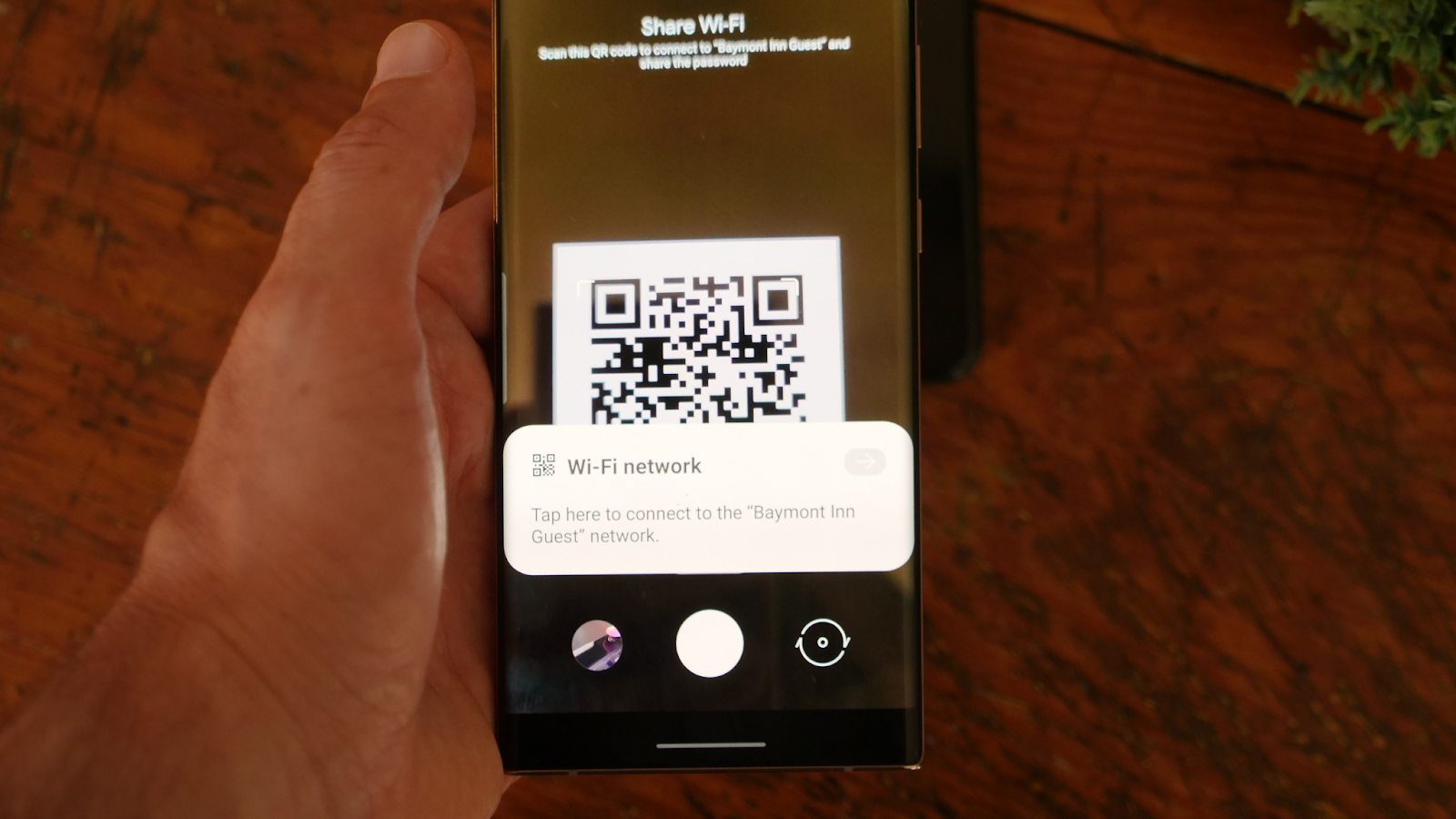
Most modern devices come with a QR code scanning feature. You don’t have to install any additional apps — simply use the device camera:
Step 1: Open the camera app on your device and point it at the WiFi QR code. The built-in camera app will scan the QR code.
Step 2: Once the camera scans the QR code, you will receive a notification with the WiFi network SSID. Tap on the notification to automatically connect your device to the network.
Note: If you are using an older version of Android, you might not have a built-in QR code scanner. In that case, download a third-party QR code scanner from the Google Play Store.
Connecting on iOS devices

Scanning QR codes on iOS devices is similar to Android. Follow these steps:
Step 1: Open the dedicated QR code scanner on an iOS device from the control centre, or simply use the Camera app.
Step 2: Align the scanner boundaries on the camera to the QR code.
Step 3: Tap to join on the notification prompt that pops up after scanning.
Generate WiFi QR codes with mobiQode
Upgrade your network connectivity and user experience with dynamic WiFi QR codes. With mobiQode’s intuitive interface, you can generate and manage QR codes for different purposes, featuring robust security with advanced data encryption and GDPR compliance.
You can also link your WiFi QR codes with custom multi-URL landing pages for increased brand engagement, and use custom templates, branding options, and detailed analytics to gain valuable insights into customer behaviour.
Start your 14-day free trial with mobiQode to experience the benefits of a powerful WiFi QR code generator.
mobiQode — WiFi QR Code Generator
Start Free Trial →Nobody wants to spell out a 20-character WiFi password. A single QR code scan replaces that entire process — for cafes, hotels, offices, and everywhere in between.
Founder, mobiQode
Create Instant WiFi QR Codes for Your Business
Start Free Trial →14-Day Free Trial · Plans from $3/mo · No Credit Card Required