Every iPhone user scans QR codes. Some might even do it every day. But one needs to know how to do it right and securely — and how to use what they scan. That is where it gets interesting. Regardless of your iOS version, this step-by-step guide will walk you through scanning a QR code using your iPhone, plus extra tips, use cases, and things to watch out for.
Reasons to Scan QR Codes
We might scan a QR code to:
- Open a website or landing page
- View something (menu, catalogue, or special offer)
- Add contact or vCard info
- Connect to Wi-Fi or download an app
- Access an event ticket, coupon, or promo
Scanning QR codes bridges the physical with the digital world. And when you have a tool like mobiQode, you can even create QR codes that remain editable and trackable after scanning.
Scanning a QR Code with an iPhone Running iOS 11 or Above

Apple added built-in QR code scanning with iOS 11 in 2017. Scanning QR codes with an iPhone running iOS 11 or above is straightforward using the Camera app. Here’s how:
Step 1: Open the Camera App
Launch the Camera app on your iPhone. You can open it from the Home Screen, Lock Screen, or swipe to access it. Ensure it is up to date and running on iOS 11 or later.
Step 2: Position the QR Code
Hold your iPhone so the QR code appears within the Camera app’s viewfinder, centered in view. Make sure the QR code is well-lit and clear within the frame. The camera will detect it automatically in a couple of seconds.
Step 3: Wait for the Notification
As soon as the Camera app recognises the QR code, it will display a notification banner at the top of the screen with information about the QR code content.
Step 4: Tap the Notification
If the QR code contains a URL, text, or other actionable content, tapping on the notification will open the corresponding app or webpage.
Optional: Manual Scanning via Control Center
If automatic scanning doesn’t work, you can use the Control Center shortcut:
- Open Settings, then scroll down to Control Center
- Tap the + button (green) next to Code Scanner
- Swipe down from the top-right corner and tap the QR code icon to open the scanner
- Align the QR code within the frame to scan it
- Turn on the flashlight for additional light while scanning (optional)
The Apple Camera app does not keep records of previously scanned QR codes. If you want to see your scan history, you’ll need a third-party QR code scanner app.
What Happens After You Scan
Depending on the type of QR code, one of these may happen:
- A website opens in Safari
- A vCard/contact is offered to be saved
- An app download or redirect
- A PDF, image, or video opens
- A Wi-Fi connection prompt appears
- A coupon or promo code appears
With mobiQode, if the QR code is dynamic, you can update the linked destination even after printing or distributing, so what the QR leads to can change over time.
How to Scan QR Codes with iOS 10 or Earlier
Scanning QR codes with iOS 10 or earlier requires a third-party app, as the built-in Camera app on these versions does not support QR code scanning natively. Here’s how:
Step 1: Download a QR Code Scanner App
Go to the App Store and download a QR code scanner app. Once installed, open it from your home screen.
Step 2: Allow Permissions
The app may ask for permission to access your camera. Grant the necessary permissions for the app to function properly.
Step 3: Position the QR Code
Hold your iPhone so that the QR code appears within the viewfinder of the scanning app. Ensure the QR code is well-lit and clear within the frame.
Step 4: Scan the QR Code
Once properly aligned, the app will automatically scan the QR code. Some apps may require you to tap a button to initiate the scan.
Step 5: Follow the Action
Depending on the content (URL, text, contact information), the app will display the corresponding information or take you to the appropriate action.
Step 6: Close the App
Once you’ve scanned the QR code and taken the necessary action, close the scanning app. Check App Store reviews and ratings before downloading to ensure the app meets your needs.
How to Check if Your iPhone Camera Automatically Scans QR Codes
Devices running on iOS 11 or above have a built-in scanning feature accessible through the Camera app. To check whether your iPhone scans QR codes:
- Open the Camera app
- Point it at a QR code
- Wait a few seconds
If a notification banner appears at the top of your screen, your phone is ready to scan QR codes.
How to Enable QR Code Scanning on Your iPhone
To enable QR code scanning on your iPhone or iPad, follow these steps:
Step 1: Open Settings
Tap the Settings app icon on your home screen to open it.
Step 2: Navigate to Camera Settings
Scroll down and find “Camera” in the list of options. Tap on it to open the Camera settings.
Step 3: Enable Scan QR Codes
In the Camera settings, locate the option labelled “Scan QR Codes” and make sure the toggle switch next to it is turned ON (green).
Step 4: Exit Settings
Once enabled, exit the Settings app by pressing the Home button or swiping up from the bottom of the screen.
Step 5: Test the QR Code Scanner
Open the Camera app and point it at a QR code. If enabled correctly, your iPhone should automatically detect the QR code and display a notification banner at the top of the screen.
Create Your Own QR Codes With mobiQode
Start Free Trial →Alternative Methods for Scanning QR Codes on iPhone
Here are some alternative methods for scanning QR codes using popular apps on your iPhone:
Snapchat
Open Snapchat, point your camera at the QR code, press and hold on the screen where the code appears, and Snapchat will scan it instantly.
Facebook’s app includes a QR code scanner. Go to the search bar and type “QR code.” You’ll see an option with a blue QR code icon — tap it to open Facebook’s scanner.
Twitter (X)
Twitter offers a QR code scanner within its mobile app settings. While primarily used to follow accounts, it can also read standard QR codes.
Chrome
Google Chrome for iOS has a built-in QR code reader. Access it by 3D Touching the Chrome app icon (on supported models) or searching for “QR” in Spotlight search.
Pinterest has integrated QR code scanning into its Lens visual discovery feature, useful for brands leveraging the platform for product promotion.
LinkedIn allows users to add profiles using QR codes instead of manually searching. Tap the QR code icon beside the search bar, grant camera access, and scan to connect. Select “My Code” to share your own QR code.
How to Scan QR Codes from Your Photo Album
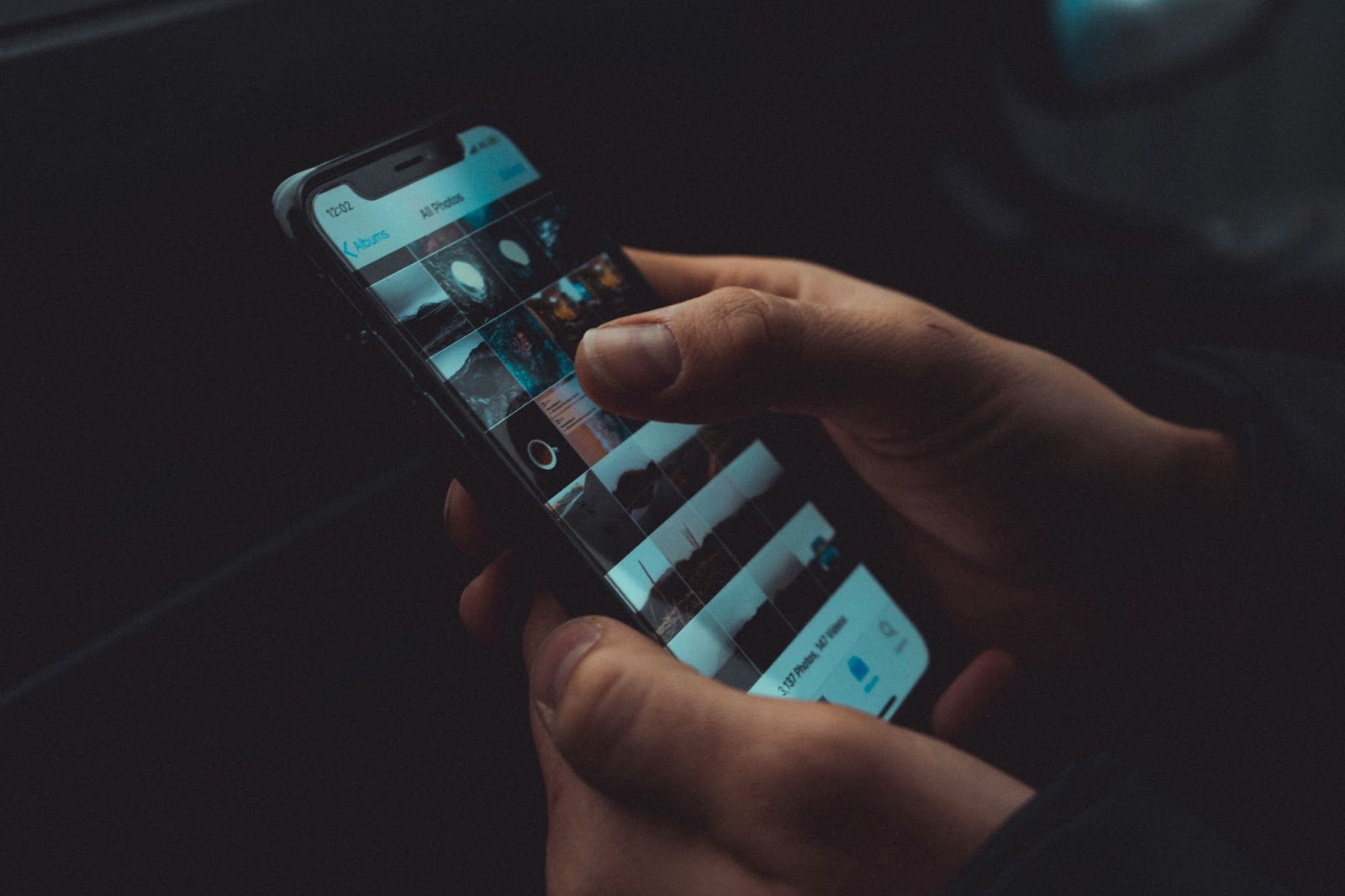
Here’s how to scan QR codes from your photo album on iPhone:
- Open Photos: Launch the Photos app on your iPhone or iPad
- Select the photo: Navigate to the photo containing the QR code you want to scan
- Activate QR code recognition: If iOS recognises a QR code, a small bracketed symbol will appear in the lower right corner of the photo
- Tap the symbol: Tap on the bracketed symbol to open the QR code scanner
- Open the URL or action: After scanning, you’ll see options to open the URL in Safari, Chrome, or another app
A couple of tips: crop the image if the QR code isn’t the only thing visible, and ensure the QR code is clear — blurry QR codes may not be readable.
Tips and Best Practices
Stay close enough so the QR fills part of your screen, but don’t be too near — adjust slowly until the camera focuses
Avoid glare or reflections, especially under bright lights or on plastic surfaces
Ensure the QR code is clear and not distorted before scanning
Don’t scan unknown codes — always verify the source before tapping the link to avoid malicious redirects
Use reliable QR platforms like mobiQode that support dynamic codes, analytics, and editing to reduce broken links
Why Won’t My iPhone Scan the QR Code?
Several factors can prevent your iPhone from scanning a QR code. Here is a quick reference:
| Problem | Possible Cause | Fix / Suggestion |
|---|---|---|
| QR not detected | “Scan QR Codes” is off in settings | Turn on the scan feature in iPhone Settings → Camera |
| Low contrast or bad lighting | QR is faint or too dark | Turn on the flashlight or move to better light |
| Camera too close or too far | Lens not focused | Adjust the distance slowly until detected |
| QR is printed badly | Poor print quality or non-flat surface | Use a flatter surface or better print quality |
| The link doesn’t open | QR points to a broken or expired URL | Contact the creator, or if dynamic, the QR service may update the link |
If you encounter other issues, try these troubleshooting steps:
- Your iPhone isn’t running iOS 11 or later — you’ll need a third-party scanner app
- Your phone is tilted or slanted — hold it upright before scanning
- There’s a smudge on your camera lens
- The camera needs more time to focus — hold steady for a few seconds
- Screen brightness is too low — increase it for better scanning
- The QR code isn’t properly visible or aligned with the camera viewfinder
Step 1: Check QR Code Scanning Settings
Go to Settings > Camera and ensure that “Scan QR Codes” is turned on.
Step 2: Update iOS
Ensure your device runs iOS 11 or later. Earlier versions do not support automatic QR code scanning.
Step 3: Restart the Camera App
Restarting the Camera app can resolve temporary scanning issues.
Step 4: Try a Third-Party App
If the built-in Camera app still doesn’t scan, try a reputable third-party QR code scanning app from the App Store.
Step 5: Reset Settings (Last Resort)
Go to Settings > General > Reset > Reset All Settings. This won’t erase your data but will reset all settings, including Camera preferences. Back up your iPhone first, as Apple Pay cards, privacy settings, keyboard dictionary, location settings, and network settings will all be reset to defaults.
Why Dynamic QR Codes Matter
Dynamic QR codes come with a very unique perk — flexibility after scanning. If you hard-code a URL (static QR), it is fixed forever. But when you are dealing with a dynamic QR:
- You can change the destination URL anytime
- You can track how many times it was scanned, when, and where
- You avoid needing to reprint codes for every little update
That is where mobiQode’s dynamic QR system is very helpful. You can reuse the same QR code and update it. This approach keeps your content fresh without new prints or replacements.
Use Cases for iPhone Users
- Networking: Scan a vCard QR on someone’s badge and add them instantly to contacts
- Menus / Restaurants: Use QR codes on tables — scan and see the menu instantly
- Promos / Coupons: QR codes on flyers or posters that lead to discount codes
- Product Info: Scan QR on product packaging for specs, videos, or instructions
- Event Tickets / Boarding Passes: Use QR codes to open your tickets or passes
Create Your Own QR Code with mobiQode
Now that you know how to scan QR codes on any iPhone, why not create your own? With mobiQode’s QR code generator, you can design personalised dynamic QR codes that are scannable on any device — iPhone or Android.
QR codes are the bridge between the physical and digital world. We’re making it simple for everyone to create, share, and connect.
Founder, mobiQode
Conclusion
Scanning QR codes with an iPhone is simple and built into the system. The Camera app does the heavy lifting. But the real power lies in how you use the QR codes — especially dynamic codes.
mobiQode allows you to generate QR codes that you can then edit and track. These are long-lasting, too. So, when someone scans a printed QR, it always points to the right and updated content.
Give it a try: scan a QR code today with your iPhone, see where it takes you, and imagine how your business or project can use the same magic.
Create QR Codes Scannable on Any iPhone
Start Free Trial →14-Day Free Trial · Plans from $5/mo · No Credit Card Required
Frequently Asked Questions
Do all iPhones support QR scanning?
Yes, iPhones running iOS 11 or later support QR scanning built into the Camera app. Older iPhones running iOS 10 or earlier require a third-party QR code scanner app from the App Store.
Why isn’t my iPhone’s camera scanning a QR code?
You may have “Scan QR Codes” turned off in settings, or the QR is too faint, distorted, or poorly lit. Try enabling it in Settings → Camera, cleaning the lens, or adjusting the scanning distance.
Can QR codes embedded in photos be scanned?
Yes. In iOS with Live Text, you can tap and hold on the QR in the Photos app to extract the link. A small bracketed symbol will appear in the lower right corner of the photo when iOS recognises a QR code.
Are there security risks when scanning QR codes?
Yes. QR codes might redirect to malicious sites. Always verify the source before scanning or tapping links. Only scan QR codes from trusted sources, and use reliable QR platforms that are GDPR-compliant.
Can I update what a QR code leads to after printing?
You can do it with a dynamic QR code only. Static codes are fixed at the point of creation. With mobiQode’s dynamic QR codes, you can update the destination URL anytime without reprinting.
Does scanning a QR code cost data?
No, scanning itself is just reading data from the QR image. But when the link opens — a website, video, or other online content — that may use your mobile data.