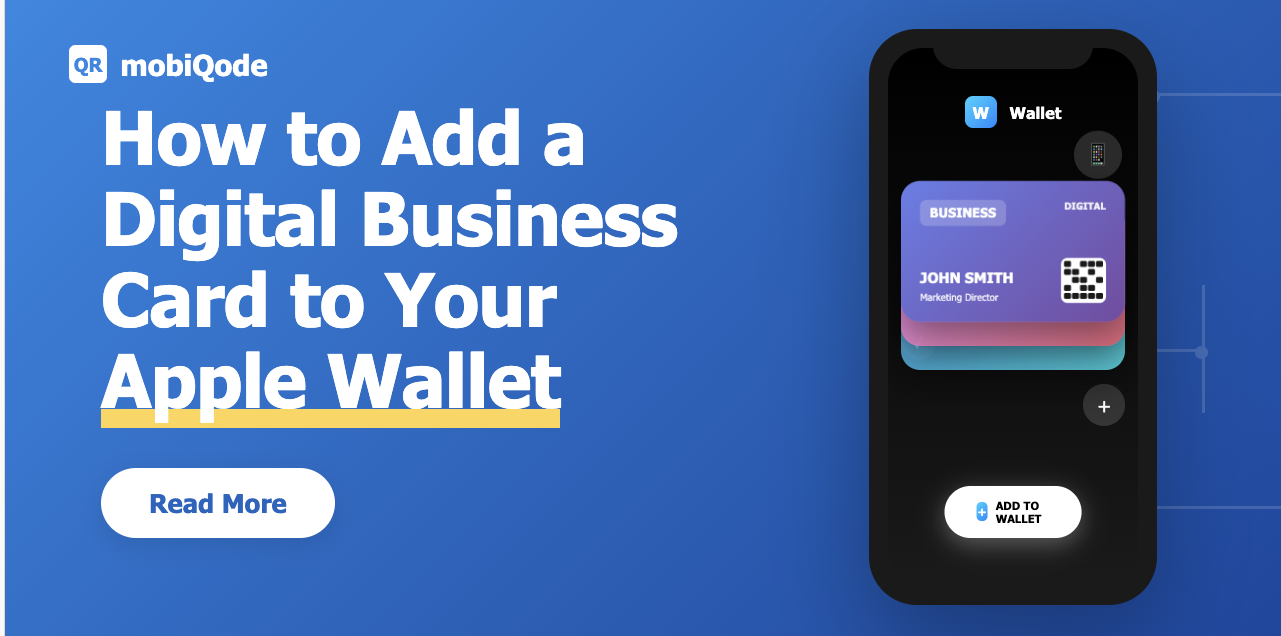
You meet a new prospect, have a great conversation, and then realize you’ve run out of business cards. Now imagine just opening your iPhone, showing a digital business card, and letting them scan it in seconds.
No more worrying about carrying paper cards, printing new ones, or digging through your bag. That’s the ease of using a digital business card for Apple Wallet. It lives right on your phone, ready whenever you need it. Let’s look at how it works and how you can set it up in minutes using mobiQode.
What is an Apple Wallet business card?
An Apple Wallet business card is a digital version of your regular card that sits in your Wallet app. You can open it anytime, show your QR code business card, and let people scan or save your information right away.
It never gets lost or outdated like a paper card. You can change your information at any time, and the updates show up instantly—making it a better choice than printed business cards.
Here’s why professionals are adding their business card to Apple Wallet:
- Always available—you never run out of cards
- Share instantly with a QR code scan
- No paper waste
- Information stays up to date automatically
- Makes you look modern, updated, and tech-savvy
How to add a digital business card to Apple Wallet
Here’s the step-by-step process to create and add your digital business card to Apple Wallet using mobiQode.
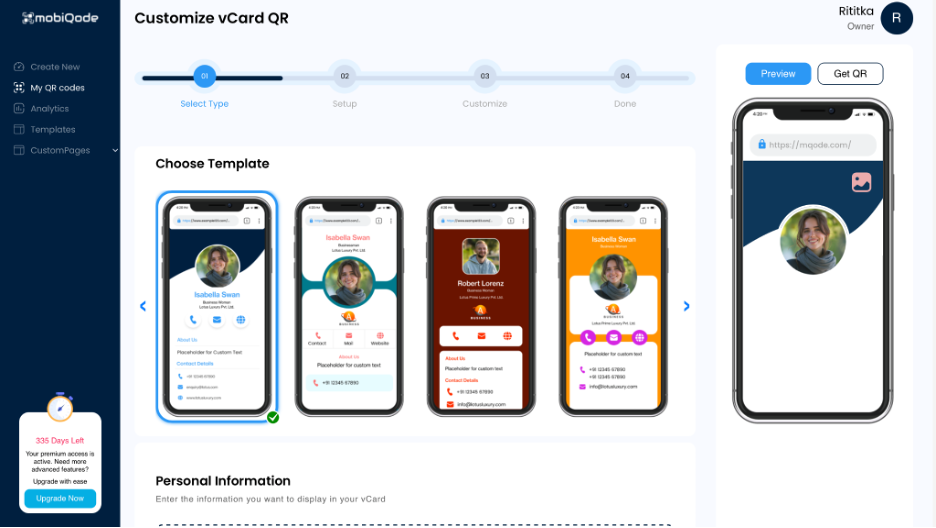
Step 1: Create your digital business card
Go to mobiQode and create your digital card. Enter your name, company name, phone number, email address, website, logo, and social media links.
You can fully customize the design with your brand colors, upload your logo, and add a call to action like “Schedule a call” or “Visit my portfolio.” With mobiQode, your card also works like a mini website—every time someone opens it, they see a professional custom landing page.
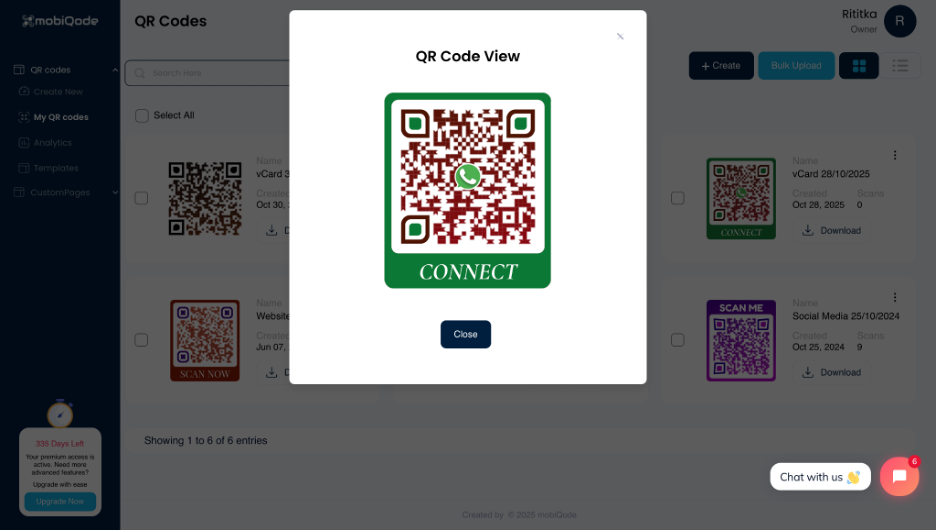
Step 2: Generate your QR code
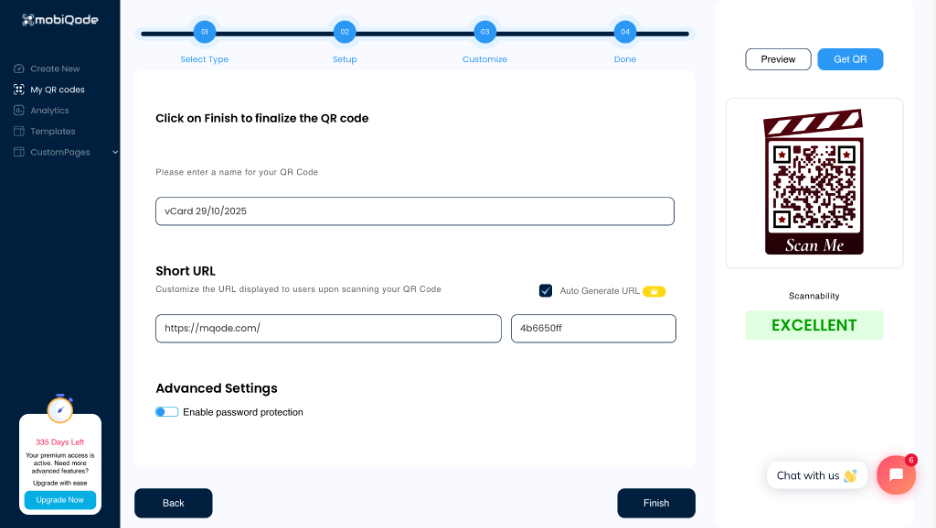
Once your design is done, mobiQode automatically generates a dynamic QR code linked to your card. This is important because you can change your phone number, role, or design at any time without reprinting or regenerating the QR code itself.
Step 3: Save your card to Apple Wallet
When your card is live, tap “Add to Apple Wallet.” Within seconds, your card appears in your Wallet app. This is your iPhone contact card—always accessible and ready to share at networking events, meetings, or conferences.
Step 4: Share it instantly
To share, open your Wallet, select your card, and show the QR code for others to scan. You can add multiple cards for different purposes in the same way.
You can also share your digital card via a link, text, or email. On iPhones, AirDrop makes it even faster. This makes it one of the easiest ways for people to scan your digital business card and save your details instantly.
Add Your Business Card to Apple Wallet — Free for 14 Days
Start Free Trial →Why use mobiQode for Apple Wallet business cards?
No app needed
Everything runs in your browser with mobiQode—no app downloads required. Once your card is ready, add it directly to Apple Wallet for instant access.
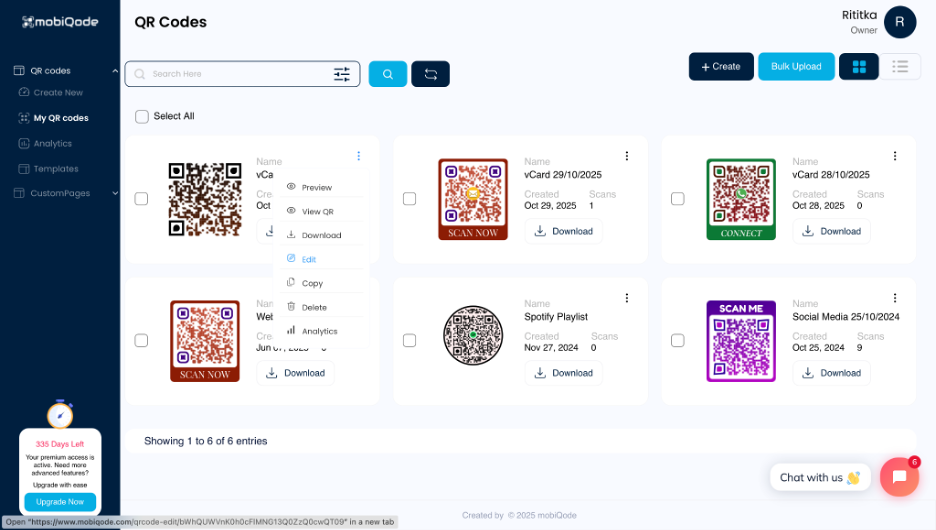
Dynamic QR codes
mobiQode gives you 5 free dynamic QR codes with editable info anytime. Paid plans start at just $5/month and scale up to 1,000 QR codes and 100 custom pages.
Customizable landing page
Each card includes a branded landing page where you can add your logo, colors, CTA buttons, and social or communication links like WhatsApp, Snapchat, Facebook, Spotify, and more (up to 33 links)—making your card feel like a mini website.
Multiple sharing options
Share your contactless business card through a QR code, a direct link, or an Apple Wallet pass. This makes it easy for anyone to access your details on any platform or device.
Built-in lead capture
mobiQode’s built-in lead capture form appears when someone scans your card, collecting client information right away. This enables two-way contact exchange and helps you grow your professional network.
Scalable for teams
From one dashboard, you can manage up to 50 digital business cards and 100 custom pages. This is ideal for teams that need easy control, quick edits, and smooth collaboration.
Tips for optimizing your Apple Wallet digital card
To make sure your digital business card stands out and works well across devices, follow these tips:
- Keep it short and focused: Only include the most important information—name, role, contact details, and key links. A clean layout is easier to scan and remember
- Stay visually consistent: Use a clear logo and brand colors. Consistent visuals build trust and make you more memorable
- Add a clear call to action: Guide people with prompts like “Book a meeting” or “Connect on LinkedIn” to encourage quick engagement
- Keep it updated: Regularly refresh your contact details, role, or website so your information always stays relevant
mobiQode — Apple Wallet Business Cards in Minutes
Start Free Trial →Go digital with mobiQode’s Apple Wallet integration
Adding your card to Apple Wallet gives you a cleaner, contactless, and smarter way to share your details—without printing, carrying, or reordering physical cards.
mobiQode makes it easy to create a digital business card, design it with your brand elements, and share it instantly via QR code, link, or Wallet pass. Whether you’re a freelancer, consultant, or part of a growing team, going digital helps you stay organized and build meaningful connections.
Visit mobiQode and set up your free digital business card today.
Your business card should be as accessible as your phone. With Apple Wallet integration, you’re always one tap away from making a new connection.
Founder, mobiQode
Add Your Business Card to Apple Wallet Today
Start Free Trial →14-Day Free Trial · Plans from $5/mo · No Credit Card Required