Scanning a QR code using an iPhone is pretty simple, thanks to its in-built tools.
But the same isn’t true for MacBook users.
Unlike iPhones, Macs don’t have an in-built QR scanner. So, does that mean you can’t use a QR code on it?
The answer is you can scan a QR code on a Mac.
There are various ways to do it. Users can quickly scan a QR code on a MacBook even without an in-built app.
This article will highlight those methods for you and help you scan QR codes with Mac efficiently.
1. Free QR code scanner
This method is for those who do not want to download a separate QR code scanner app on their MacBooks.
Step 1: Click on Safari logo
On your home page, click the Safari logo in the bottom navigation bar.

Step 2: Search for the QR code scanner
Once the browser opens, type ‘QR code scanner’ in the search bar and press enter.
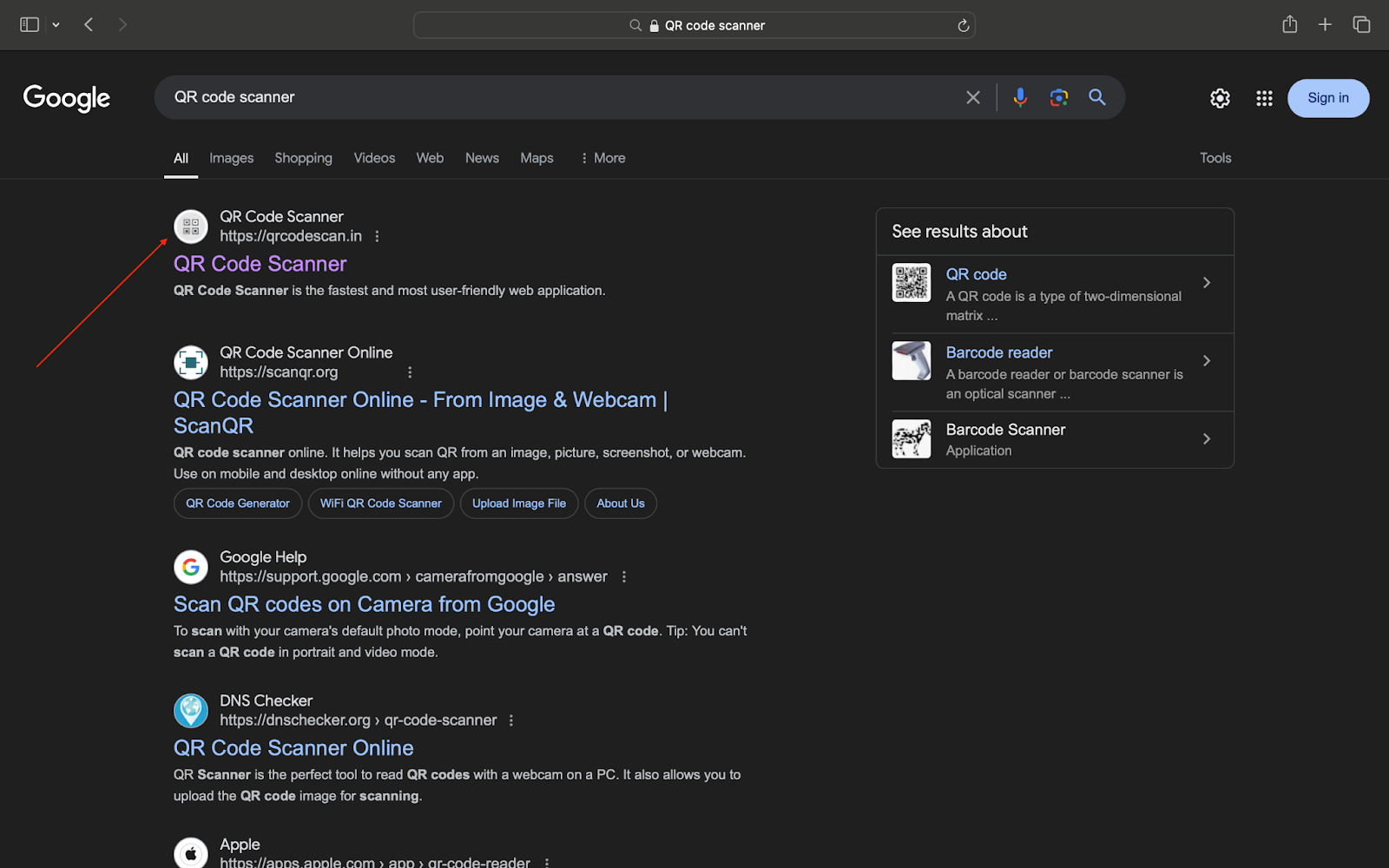
Now, click on the first option in the results.
Step 3: Give permission for scanning
When you visit the website, you will see a pop-up window.
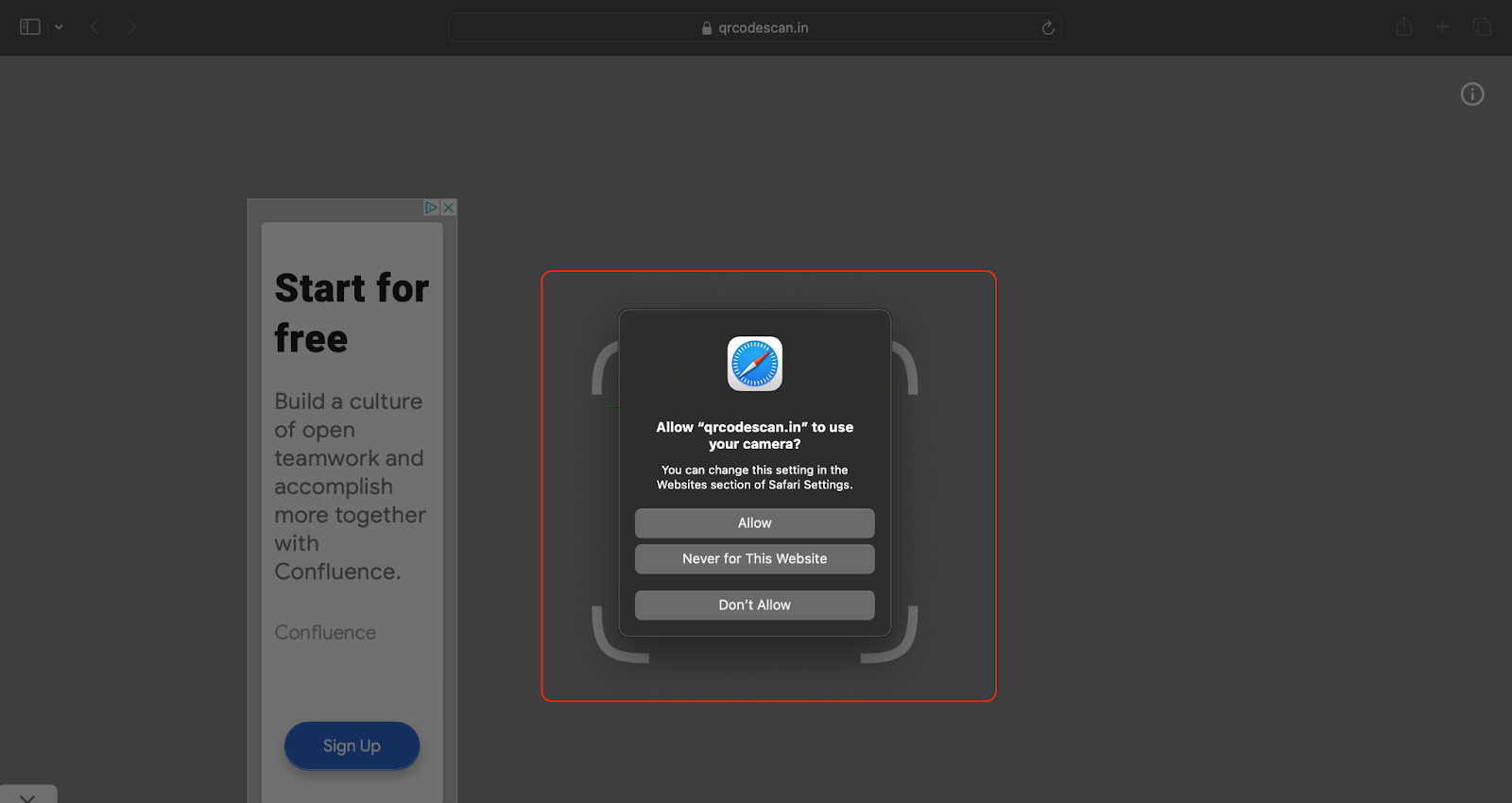
Here, the website requests camera access before you proceed to their website. To make sure it scans the QR code, click on Allow.
Step 4: Scan your QR code
With the right access, the website will immediately open your camera app and allow you to scan the QR code.
A quick tip: Please ensure that you position the QR code so that it fills the screen. This way, you will reach the source or get redirected to the correct URL in seconds.
Step 5: Click Open to reach the right destination
Once you scan the code, you will come across a prompt box like this:
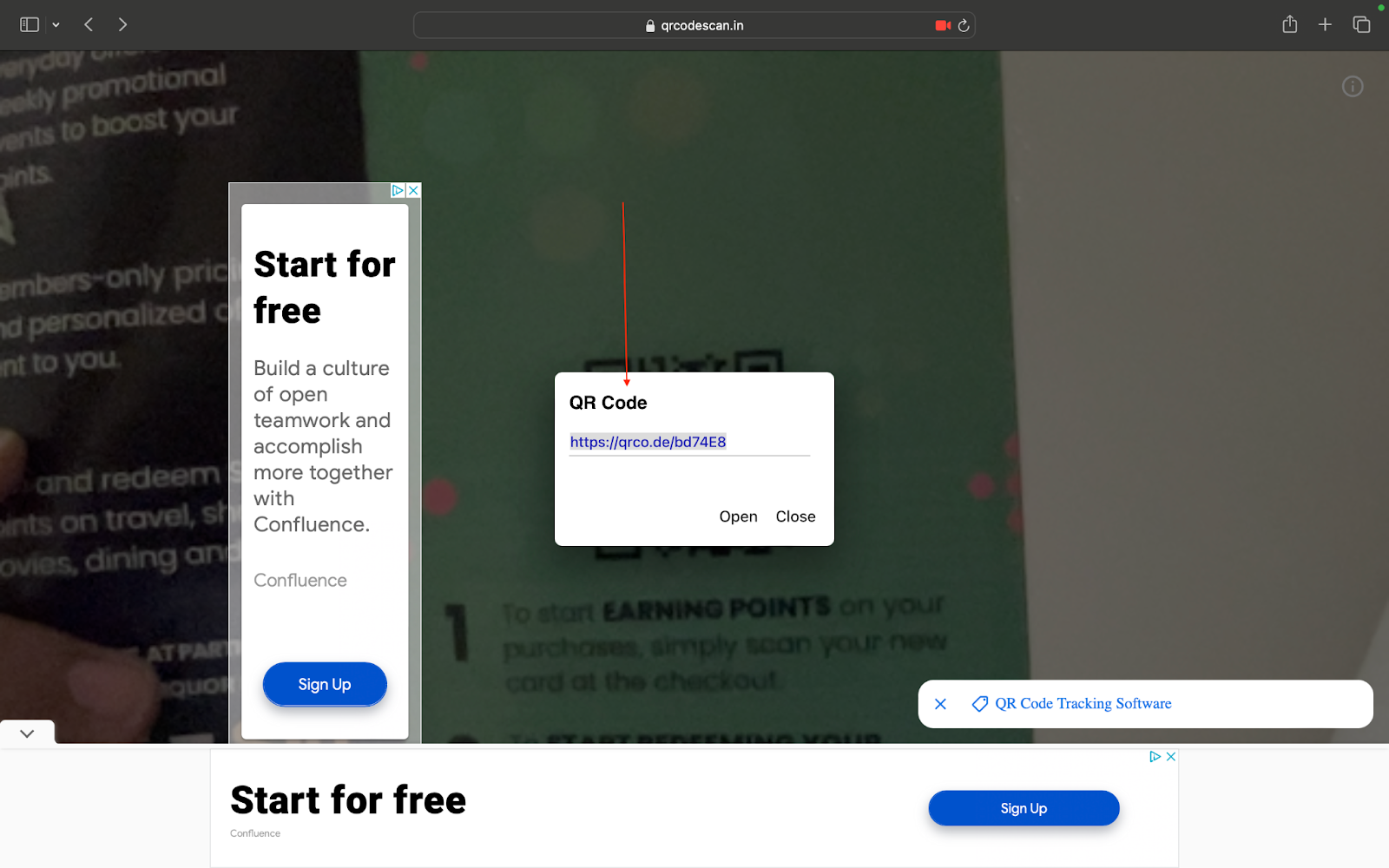
Simply click on Open to get redirected to your desired URL in seconds.
And that’s all. In 5 simple steps, you can quickly scan a QR code on your MacBook in seconds.
Let’s explore another method below.
2. Use a Chrome extension
Another way to scan a QR code using your MacBook is to use a Chrome extension. Here’s how you go about it.
Step 1: Open your Google Chrome window

Step 2: Open the Chrome Web Store
Click on the nine dots next to Images to view the Google App dropdown.
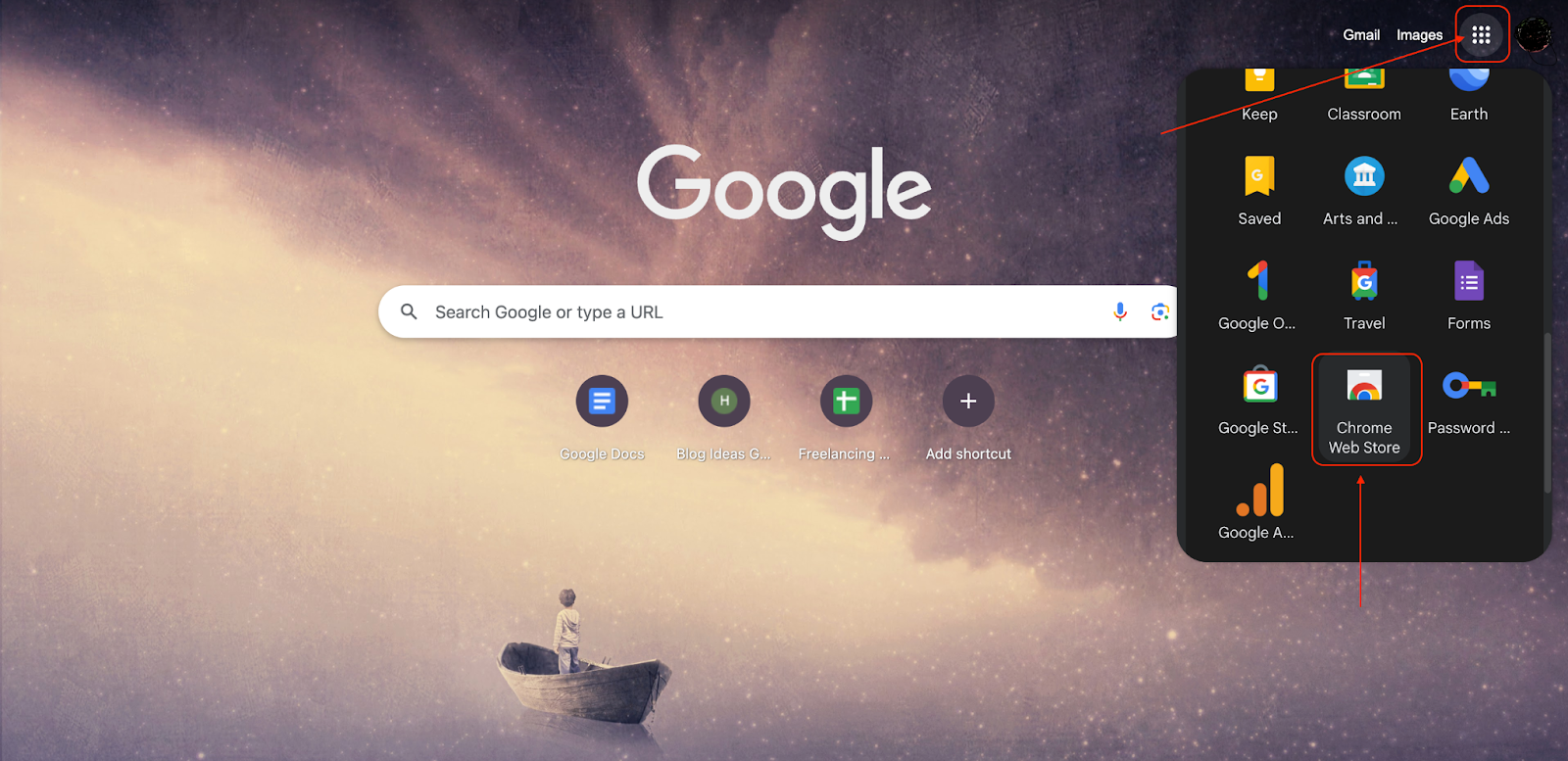
You must scroll to the bottom of the list to find the Chrome Web Store. Once you find the option, click on it.
Step 3: Search for QR code scanners
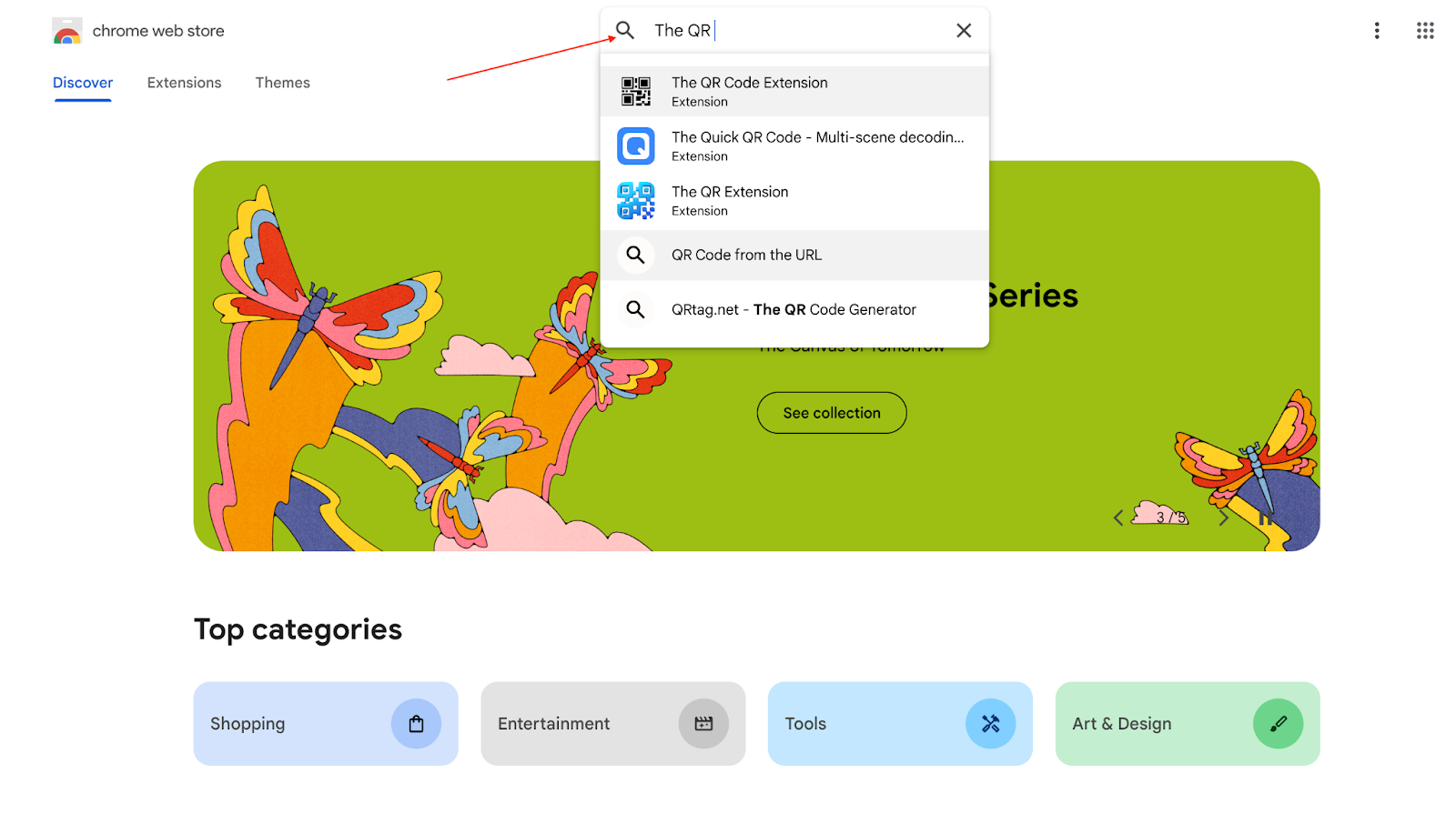
Now, search for QR code scanners in the search bar.
Step 4: Add the extension to Chrome
Click on the first option in the dropdown results. You will be directed to the extension’s page where you need to click on Add to Chrome.
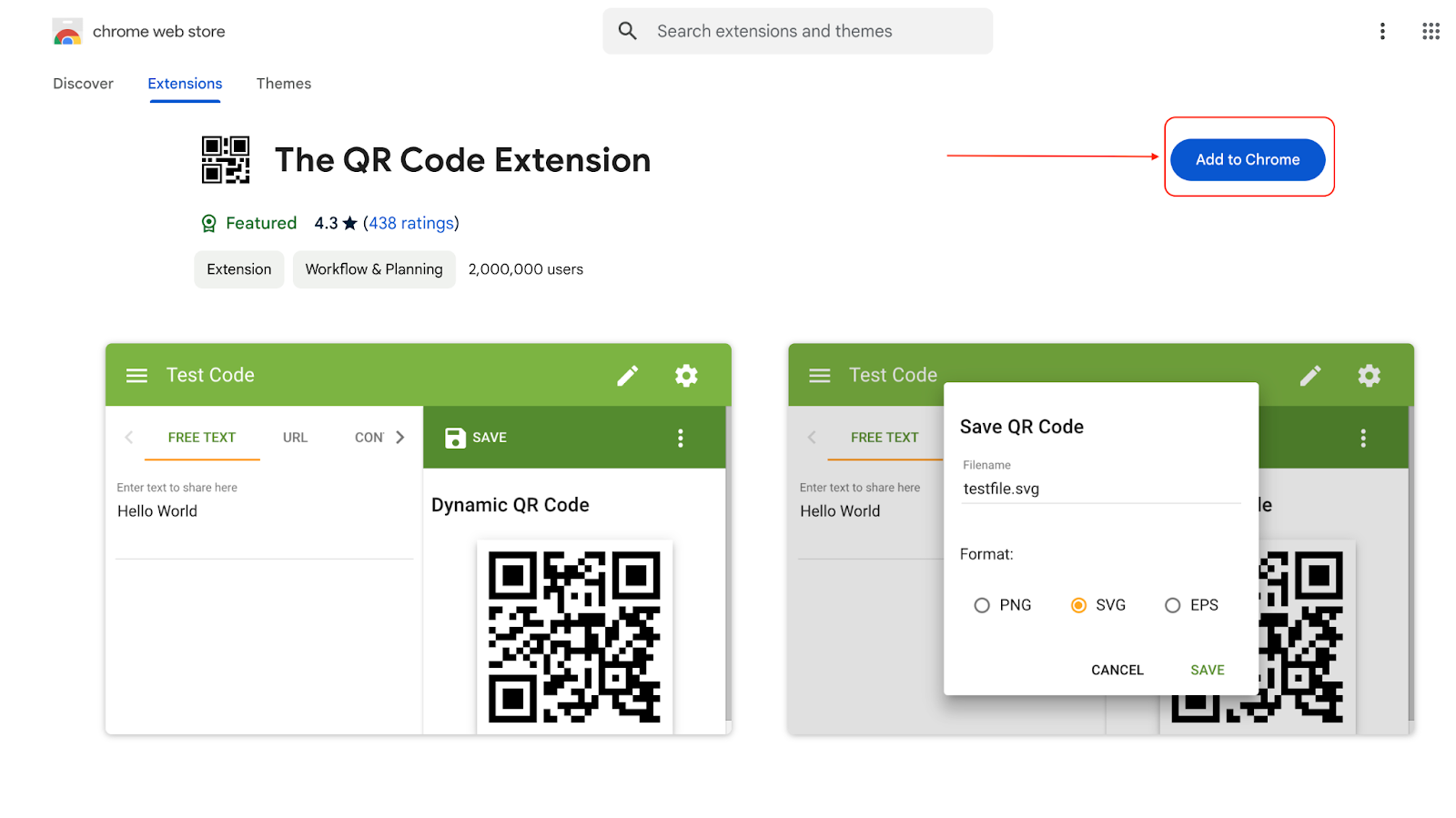
Once you click on Add to Chrome, a pop-up will appear requesting your permission to add it to your Chrome window.
When you click on Add, it will be added to your Chrome window in seconds.
Step 5: Pin and enable the extension
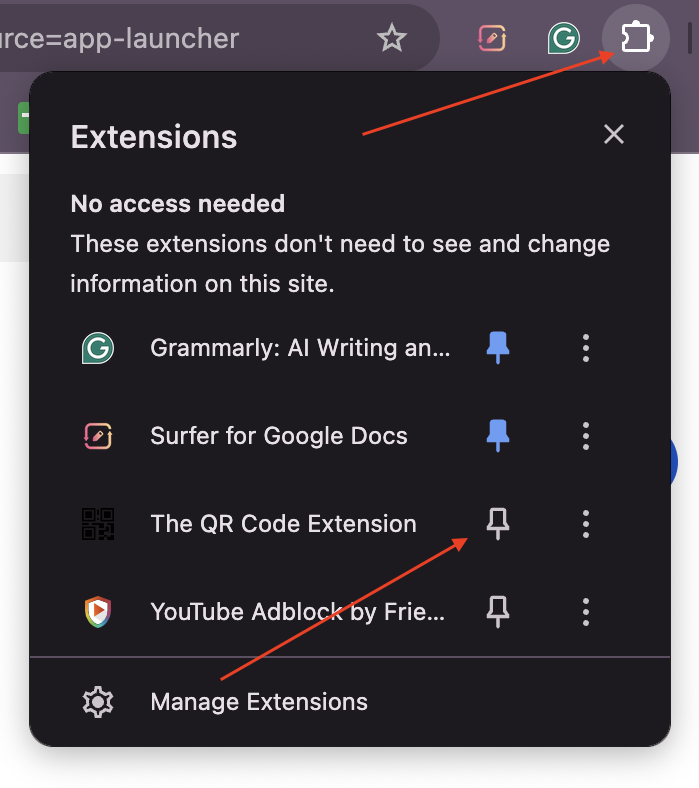
Now, click on the Extensions icon in the window.
It will show you a dropdown where you can pin and enable the extension in your Chrome window.
Step 6: Scan the QR code
Click the QR code icon in your Chrome window and choose scan QR code.
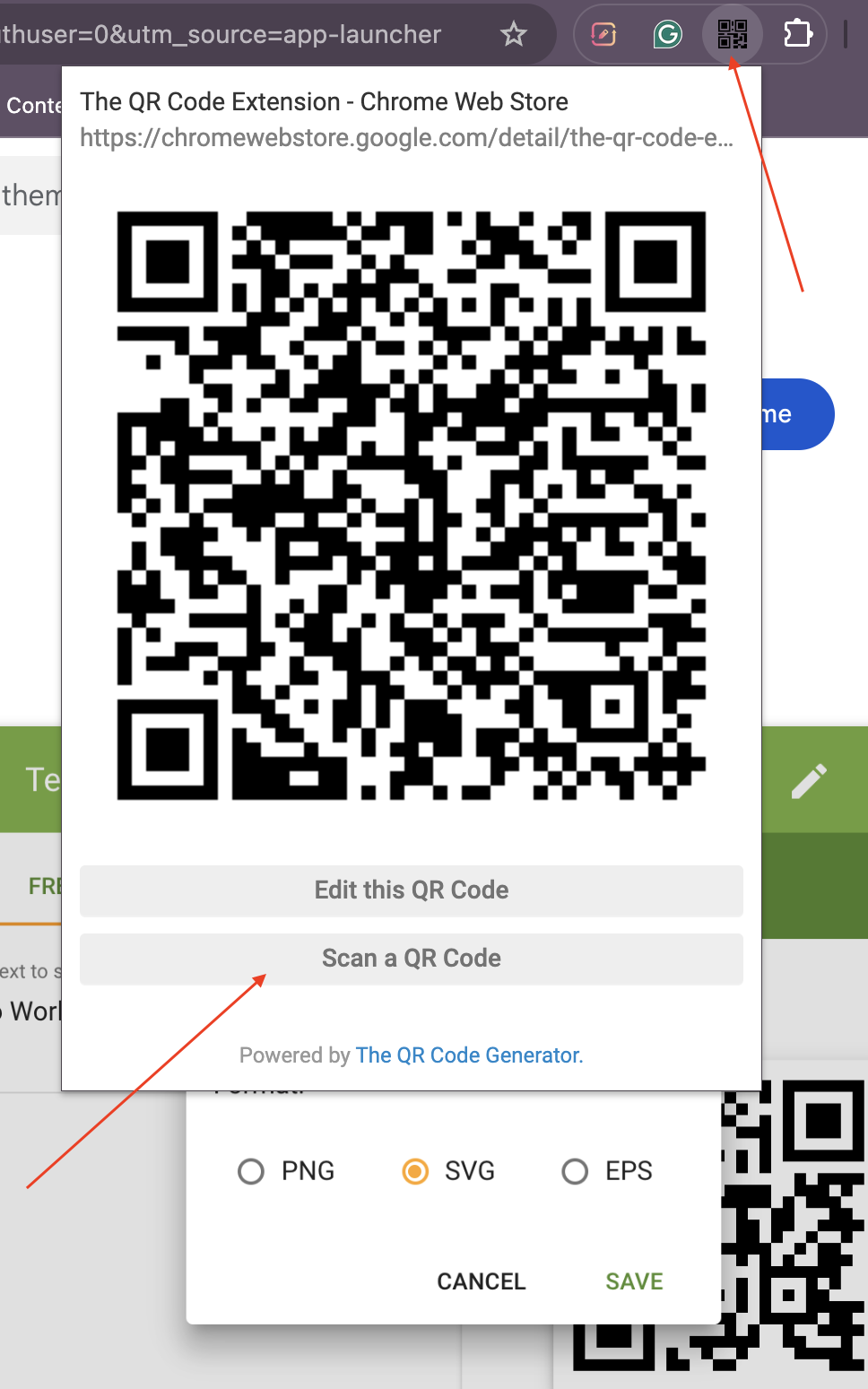
You will be redirected to camera settings, where you must allow the website to capture the QR code once the laptop camera is on.
Once you grant the permission, scan your QR code and visit the website or resource link in seconds.
Create Scannable QR Codes With mobiQode
Start Free Trial →3. Bring your iPhone and MacBook together
Step 1: Mount your iPhone camera

Source: Apple
Your first step is to mount your iPhone camera lens facing you (as shown above). You can use a stand to mount the camera near your MacBook camera to enable the continuity feature.
Please note: The continuity feature can be used in two ways. You can either plug your iPhone into your laptop using a wire or enable Bluetooth to capture the code link immediately.
Step 2: Open the camera app
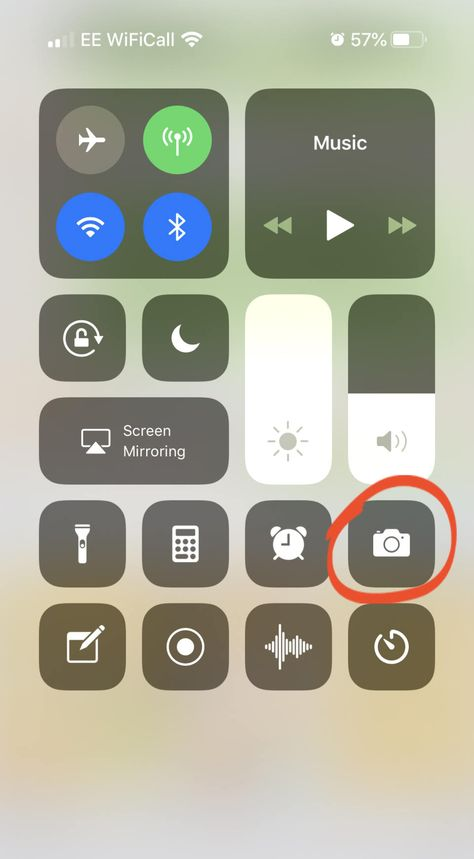
Now, open the camera app on your iPhone and show the QR code to capture the redirection link.
Source: Pinterest
Please note: You can also use the iPhone’s built-in QR code scanner app, which captures the code and redirects you to the source page in seconds.
Step 3: Open the QR code link in your MacBook
Since the continuity feature is on, the link from the QR code scanned on your phone will be displayed on your MacBook.
You will see a notification on your MacBook that says, “Tap to Open.” This will direct you to the right source and ensure users can quickly find the relevant information.
And done. In three simple steps, you can scan your QR codes hassle-free using your iPhone and MacBook.
Build highly scannable QR codes with the right QR code generator
Remember, scanning QR codes on your Mac is now a breeze, no matter which method you choose. No more fumbling with your phone or downloading clunky apps. Your MacBook is all you need to unlock the world of QR codes.
But to ensure that all QR code scans take place seamlessly, you must ensure your code is clear and scans in one go. If you have come across QR codes that take time to scan or show errors, chances are that they weren’t built using the right tool.
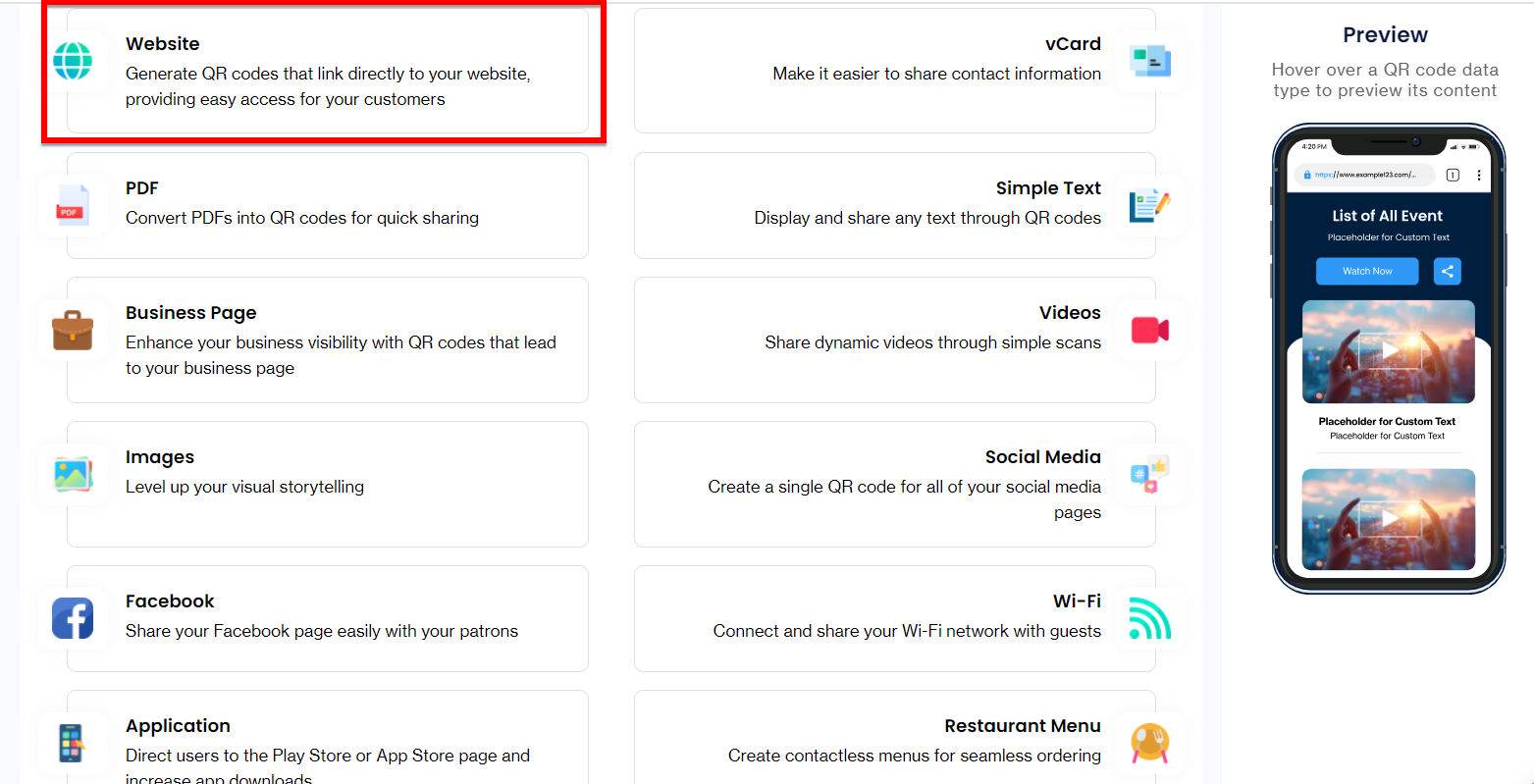
In that case, we suggest you give mobiQode a try. This dynamic QR code generator allows users to create codes for various use cases and offers multiple customization options. We recommend you take the tool on a 14-day free trial to learn more about its features.
mobiQode — Dynamic QR Code Generator
Start Free Trial →QR codes are the bridge between the physical and digital world. We’re making it simple for everyone to create, share, and connect.
Founder, mobiQode
Create Scannable QR Codes for Any Device
Start Free Trial →14-Day Free Trial · Plans from $3/mo · No Credit Card Required