Have you ever found yourself squinting at a tiny QR code on a restaurant table, wondering how to access the menu? You’re not alone. As eateries embrace contactless solutions, QR code menus have become increasingly common.
Scanning a QR code is simpler than you might think. Whether you’re a tech whiz or a smartphone novice, this guide will walk you through the process on both iPhone and Android. By the end, you’ll effortlessly access digital menus and focus on what really matters — deciding what to order.
What is a menu QR code?
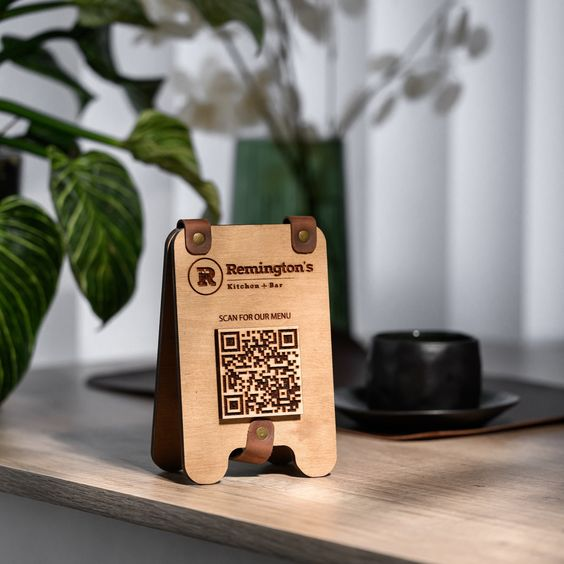
A menu QR code is a square-shaped barcode that directs diners to a digital version of a restaurant’s menu when scanned with a smartphone. This technology eliminates the need for physical menus, offering a contactless and efficient way for customers to browse food and drink options.
Source: Pinterest
Key benefits of QR code menus include:
- Hygienic dining experience: Reduces contact points by eliminating shared physical menus, promoting a cleaner environment for staff and customers
- Easy updates: Restaurant owners can quickly modify items, prices, or specials without reprinting physical menus
- Detailed information: Provide in-depth descriptions, ingredient lists, and allergen information for each dish
- Environmental impact: Reduce paper waste and contribute to more sustainable restaurant operations
Read more: Benefits of QR Code Menus for Your Restaurant
How to scan a menu QR code on iPhone
Scanning a menu QR code on your iPhone is straightforward. Follow these steps to access digital menus in seconds:
Step 1: Locate the QR code
Look for the square barcode on your table, menu stand, or anywhere in the restaurant.
Step 2: Open your iPhone’s Camera app
Launch the Camera app on your iPhone. This works on iOS 11 and later.
Step 3: Point and focus
Source: Pinterest
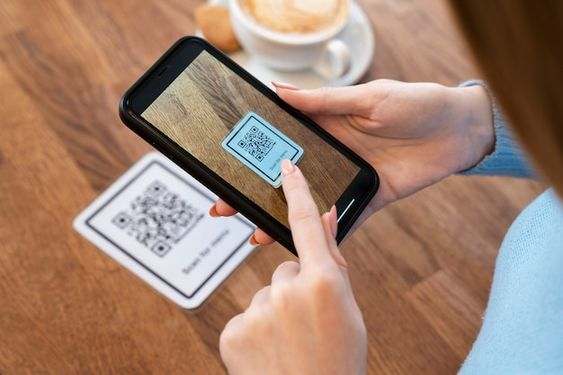
Aim your camera at the QR code. Keep it steady and ensure the code is clearly visible in the frame.
Step 4: Wait for the notification and tap to open
A small notification should appear at the top of your screen. Tap it to launch the digital menu in your web browser.
If no notification pops up, enable QR scanning via the Control Center:
- Go to Settings > Control Center
- Tap the “+” button (green) next to Code Scanner
- Now swipe down from the top-right corner to access the QR code scanner icon
Alternatively, there’s an even faster method:
- Swipe down on your home screen to open the top menu
- Tap the QR code scanning icon
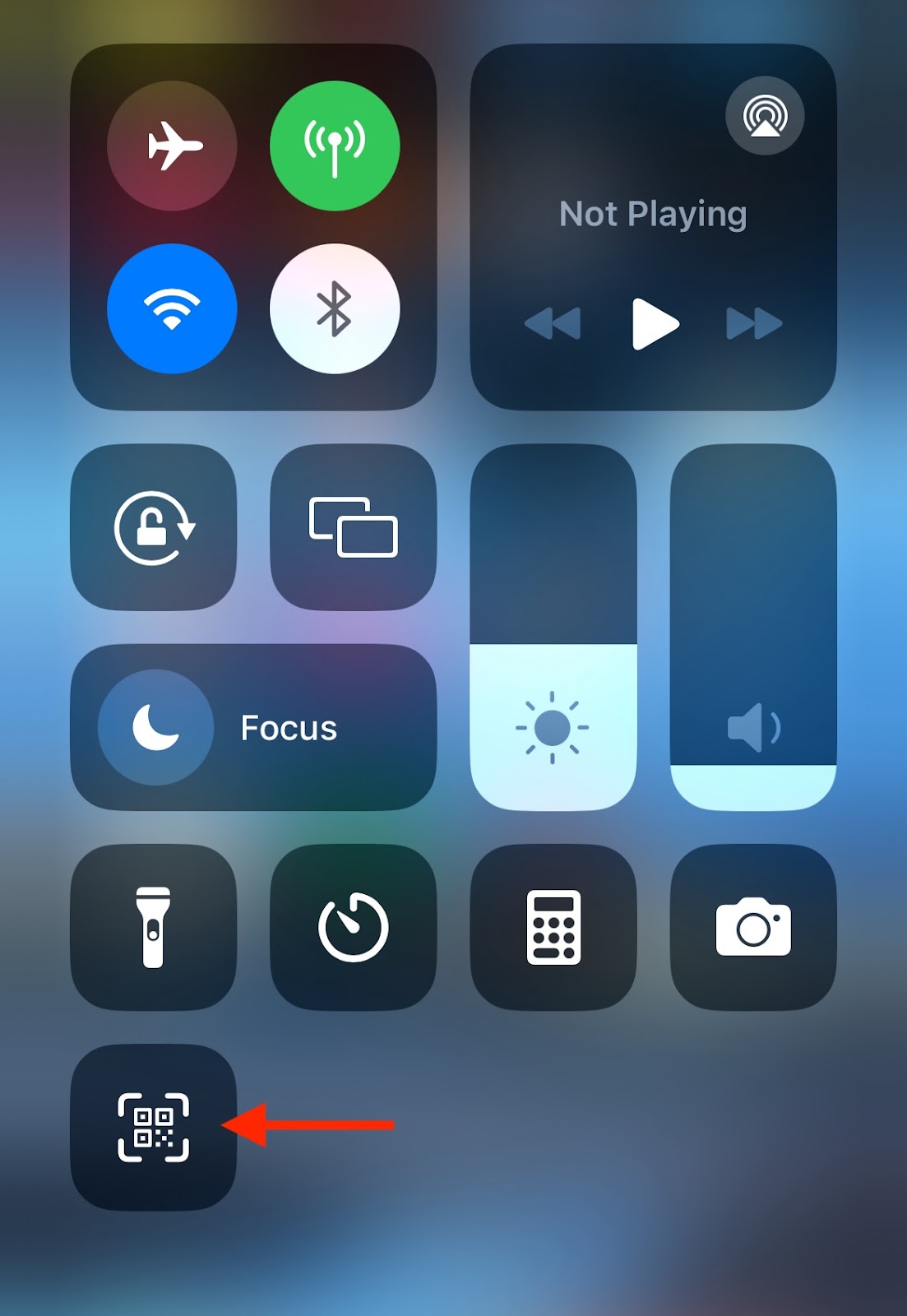
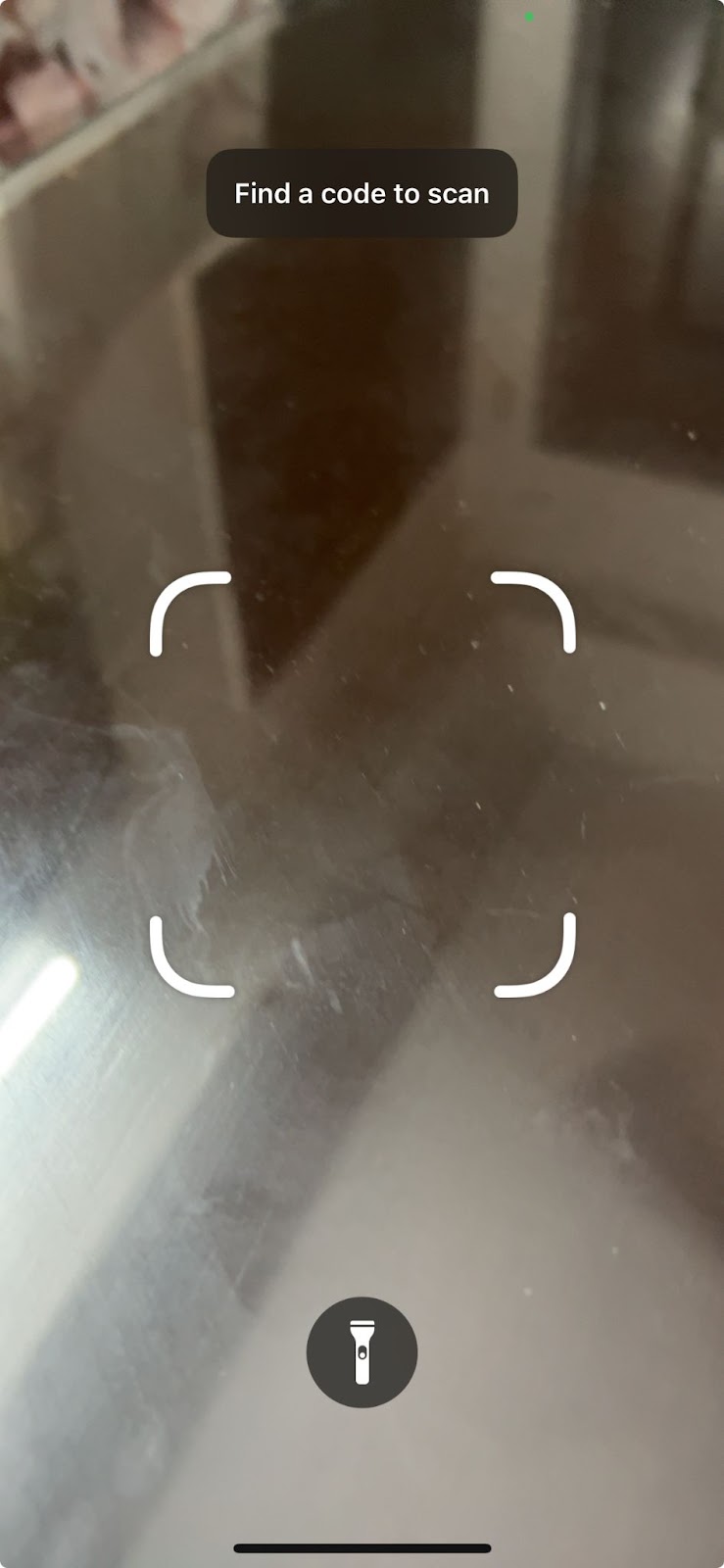
Point the camera lens at the code and the scanner will read it in seconds.
Quick troubleshooting tips if the scan doesn’t work:
- Ensure good lighting
- Clean your camera lens
- Try moving closer or farther from the code
Learn more: How to Scan QR Codes with iPhone
Create Menu QR Codes for Your Restaurant
Try Menu Generator →How to scan a menu QR code on Android
Scanning a menu QR code on Android is just as quick. Follow these steps:
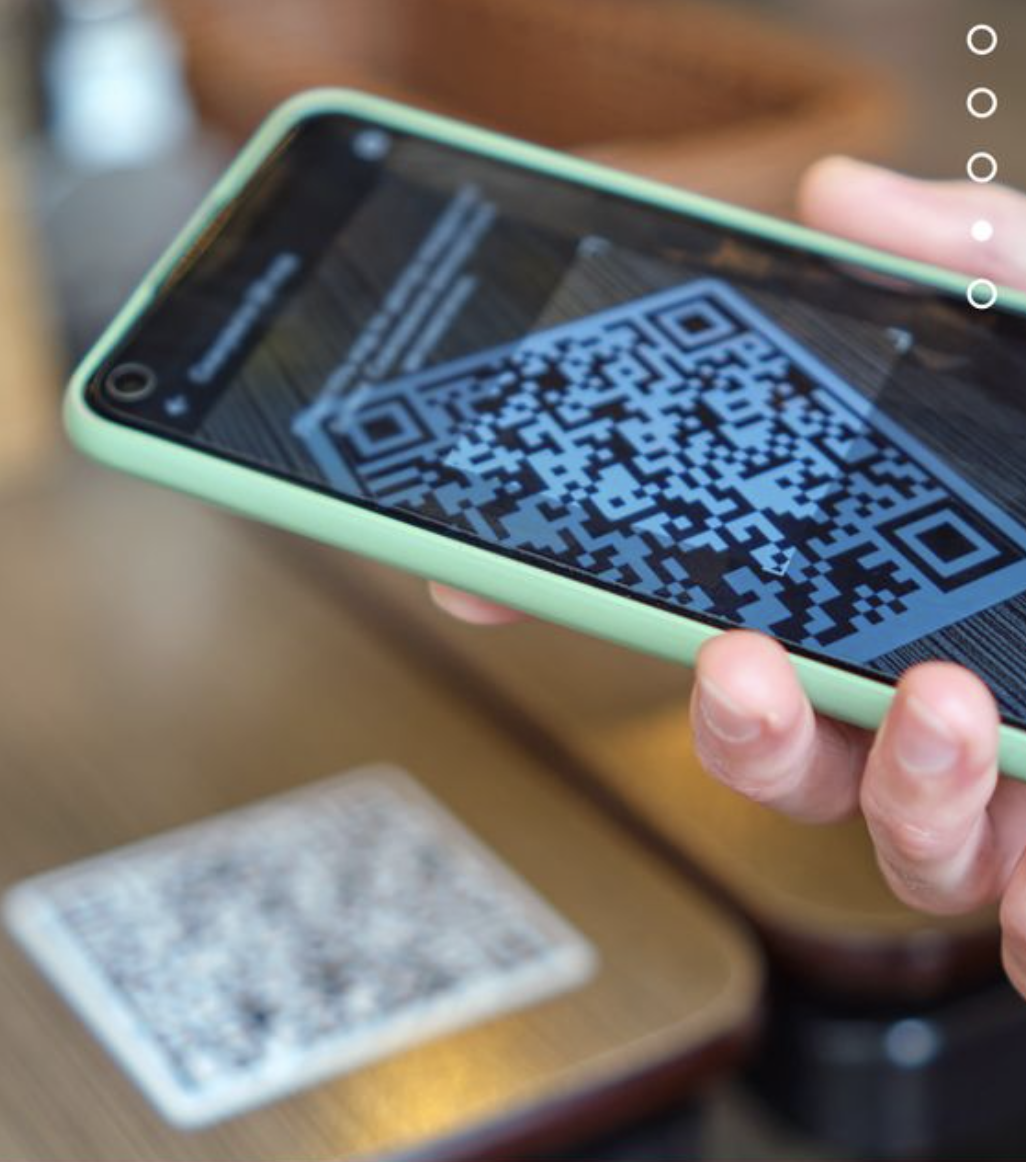
- Open your phone’s Camera app
- Point the camera at the QR code on the table or menu stand
Source: Pinterest
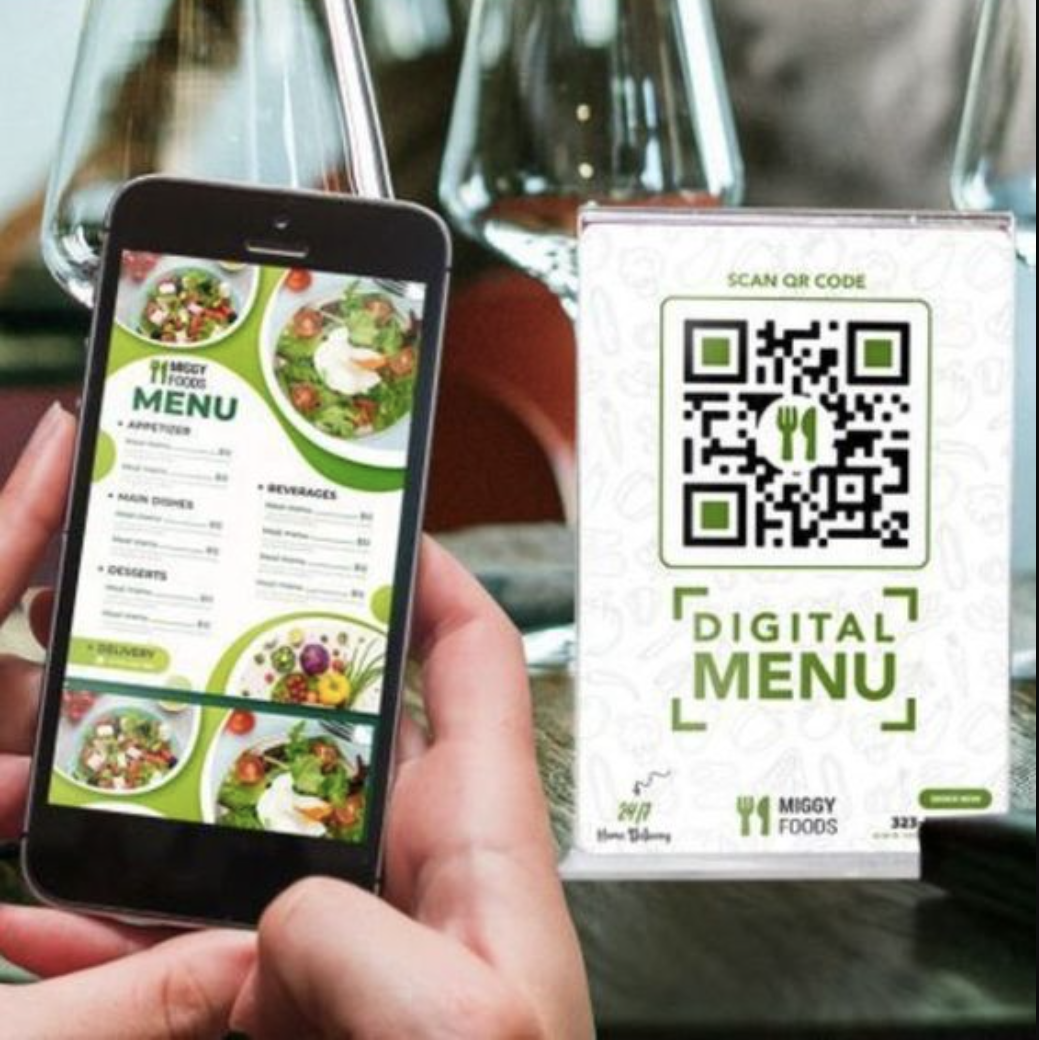
- Hold your phone steady until a notification or link appears on the screen
- Tap the notification to open the digital menu in your browser
Source: Pinterest
If your camera doesn’t automatically detect QR codes, enable it in settings:
- Open your Settings app
- Search for “QR Code” or look under “Features” or “Camera settings”
- Enable the QR code scanning option
Alternatively, use Google Lens for a reliable scanning experience:
- Open the Google app or Google Assistant
- Tap the Lens icon (camera symbol)
- Point your camera at the QR code and tap once the link appears
Read more: Top QR Code Scanner Apps for iPhone and Android
How to scan a menu using QR code scanner apps
Another way to scan restaurant menus is using a dedicated QR code scanner app. Here’s how:
- Download a reputable QR code scanner app from your device’s app store
- Open the app and grant camera permissions if prompted
- Point your phone’s camera at the QR code
- Hold steady until the app recognises the code
- Tap the notification or link that appears to open the digital menu
Most apps work similarly, but some offer additional features like scan history, QR code generation, or built-in web browsers. Choose an app with good reviews and regular updates for the best experience.
Create easily scannable menu QR codes with mobiQode
For restaurant owners, making sure diners can scan your menu QR codes easily starts with creating them properly. Use a menu QR code generator that produces clean, easily scannable codes in seconds.
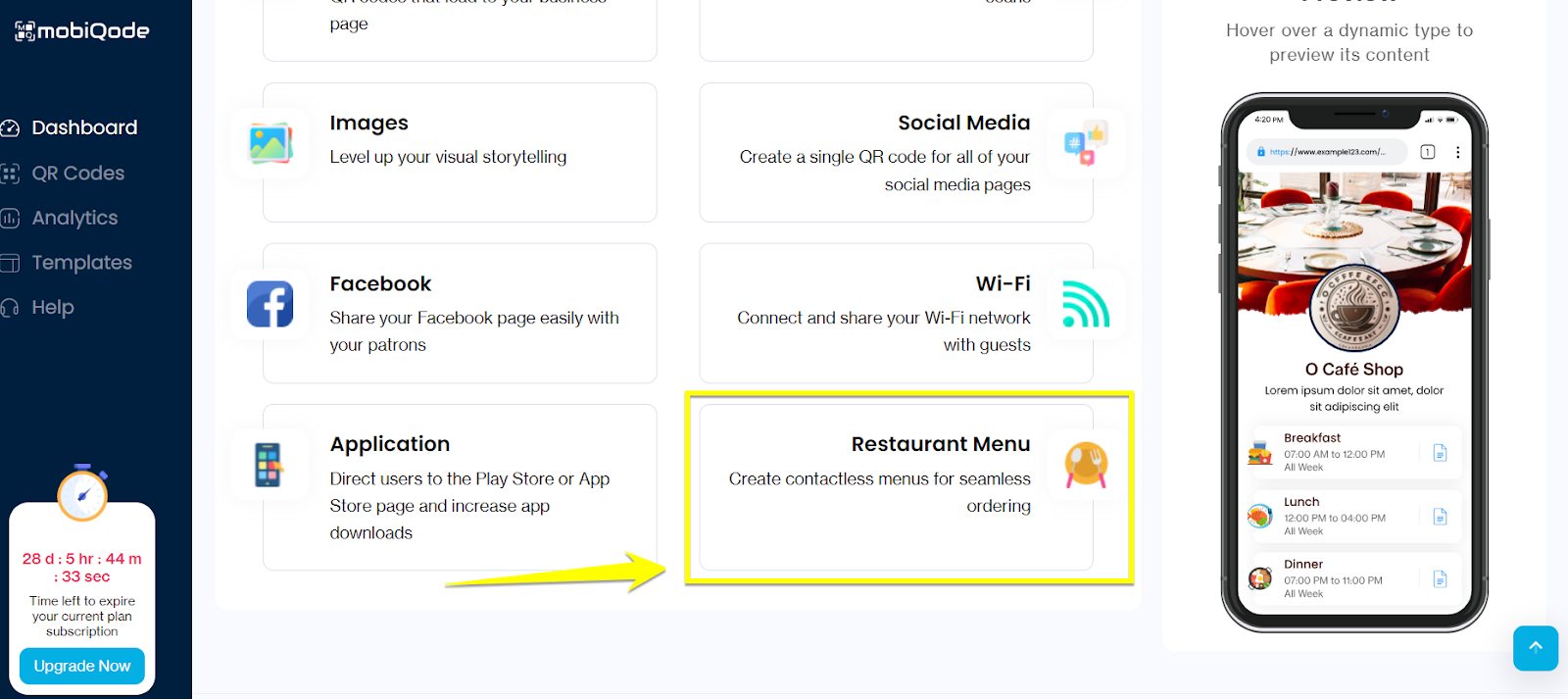
mobiQode’s menu QR code generator creates dynamic QR codes where you can update the menu, prices, or specials at any time without reprinting. Sign up for a free 14-day trial to explore all features.
mobiQode — Restaurant Menu QR Code Generator
Start Free Trial →QR codes are the bridge between the physical and digital world. We’re making it simple for restaurants to create, share, and connect with their diners.
Founder, mobiQode
Create Menu QR Codes for Your Restaurant
Start Free Trial →14-Day Free Trial · Plans from $3/mo · No Credit Card Required