QR codes have become increasingly popular worldwide, allowing us to access information quickly and efficiently. If you’re an iPhone user, you might wonder how to scan a QR code with your device. Regardless of your iOS version, this step-by-step guide will walk you through scanning a QR code using your iPhone.
Scanning a QR code with an iPhone running iOS 11 or above

(Source: Pinterest)
Apple added built-in QR code scanning with iOS 11 in 2017. Scanning QR codes with an iPhone running iOS 11 or above is straightforward using the Camera app. Here’s how:
Step 1: Open the Camera app
Launch the Camera app on your iPhone. Ensure it is up to date and running on iOS 11 or later.
Step 2: Position the QR code
Hold your iPhone so the QR code appears within the Camera app’s viewfinder. Make sure the QR code is well-lit and clear within the frame.
Step 3: Wait for the notification
As soon as the Camera app recognises the QR code, it will display a notification banner at the top of the screen with information about the QR code content.
Step 4: Tap the notification (if needed)
If the QR code contains a URL, text, or other actionable content, tapping on the notification will open the corresponding app or webpage.
Optional: Manual scanning via Control Center
If automatic scanning doesn’t work, you can use the Control Center shortcut:
- Open Settings, then scroll down to Control Center
- Tap the + button (green) next to Code Scanner
- Swipe down from the top-right corner and tap the QR code icon to open the scanner
- Align the QR code within the frame to scan it
- Turn on the flashlight for additional light while scanning (optional)
The Apple Camera app does not keep records of previously scanned QR codes. If you want to see your scan history, you’ll need a third-party QR code scanner app.
How to scan QR codes with iOS 10 or earlier
(Source: Pinterest)
Scanning QR codes with iOS 10 or earlier requires a third-party app, as the built-in Camera app on these versions does not support QR code scanning natively. Here’s how:
Step 1: Download a QR code scanner app
Go to the App Store and download a QR code scanner app. Once installed, open it from your home screen.
Step 2: Allow permissions
The app may ask for permission to access your camera. Grant the necessary permissions for the app to function properly.
Step 3: Position the QR code
Hold your iPhone so that the QR code appears within the viewfinder of the scanning app. Ensure the QR code is well-lit and clear within the frame.
Step 4: Scan the QR code
Once properly aligned, the app will automatically scan the QR code. Some apps may require you to tap a button to initiate the scan.
Step 5: Follow the action
Depending on the content (URL, text, contact information), the app will display the corresponding information or take you to the appropriate action.
Step 6: Close the app
Once you’ve scanned the QR code and taken the necessary action, close the scanning app. Check App Store reviews and ratings before downloading to ensure the app meets your needs.
How to check if your iPhone camera automatically scans QR codes
Devices running on iOS 11 or above have a built-in scanning feature accessible through the Camera app. To check whether your iPhone scans QR codes:
- Open the Camera app
- Point it at a QR code
- Wait a few seconds
If a notification banner appears at the top of your screen, your phone is ready to scan QR codes.
How to enable QR code scanning on your iPhone
To enable QR code scanning on your iPhone or iPad, follow these steps:
Step 1: Open Settings
Tap the Settings app icon on your home screen to open it.
Step 2: Navigate to Camera settings
Scroll down and find “Camera” in the list of options. Tap on it to open the Camera settings.
Step 3: Enable Scan QR Codes
In the Camera settings, locate the option labelled “Scan QR Codes” and make sure the toggle switch next to it is turned ON (green).
Step 4: Exit Settings
Once enabled, exit the Settings app by pressing the Home button or swiping up from the bottom of the screen.
Step 5: Test the QR code scanner
Open the Camera app and point it at a QR code. If enabled correctly, your iPhone should automatically detect the QR code and display a notification banner at the top of the screen.
Create Your Own QR Codes With mobiQode
Start Free Trial →Alternative methods for scanning QR codes on iPhone
Here are some alternative methods for scanning QR codes using popular apps on your iPhone:
Snapchat
Open Snapchat, point your camera at the QR code, press and hold on the screen where the code appears, and Snapchat will scan it instantly.
Facebook’s app includes a QR code scanner. Go to the search bar and type “QR code.” You’ll see an option with a blue QR code icon — tap it to open Facebook’s scanner.
Twitter (X)
Twitter offers a QR code scanner within its mobile app settings. While primarily used to follow accounts, it can also read standard QR codes.
Chrome
Google Chrome for iOS has a built-in QR code reader. Access it by 3D Touching the Chrome app icon (on supported models) or searching for “QR” in Spotlight search.
Pinterest has integrated QR code scanning into its Lens visual discovery feature, useful for brands leveraging the platform for product promotion.
LinkedIn allows users to add profiles using QR codes instead of manually searching. Tap the QR code icon beside the search bar, grant camera access, and scan to connect. Select “My Code” to share your own QR code.
How to scan QR codes from your photo album
(Source: Unsplash)
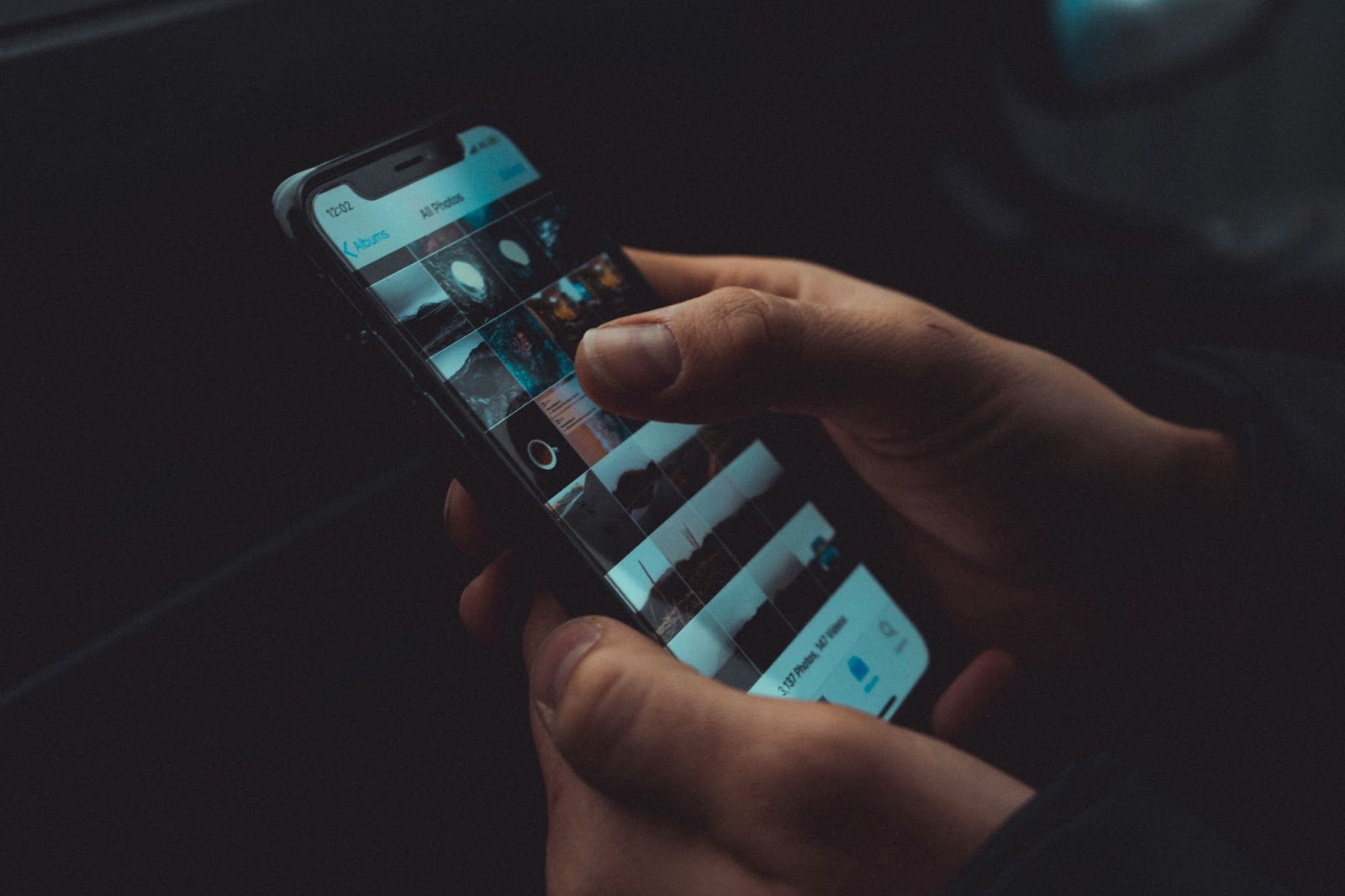
Here’s how to scan QR codes from your photo album on both iOS and Android:
iOS (using the Photos app)
- Open Photos: Launch the Photos app on your iPhone or iPad
- Select the photo: Navigate to the photo containing the QR code you want to scan
- Activate QR code recognition: If iOS recognises a QR code, a small bracketed symbol will appear in the lower right corner of the photo
- Tap the symbol: Tap on the bracketed symbol to open the QR code scanner
- Open the URL or action: After scanning, you’ll see options to open the URL in Safari, Chrome, or another app
Android (using Google Photos or Google Lens)
- Open Google Photos or Google Lens: Launch either app on your Android device
- Select the photo: Find the photo with the QR code
- Scan with Google Lens (from Google Photos): Tap the photo, then tap the Google Lens icon at the bottom. Google Lens will scan the photo for QR codes
- Scan with Google Lens (directly): Open Google Lens, grant permissions, and point your camera at the QR code in the photo
- Open the URL or action: Google Lens detects the QR code content and prompts you to open it in a relevant app
A couple of tips: crop the image if the QR code isn’t the only thing visible, and ensure the QR code is clear — blurry QR codes may not be readable.
Why won’t my iPhone scan the QR code?
Several factors can prevent your iPhone from scanning a QR code:
- Your iPhone isn’t running iOS 11 or later — you’ll need a third-party scanner app
- Your phone is tilted or slanted. Hold it upright before scanning
- There’s a smudge on your camera lens
- The camera needs more time to focus — hold steady for a few seconds
- Screen brightness is too low — increase it for better scanning
- The QR code isn’t properly visible or aligned with the camera viewfinder
If you encounter other issues, try these troubleshooting steps:
Step 1: Check QR code scanning settings
Go to Settings > Camera and ensure that “Scan QR Codes” is turned on.
Step 2: Update iOS
Ensure your device runs iOS 11 or later. Earlier versions do not support automatic QR code scanning.
Step 3: Restart the Camera app
Restarting the Camera app can resolve temporary scanning issues.
Step 4: Try a third-party app
If the built-in Camera app still doesn’t scan, try a reputable third-party QR code scanning app from the App Store.
Step 5: Reset settings (last resort)
Go to Settings > General > Reset > Reset All Settings. This won’t erase your data but will reset all settings, including Camera preferences. Back up your iPhone first, as Apple Pay cards, privacy settings, keyboard dictionary, location settings, and network settings will all be reset to defaults.
Create Your Own QR Codes — Scannable on Any iPhone
Start Free Trial →Create your own QR code with mobiQode
Now that you know how to scan QR codes on any iPhone, why not create your own? With mobiQode’s QR code generator, you can design personalised dynamic QR codes that are scannable on any device — iPhone or Android. Sign up for a free 14-day trial and unlock all features.
QR codes are the bridge between the physical and digital world. We’re making it simple for everyone to create, share, and connect.
Founder, mobiQode
Create QR Codes Scannable on Any iPhone
Start Free Trial →14-Day Free Trial · Plans from $3/mo · No Credit Card Required