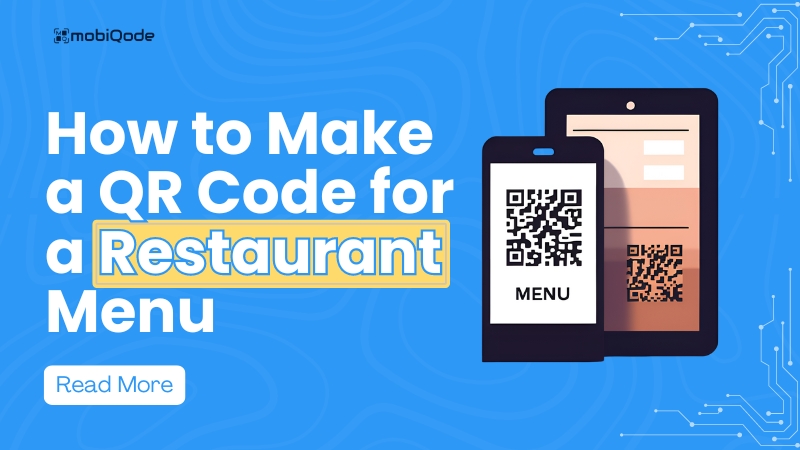
Video: How to Make a Restaurant Menu QR Code
Looking for a more efficient way to manage your restaurant menus? QR code menus offer a modern solution for easily updating and sharing your menu. Let’s look at how they can simplify your restaurant operations and how you can quickly make one with mobiQode.
What Is a QR Code Menu?
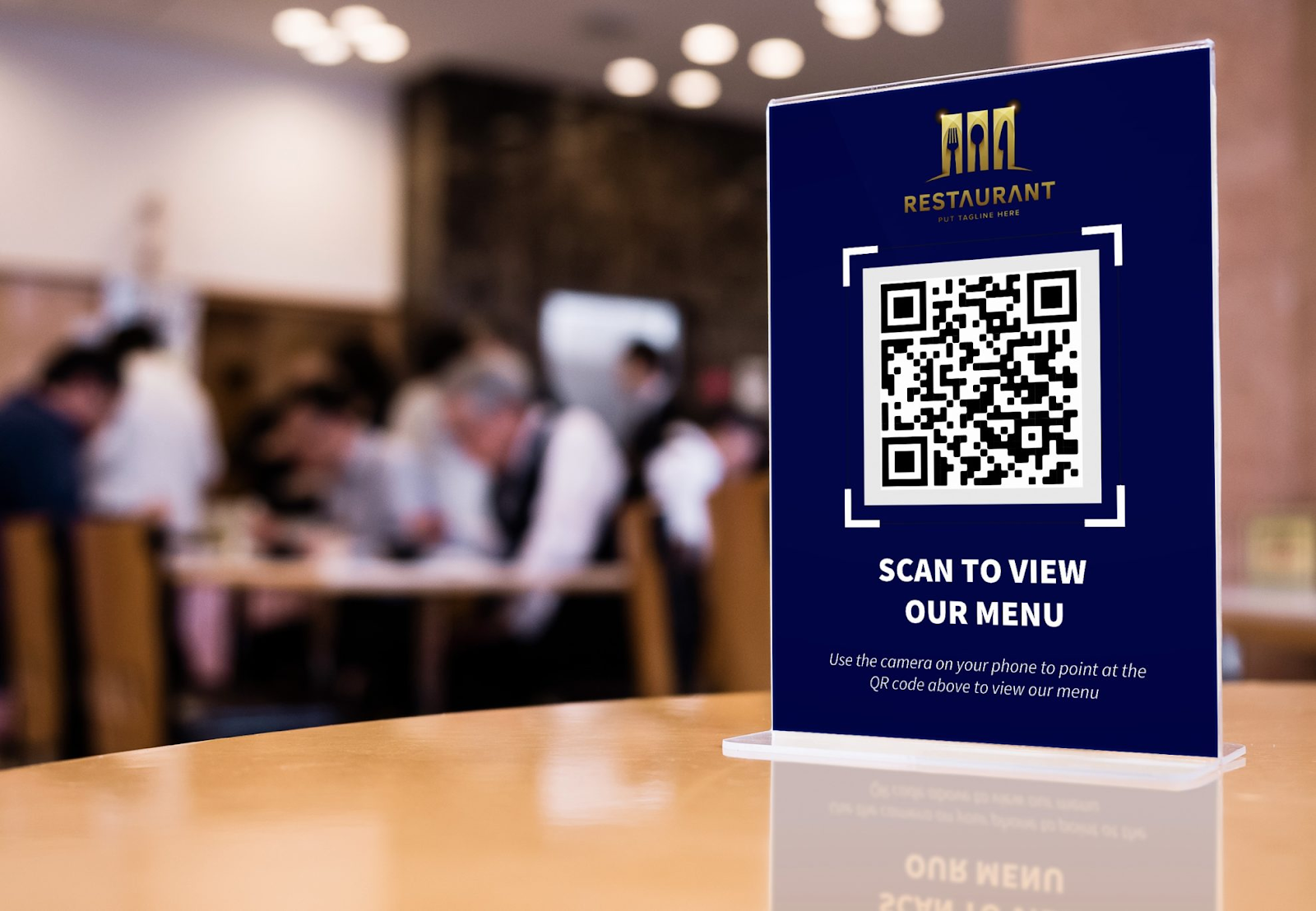
QR code menus are digital versions of traditional menus. Customers scan the QR code to view the full menu on their phone or tablet—no physical menus needed. This creates a more digitized, contactless dining experience.
Scanning the QR code directs users to an external site or app where they can browse the menu, which may include PDFs, images, or additional information like allergen details.
Why Make a QR Code Menu for Your Restaurant?
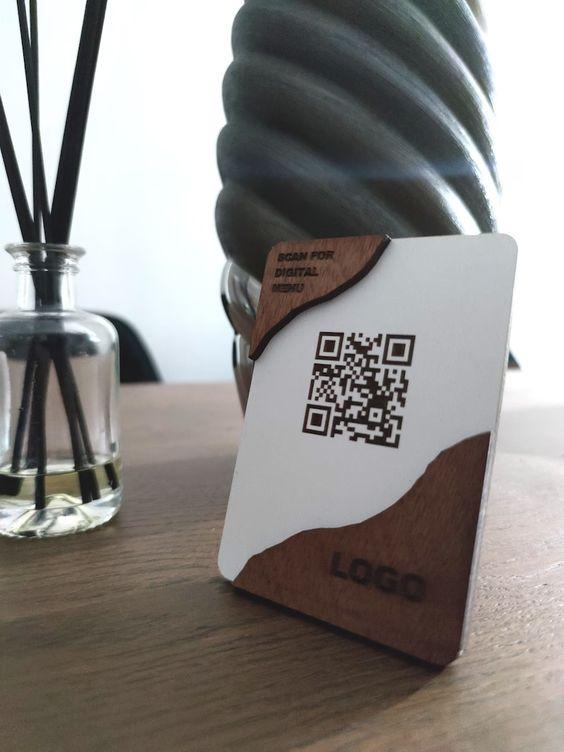
Restaurant and bar owners are always looking for ways to improve customer experience. With the increasing popularity of contactless solutions, QR code menus have become a go-to option. Here are six reasons to use restaurant QR codes:
Better Menu Design
Digital menus are designed with user experience as the focal point. With contactless menus, you can:
- Make popular items stand out
- Highlight the dish of the day
- Inform customers about current offers
- Categorize your offerings for easy browsing
Better Customer Experience
With QR code menus, customers can easily view a digital menu and find what they want by scanning a QR code. It also helps staff by reducing the need for manual menu management, allowing them to focus on service.
Entice Customers with Alluring Images
A traditional print menu has limited space, so food images are often missing. Digital menus have no such restrictions—you can use visually appealing images of your food and drinks to drive orders.
Save Money on Printing Costs
In many restaurants and bars, the menu changes regularly. Reprinting every time there’s a new dish or offer isn’t cost-effective. QR menus made with dynamic QR codes let you update the linked PDF, image, or website instantly—without extra cost or changing the QR code.
Speedy Table Turnover
Managing customer flow is a key challenge for busy venues. QR code menus let customers quickly access the menu and view options without waiting for staff, reducing wait times and streamlining the ordering process.
Collect Customer Data
One of the biggest perks of QR code menus is data collection. Track the number of scans, see which items get the most views, and use those insights to make informed adjustments to your offerings.
Create Your Restaurant Menu QR Code — Free for 14 Days
Start Free Trial →How to Generate a QR Code Menu
With just a few clicks, you can convert your digital menu into a scannable QR code using mobiQode’s menu QR code generator.
Step 1: Log In to Your mobiQode Account
Visit mobiQode and log in to your QR code generator account. If you don’t have one yet, you can create one in less than two minutes.
Step 2: Choose “Restaurant Menu”
Once signed in, click the “QR Code” section. Choose “Restaurant Menu” from the list of available options.
Step 3: Upload Your Menu
Upload your digital menu in PDF or image format. You can also upload multiple image files to the same QR code menu.
Step 4: Add Your Restaurant Details
Add your restaurant name, tagline, and visually appealing background images that represent your restaurant’s vibe.
Step 5: Customize Your QR Code
With mobiQode, you can add your restaurant logo, a custom call-to-action (CTA), and adjust QR code patterns, frames, eye frames, and backgrounds to match your branding.
Step 6: Download Your QR Code
Once you’ve finished customizing, download your QR code in SVG, PNG, or JPG format—ready to print and place at your tables.
How to Order from a QR Code Menu
If you’re dining at a restaurant with a QR code menu, here’s how to use it:
Step 1: Open Your Camera
Open the camera app on your phone and hold it over the restaurant QR code. On Android, you can also use the “Scan QR code” option in your Quick Settings panel.
Step 2: Browse the Menu
Once redirected to the restaurant’s menu, scroll through to see what’s available and what interests you.
Step 3: Place Your Order
If the menu supports online ordering, you can start adding items directly. Use the search bar to find your favourite dish quickly. If online ordering isn’t available, call over a staff member to place your order manually.
Best Practices for QR Code Menus
- Place your restaurant QR code in visible locations—tables, windows, and walls—so customers notice it easily
- Use large, high-contrast QR codes for easy scanning
- Customize your QR codes with colors, shapes, and logos to match your branding
- Include a clear call-to-action that compels customers to scan
- Always link your QR codes to a mobile-optimized menu for a better user experience
- If possible, enable online ordering in your QR menus for added convenience and revenue
Conclusion
Setting up a QR code menu does not require a complicated process. With mobiQode, you can create and manage your menu without technical effort. The setup is quick, and the interface is easy to handle. You can update items anytime, adjust pricing without delays, and make changes based on what is working in your restaurant.
Over time, this reduces manual effort and keeps your menu consistent with your kitchen. Instead of managing printed versions again and again, you maintain one digital version that stays current. It is a practical upgrade that supports your daily operations without adding extra workload.
Restaurants shouldn’t have to reprint menus every time a dish changes. With a dynamic QR code, your menu stays current and your costs stay low.
Founder, mobiQode
Create Your Restaurant Menu QR Code
Start Free Trial →14-Day Free Trial · Plans from $5/mo · No Credit Card Required
Frequently Asked Questions
What is a QR code menu?
A QR code menu is a digital menu that customers can access by scanning a code using their phone. It lets them view your menu instantly without needing a physical copy.
How do I update my QR menu?
If you are using a dynamic QR code, you can update your menu anytime from your dashboard. Changes reflect instantly without needing to reprint anything.
Do I need an app to scan it?
No, most smartphones can scan a QR code directly using the camera. It opens the menu in a browser without requiring any extra app.
How much does a QR code menu cost?
With mobiQode, paid plans start from $5/mo and include dynamic QR codes, unlimited menu updates, scan analytics, and full branding customisation. A 14-day free trial is available with no credit card required.
Can I track how many people scanned my menu?
Yes, if you use a dynamic QR code, you can track scans and basic user data from your mobiQode dashboard. This helps you understand how often your menu is being accessed.