Sharing your Amazon wishlist just got a whole lot easier.
Instead of sending links or having people search manually, you can let them access your list with a simple scan. Whether planning a big event, recommending products, or simply organizing your shopping, creating a QR code can make it fast and effortless.
In this guide, we’ll walk you through how to create your own Amazon wishlist QR code and why it’s such a practical feature for making life just a bit more convenient.
Create an Amazon Wishlist QR Code in Seconds
Start Free Trial →What Is an Amazon Wishlist QR Code?
An Amazon wishlist QR code is a scannable code that directs people to your wishlist, making it easy to share with others. When someone scans the code using their smartphone, it opens the list in their Amazon app or browser, eliminating the need for searching or sharing long URLs.
You can generate a dynamic or static QR code for your Amazon wishlist. Static QR codes are fixed and can’t be edited after creation, while dynamic QR codes allow you to update the link even after the code is generated. Dynamic QR codes offer more flexibility, especially if your list changes over time. See our head-to-head comparison between dynamic vs static QR codes to learn which one suits your needs.
Benefits of Sharing an Amazon Wishlist with a QR Code
Convenience
Instead of searching for your list on Amazon or manually typing a long URL, people can simply scan the QR code for instant access. Whether sharing for personal use, product recommendations, or collaboration with friends and family, it’s a seamless experience that saves time for everyone involved.
User-Friendly
QR codes are straightforward and accessible to virtually anyone with a smartphone. Just open your camera or a QR scanning app, point it at the code, and the link opens right up — no special tech skills required.
Easy Sharing Across Formats
A QR code provides great flexibility in how you share your list — embed it in an email, post it on social media, send it through messaging apps, or print it on event invitations. People can access your list regardless of the medium or platform.
Enhanced Privacy
Sharing a QR code serves as a secure link to your list without exposing personal details like your account information or email address. mobiQode is secure, encrypted, and GDPR compliant — so you can share with anyone with confidence.
When to Use an Amazon Wishlist QR Code
- Weddings and baby showers: Print the QR code on invitations so guests can access your registry instantly without searching manually
- Birthdays: Share your wishlist at a party or via a digital invitation with a single scan
- Product creators and influencers: Link followers directly to your curated product recommendations in bios, reels, or YouTube descriptions
- Travel packing lists: Share a public packing or gear list with friends planning the same trip
- Corporate gifting: Let team members share preference lists ahead of gift exchanges or milestone events
How to Create a QR Code for Your Amazon Wishlist
Step 1: Copy Your Amazon Wishlist Link
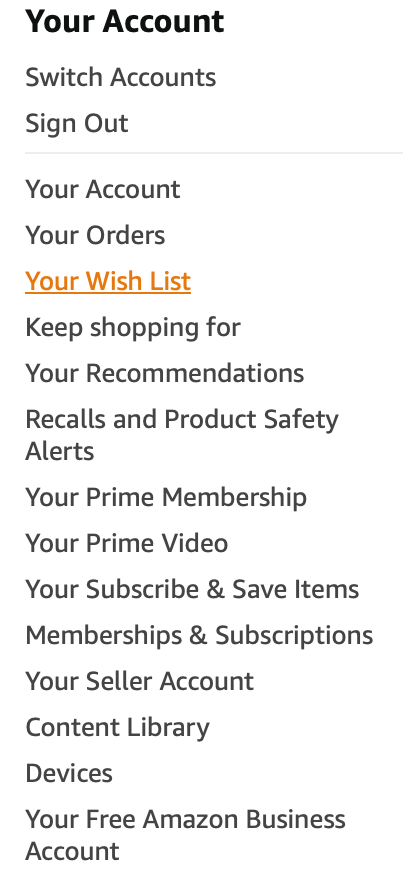
Go to the “Accounts & Lists” menu and select “Wishlist” from the dropdown.
Step 2: Select Your Wishlist
Choose the specific wishlist you want to create a QR code for — a gift list, personal list, or public recommendations list.
Step 3: Get the Sharing Link
Click the “Invite” button in the left corner, then choose “View Only” or “View and Edit” depending on what access you want to provide.

Step 4: Copy the Link
Amazon will generate a sharing link. Copy this link — you’ll use it to create the QR code.
Step 5: Open mobiQode
Access your mobiQode QR code generator dashboard and select the “Create QR Code” option.
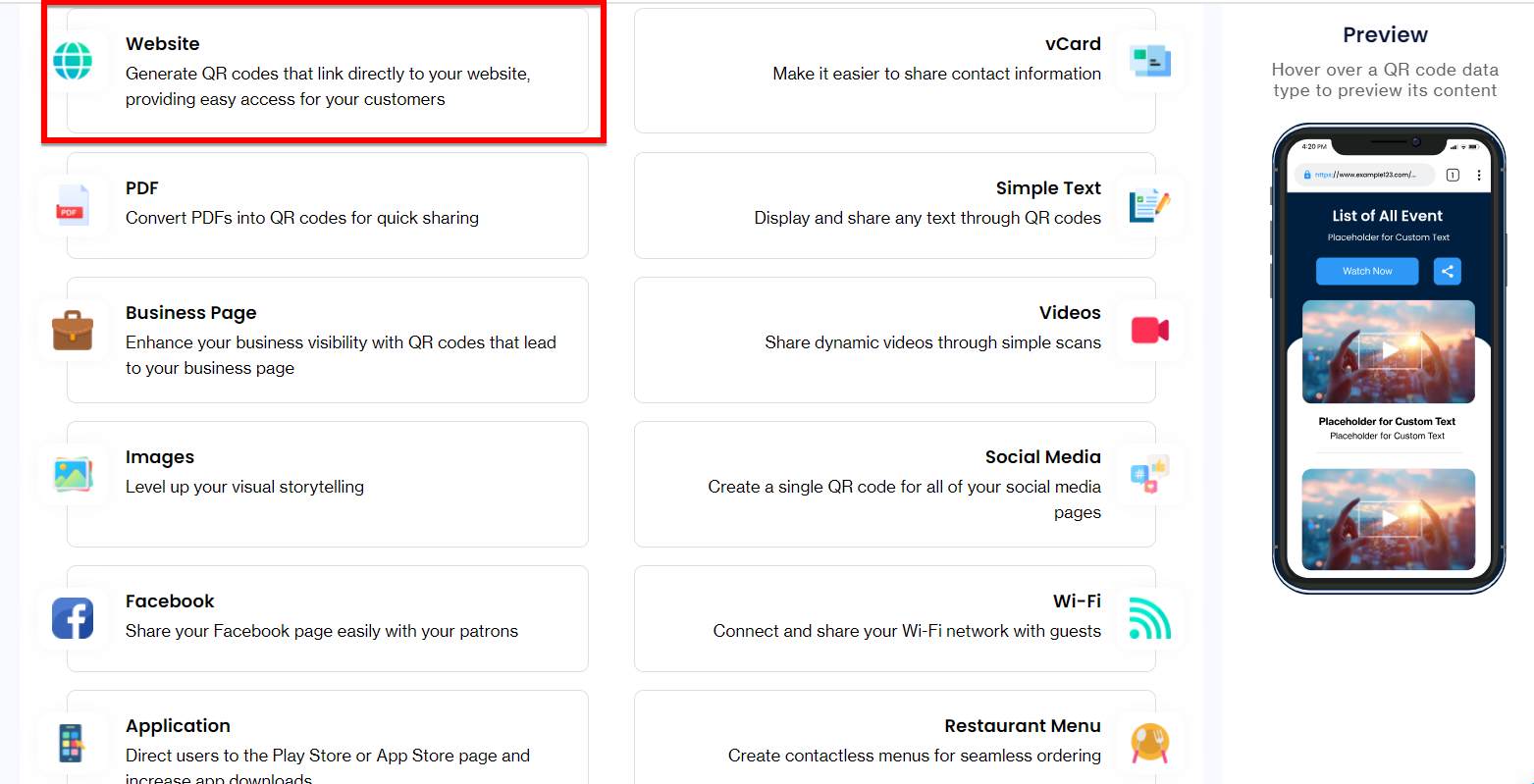
Step 6: Choose URL QR Code
Since you’re making a QR code for a link, choose the “URL QR Code” option within the tool.
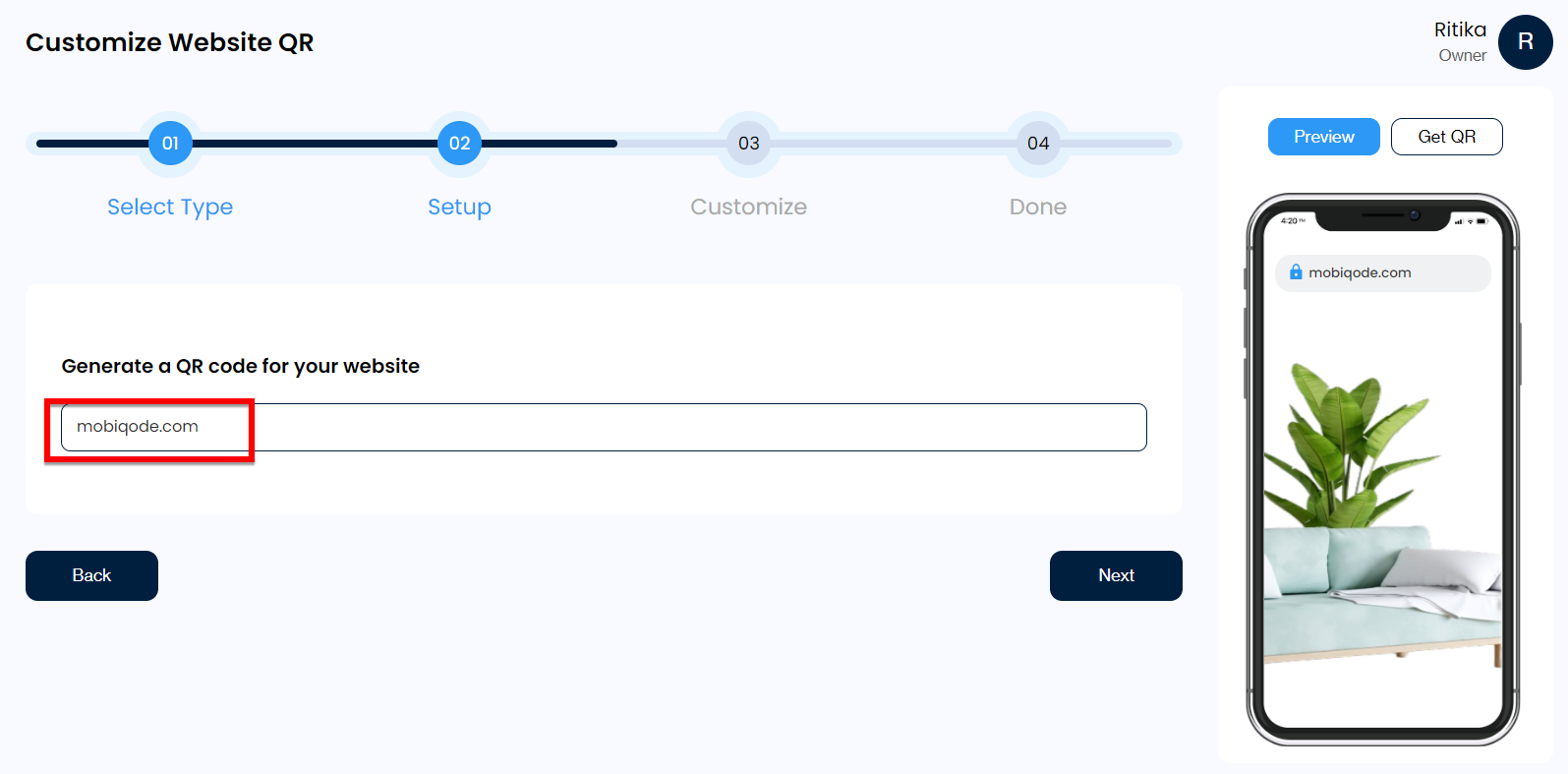
Step 7: Paste the Link
A field will appear where you can paste the link. Once entered, click “Next.”
Step 8: Customize Your QR Code
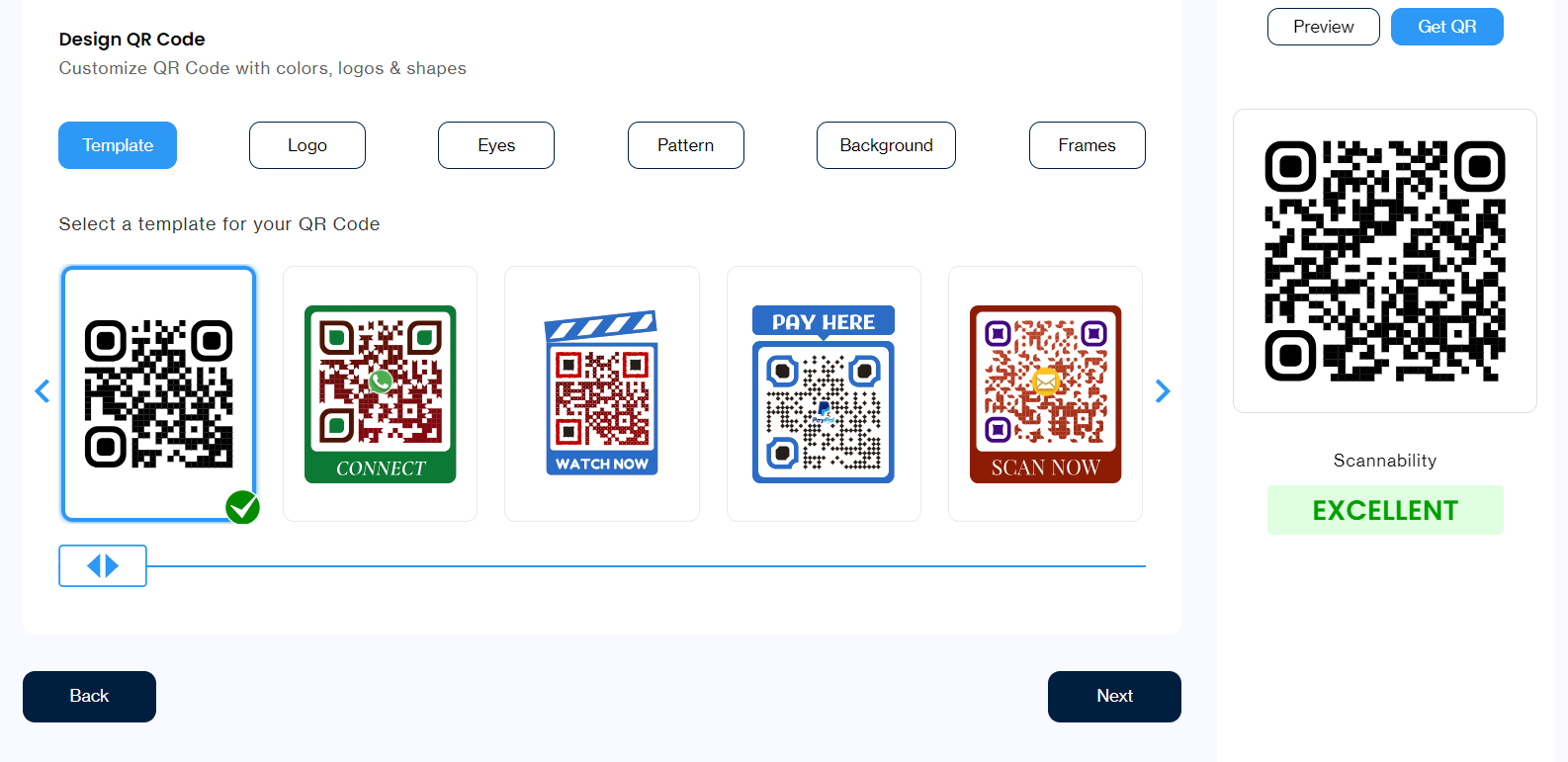
mobiQode has full customization options. Personalize your QR code by selecting different templates, colors, patterns, and frames to match your branding or event theme.
Step 9: Generate and Download
Click “Generate” and once the QR code is created, download it in your preferred format — JPG, PNG, or SVG.
Conclusion
A QR code turns wishlist sharing into a two-second task. mobiQode lets you build, edit, and monitor your code from one place — without any technical knowledge required. Anyone who shares wishlists regularly saves time and effort by having one reliable code ready to use whenever needed.
QR codes are the bridge between the physical and digital world. We’re making it simple for everyone to create, share, and connect.
Founder, mobiQode
Create Your Amazon Wishlist QR Code Today
Start Free Trial →14-Day Free Trial · Plans from $5/mo · No Credit Card Required
Frequently Asked Questions
How do I create a QR code for my Amazon wishlist?
Open your Amazon wishlist, copy the sharing link from the Invite option, and paste it into mobiQode’s QR code generator. Once the code is generated, download it in JPG, PNG, or SVG format.
Can I use one QR code for multiple wishlists?
Each QR code contains a single link, so one code covers only one wishlist. Create a separate code for each wishlist that needs to be shared.
Can I update the wishlist the QR code points to?
With a dynamic QR code, you can change the destination link from your mobiQode dashboard at any point and the printed code continues working as before. Static codes lock the link permanently at the time of creation.
Can I track how many people scanned my wishlist QR code?
mobiQode’s dynamic QR codes record every scan along with location and device details. You can check this data anytime from your dashboard.
Does the QR code expire?
A static QR code keeps working until the Amazon wishlist link it points to gets deleted or deactivated. Dynamic QR codes continue working based on the active subscription tied to your mobiQode account.