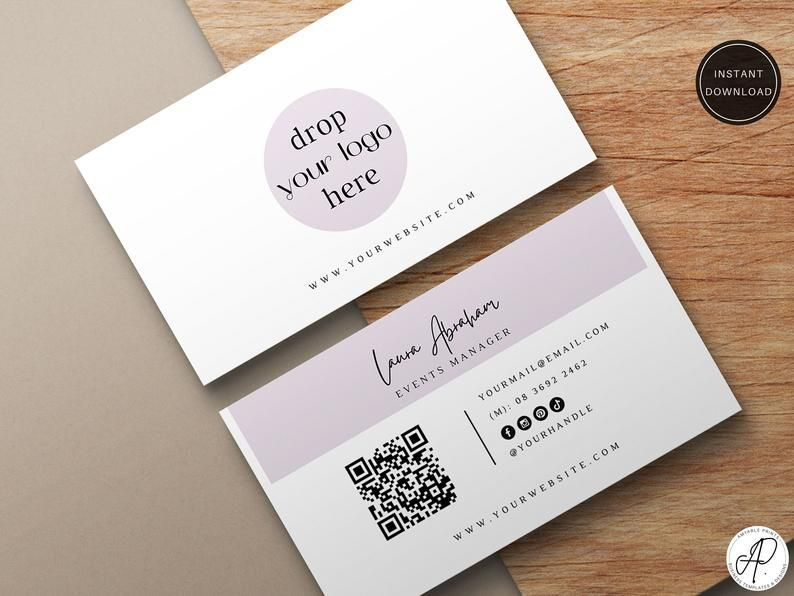
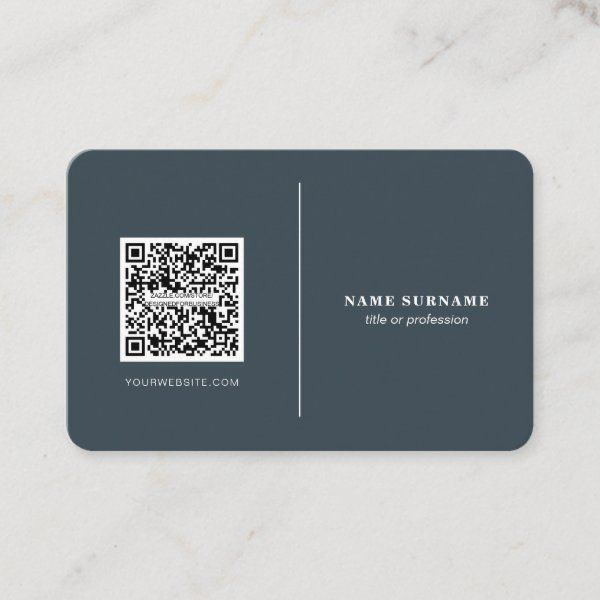
Traditional business cards can end up misplaced, and even when kept, the information can be tedious to type out. Most people who take your business card hardly ever look at them again. Missing quick ways to connect can lose you potential clients or partners. Add a QR code on your business card, and they can instantly check out your website, portfolio, or contact info with a single scan. In this guide, we’ll break down how to make QR codes for your business cards.
Create QR Code Business Cards with mobiQode
Start Free Trial →Benefits of Putting QR Codes on Business Cards
Instant Connections
One quick scan drops your contact straight into their phone, without typing or hassle. People won’t lose your info, making follow-ups way easier.
Drives Website Traffic
Send people directly to your site, portfolio, or product page in seconds. Turn your offline networking into actual online engagement that counts.
Saves Printing Costs
Update your info anytime with a dynamic QR code instead of printing new cards. Saves cash and cuts down on waste too.
Creates Professional Impression
A sleek, interactive card instantly makes you look sharp and modern. Clients and partners see your brand as innovative and on top of trends.
Tracks Engagement
With dynamic QR codes, you can monitor scans, helping you understand what drives interest. These insights let you refine your marketing and networking strategies with real data.
What Can a Business Card QR Code Link To?
Your QR business card can connect people to almost any digital destination. Here are some high-value use cases for small businesses:
vCard / Digital Contact Card
Business QR codes let people grab your phone, email, and address in one scan. No typing, no mistakes — your info lands in their contacts perfectly every time.
Company Website or Landing Page
Add a QR code to your card and send people straight to your homepage or a special lead page. They can check out your services right after meeting you.
Portfolio, Product Catalog, or Menu
Business QR codes are perfect for freelancers, creators, or restaurants showcasing their work or offerings. A scan gives immediate access to visual proof of your skills or products.
Booking Page or Calendar Link
Consultants and service providers can let prospects book a meeting instantly with a business card QR code. This removes back-and-forth communication and speeds up conversions.
Social Media Profiles
Build brand presence by linking to your business’ Instagram, LinkedIn, or Facebook pages. A single scan helps contacts follow and engage with your brand in seconds.
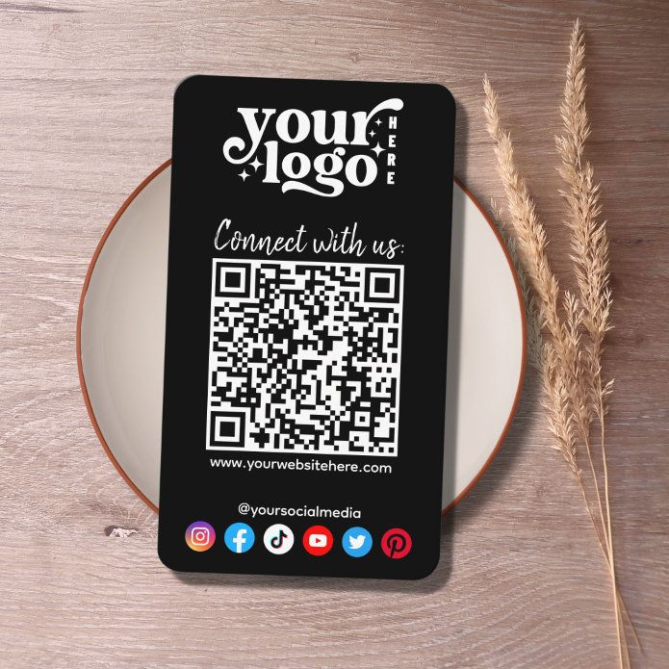
Payments or Donation Page
Business QR codes are a practical option for small shops, freelancers, or NGOs to accept payments anytime, anywhere.
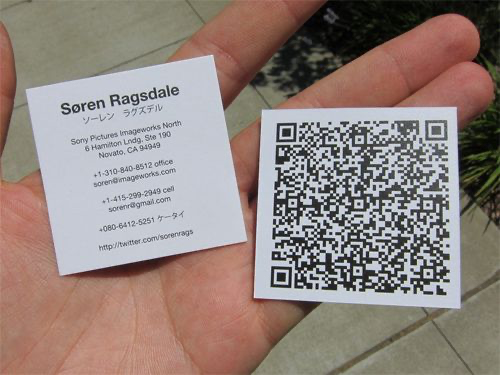
How to Create QR Codes for Business Cards
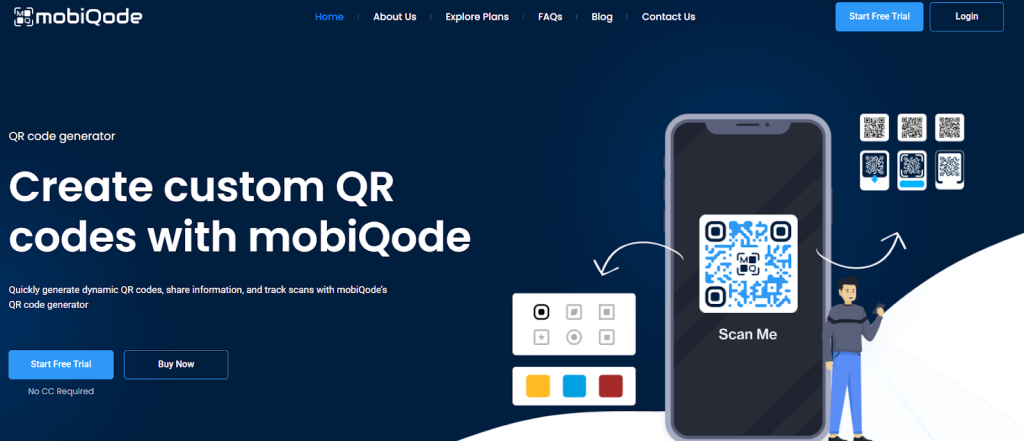
Choose a Reliable Dynamic QR Code Generator
Use a secure, GDPR-friendly tool like mobiQode. Dynamic codes let you update your details anytime — no more wasting money on reprints.
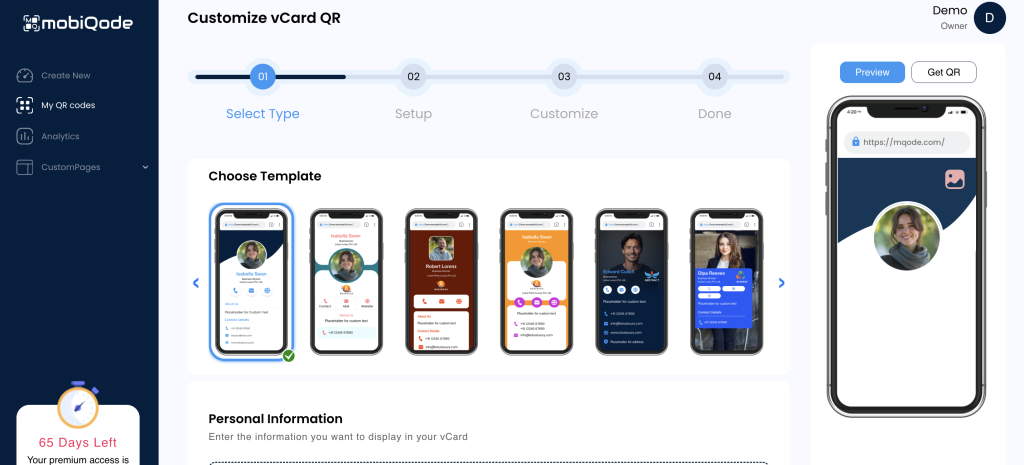
Use the vCard or Digital Business Card Option
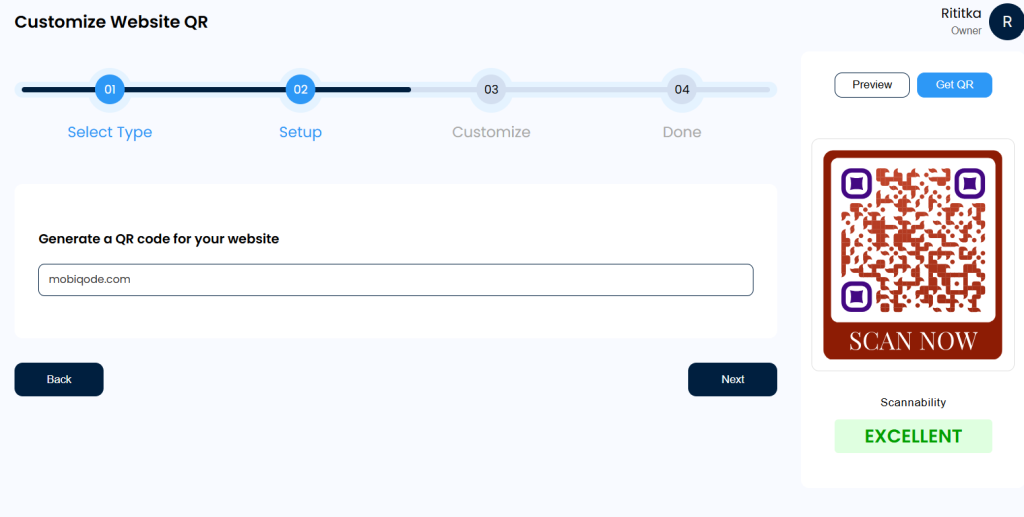
Or Enter Your Website / Link Destination
Choose what you want people to see: your contact card, website, booking page, or even a Google Form for feedback or sign-ups.
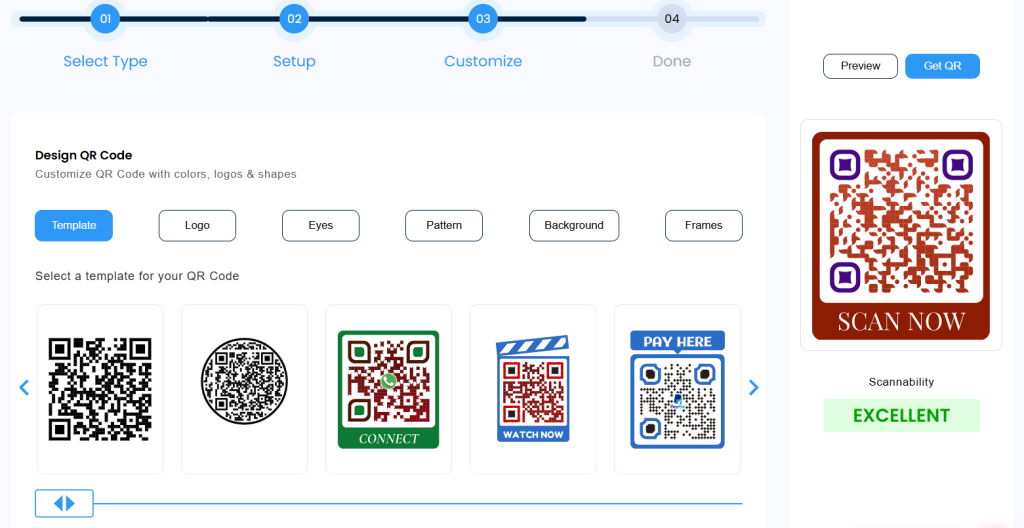
Customize the Design
Adjust colors, patterns, and add your logo to match your brand. You can also create image or video QR codes.
Test Before Printing
Scan it on a few phones and make sure it works correctly before sending to print.
Export in High Resolution
Download in SVG or PNG format for sharp, print-ready quality on your cards.
Place Strategically on Your Card
The back of the card or bottom-right corner work best — visible, easy to scan, and not cluttering your main contact details.
Who Should Use QR Codes on Business Cards?
QR codes work especially well for certain professions:
🎨 Freelancers
Freelancers often need to show their work quickly. A QR code can take people straight to a portfolio or sample projects. It saves time and makes a stronger first impression.
💼 Sales Professionals
In sales, speed matters. A QR code helps prospects access your product page or contact details instantly. It makes follow-ups easier and keeps the conversation going.
🏠 Real Estate Agents
Property details change often. A QR code can link to listings, virtual tours, or contact info. Clients can explore options right after meeting you, without any delay.
Best Practices for Designing QR Codes on Business Cards
- Size matters: Make it at least 1 x 1 inch so it scans easily. Too small and people will struggle.
- Give it space: Leave white space around it so scanners don’t conflict with nearby text or designs.
- File type: Use PNG with a transparent background so it blends cleanly with your card design.
- Branding balance: Use your brand colors, but maintain enough contrast for the code to scan reliably.
- Add a CTA: Write something like “Scan to save my contact” or “Scan to see my portfolio” to prompt action.
Conclusion
A business card should not stop working once it leaves your hand. Adding a QR code gives people a quick way to interact with your brand — one scan can open your website, show your work, or let someone book time with you instantly.
With mobiQode, you can update your details anytime without reprinting cards, track who’s scanning, and keep your networking consistent and professional. It is a practical upgrade that costs far less than the opportunities a static business card misses.
Ankita Saraswat
Founder, mobiQode
In today’s digital world, your business card should be as dynamic as you are. QR codes bridge the gap between physical networking and digital connections, making it effortless to share your information and stay memorable.
3 Simple Steps to Create Your QR Code Business Card
Choose Your Card Type
Select from digital vCard, business landing page, or social media hub. Each is optimized for instant sharing and mobile compatibility.
Add Your Information
Enter your contact details, links, and branding. Include phone, email, website, social profiles, and even your company logo.
Generate & Share Your QR Code
Get your unique QR code instantly. Print it on cards, add it to email signatures, or display it at events. Update anytime without reprinting!
Pick Your Perfect QR Code Business Card Format
Digital vCard QR Code RECOMMENDED
The classic choice. One scan adds your complete contact info directly to any smartphone’s address book. Perfect for traditional networking.
Business Landing Page
Showcase your services, portfolio, and testimonials with a branded mobile page.
Social Media Hub
Link all your social profiles in one place. Ideal for creators and influencers.
Transform your networking with smart QR code business cards
Create Your QR Code Card Now →14-Day Free Trial · Plans from $5/mo · No Credit Card Required
Frequently Asked Questions
What should a business card QR code link to?
It depends on your goal. You can link it to your digital contact card, website, portfolio, or a booking page to make it easy for people to take action after meeting you.
Can I update the QR code after printing?
Yes, but only if you use a dynamic QR code. It lets you change the linked content any time without reprinting your cards — making it a more cost-effective long-term choice.
How do I make my QR code look professional?
Use your brand colours, add a logo, and keep the design clean. Make sure there is enough contrast between the QR code and its background so it stays easy to scan.
Do I need an app to scan it?
No, most smartphones scan QR codes directly through the camera app. It opens the link instantly in the browser without requiring any additional software.
How small can the QR code be on a business card?
Keep it at least 1 x 1 inch for reliable scanning. Making it too small can cause readability issues, especially on lower-quality prints.