Let’s be real for a second. You spend hours designing the perfect QR code — picking colors, adding your logo, placing it just right on your packaging or flyer. Someone scans it. And what do they see in their browser?
Not exactly on-brand, is it?
This is one of the most overlooked details in QR code campaigns. You control the design, the landing page, the offer — but the URL itself? That’s the first thing your customer actually reads. And if it’s a random string on someone else’s domain, you’ve already lost a branding opportunity.
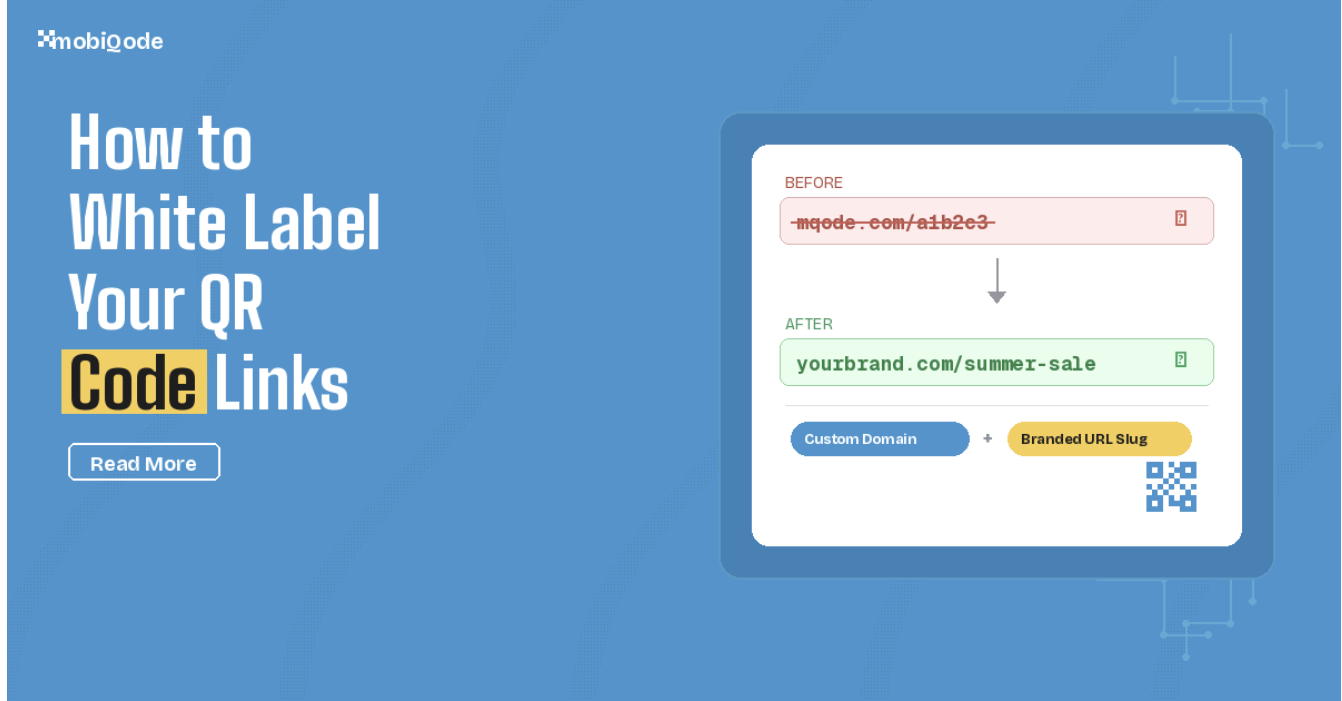
That’s exactly why we built two features in mobiQode: Custom Domain and Branded URL Slug. Together, they let you turn that generic link into something like:
Big difference, right? Let’s break down what each feature does and how to set them up. It’s simpler than you’d think.
Custom Domain — Put Your Brand Name in Every QR Code Link
This is also known as QR code white labelling in the industry. The idea is straightforward: instead of your QR codes pointing to mqode.com (our default domain), they point to your own domain.
So if you run a business called, say, FreshBrew Coffee, your QR code links go from mqode.com/a1b2c3 to freshbrew.com/a1b2c3.
Same destination, completely different impression.
Why does this matter? Think about it from your customer’s perspective. They’re standing in your store, they scan a QR code on your table tent, and their phone shows a URL they don’t recognize. There’s a moment of hesitation. “Is this legit?” With your own domain, that hesitation disappears. They see your name, they trust it, they tap through.
We’ve seen this play out with our users repeatedly — branded domains just get more scans. It’s not rocket science. People click on what they recognize.
Branded URL Slug — Make the Link Actually Mean Something
Okay, so custom domain handles the front half of the URL. But what about the back half — that random a1b2c3 gibberish?
That’s where branded URL slugs come in. Instead of a random string, you pick a keyword that actually describes where the QR code goes. Menu. Summer-sale. Event-rsvp. Feedback. Whatever makes sense for your campaign.
Here’s a quick comparison:
| Without Branded Slug | With Branded Slug |
|---|---|
| mqode.com/a1b2c3 | mqode.com/summer-sale |
Now here’s where it gets good. Combine both features and you get:
That’s a URL your customer can actually remember. It looks professional on printed materials. And if someone sees it without even scanning the QR code, they might just type it in directly. That’s free traffic.
Why Should You Actually Bother With This?
Fair question. You’re busy. Your QR codes already work. Why add another step?
Here are the real, practical reasons:
Trust and scan rates go up. We keep coming back to this because it’s the biggest one. An unfamiliar URL is a friction point. Remove it, and more people complete the scan. It’s that simple.
It protects against phishing. QR code scams are real and growing. Someone prints a fake QR code sticker over yours in a restaurant, and suddenly your customers are on a phishing site. But if your customers know to look for yourbrand.com in the URL, a random third-party domain immediately looks suspicious. Your custom domain becomes a built-in security layer.
Your campaigns become easier to manage. When your team is running 15 QR code campaigns simultaneously, branded slugs like /menu-downtown, /menu-airport, and /promo-july make it instantly clear what each code is for — just by looking at the URL. No more opening each one to figure out which is which.
Branding consistency matters more than you think. Your logo, colors, and messaging are consistent everywhere else. Why should the one URL your customers actually see be the exception? A branded QR code link is a small detail that signals professionalism.
Setting Up Your Custom Domain in mobiQode (5 Minutes)
Alright, let’s get into the how. This is not complicated — you’ll need your mobiQode account and access to your domain registrar (GoDaddy, Namecheap, Cloudflare, wherever you bought your domain).
1 Find the Domains Section
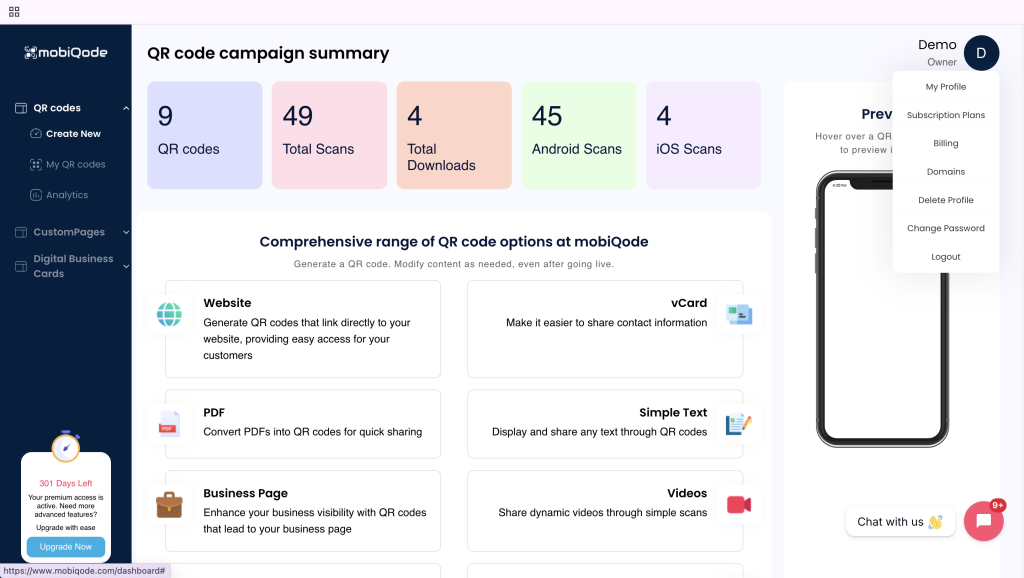
Log into mobiQode. Click your profile icon in the top-right corner. You’ll see a dropdown — click “Domains.”
2 Add Your Domain
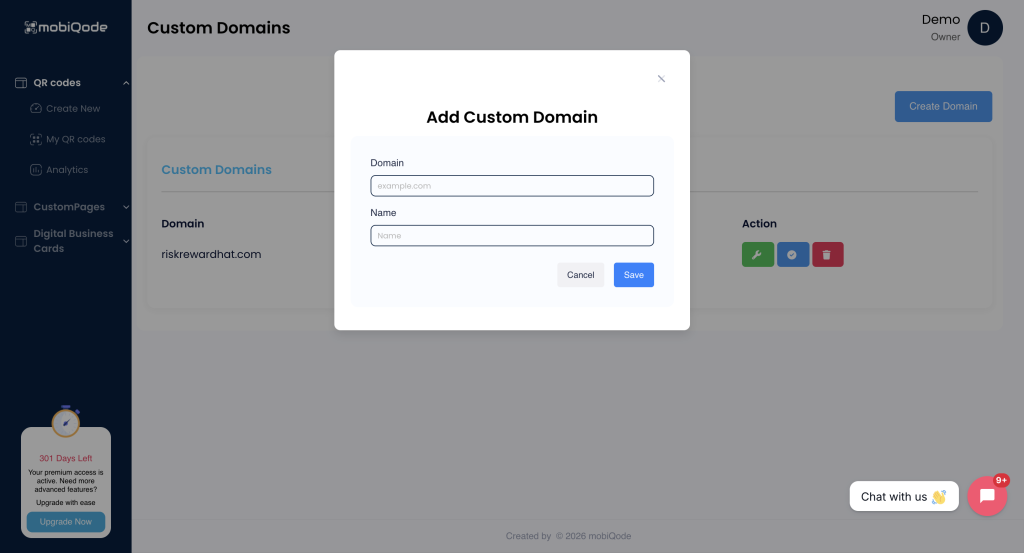
Hit the “Create Domain” button. You’ll get a simple form with two fields: Domain (enter your domain, like yourbrand.com) and Name (a label so you can identify it later — this is just for your reference).
Click Save.
3 Set Up the DNS Record
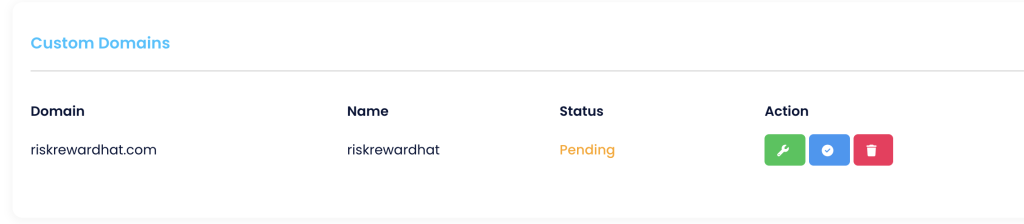
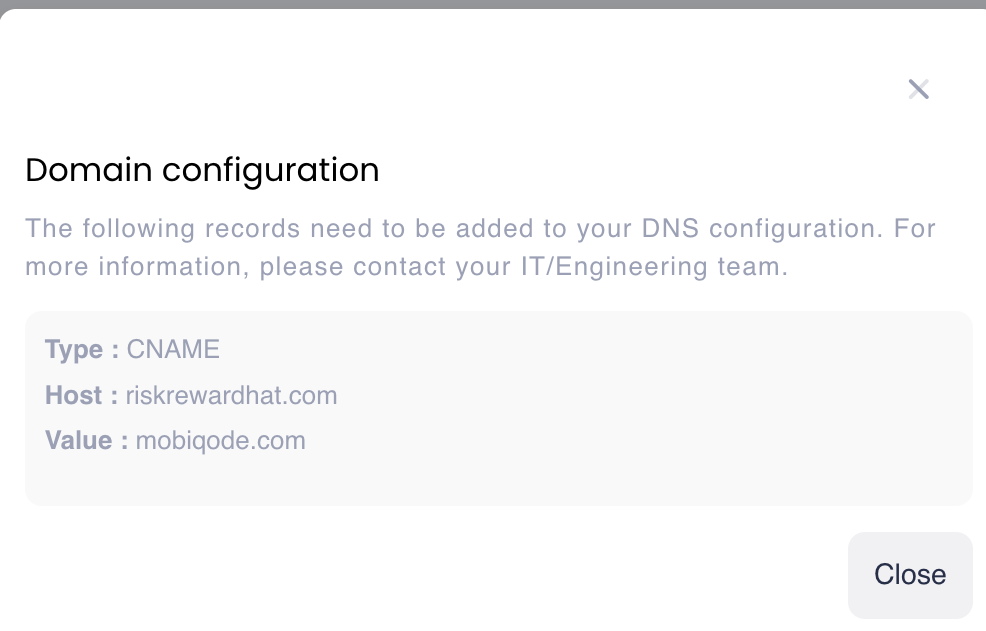
After saving, your domain will show as “Pending.” Click the wrench icon next to it, and you’ll see the DNS configuration you need:
Go to your domain registrar, find DNS settings, and add this CNAME record. If you’re not sure how, just search “add CNAME record [your registrar name]” — every provider has a guide for this.
4 Verify and Go Live
Once DNS has propagated, come back to the Domains page in mobiQode and click the checkmark icon to verify. When it goes through, your status changes from “Pending” to “Active” — and from that point on, every new QR code you create will use your custom domain.
Setting Up a Branded URL Slug (30 Seconds)
This one’s even easier. No DNS, no waiting.
When you’re creating or editing a QR code in mobiQode, you’ll see a URL slug field. By default, it’s auto-generated (the random string). Just toggle off auto-generation, type in your preferred keyword — like summer-sale, menu, or feedback — and save.
That’s it. Your QR code now has a clean, branded slug.
Putting It All Together
Here’s what the progression looks like when you layer both features:
| What You’ve Set Up | Your QR Code URL | Vibe Check |
|---|---|---|
| Nothing (default) | mqode.com/a1b2c3 | 😐 Generic |
| Custom domain only | yourbrand.com/a1b2c3 | 🙂 Better |
| Branded slug only | mqode.com/summer-sale | 🙂 Better |
| Both combined ✓ | yourbrand.com/summer-sale | 😎 Nailed it |
The bottom row is the goal. Every part of the URL — domain and path — is yours. No random strings, no third-party branding. Just your brand, end to end.
Some Questions We Get Asked a Lot
It’s a Small Change That Makes a Big Difference
Look, we get it. Custom domains and URL slugs aren’t the flashiest features. Nobody’s going to write a press release about them. But the businesses that pay attention to these details — the ones where every touchpoint, even a QR code URL, feels intentional — those are the ones that build real brand trust over time.
It takes five minutes to set up. And once it’s done, every QR code you create from that point forward carries your brand.
Ready to give it a shot?
Log into mobiQode →