Adding members to a WhatsApp group one by one — collecting numbers, sending individual invites — is slow and easy to miss people. A QR code fixes this entirely. Print it on an invitation, display it at a venue, or share it digitally, and anyone can join your group with a single scan.
Whether you’re rallying a sports team, coordinating a family reunion, or building a business network, this guide covers everything you need to create a WhatsApp group QR code with mobiQode.
Create WhatsApp Group QR Codes — Invite Members Instantly
Start Free Trial →What Is a WhatsApp QR Code and How Does It Work?
A WhatsApp QR code is a scannable image that contains an invitation link to your group — a digital doorway that lets people join instantly. When you create a QR code, WhatsApp embeds your group’s unique invite link into the pattern. Smartphones scan this code using their camera or WhatsApp scanner, the app decodes it as a group invitation, and with a single tap the scanner joins your group — no searching or typing required.
You can share your QR code digitally through social media or email, or print it for physical distribution. It’s a versatile tool that simplifies group growth, whether you’re organizing an event, managing a team, or expanding a community.
Why Create a Dynamic WhatsApp QR Code?
Dynamic WhatsApp QR codes offer flexibility and control long after creation. Unlike static codes, they let you:
- Edit: Change your group link anytime without creating a new QR code
- Track scans: See how many people have scanned your code and measure its effectiveness
- Customize: Add your logo or change colors to match your brand or event theme
- Analyze: Gain insights into when and where your code is being scanned
- Reuse: Update the same code for different events or groups over time
With mobiQode, you get all these features plus an intuitive interface to manage your codes — whether running a business, organizing events, or managing multiple groups.
How to Create a QR Code for a WhatsApp Group
Video: How to Create a WhatsApp Group QR Code
There are two methods in mobiQode — choose based on whether you want a full social media landing page or a direct group link.
Option 1: Social Media Dynamic QR Code
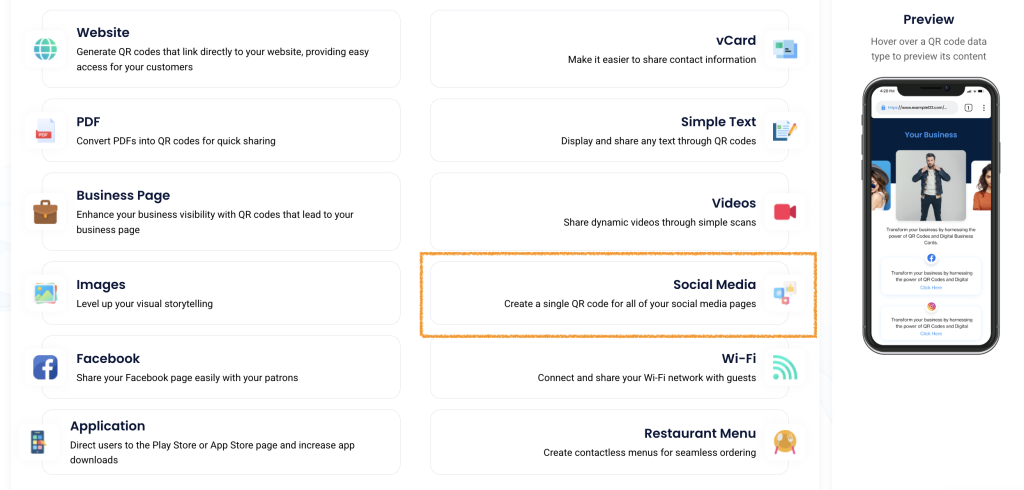
Choose Social Media Option
Select the Social Media QR code type from the dashboard.
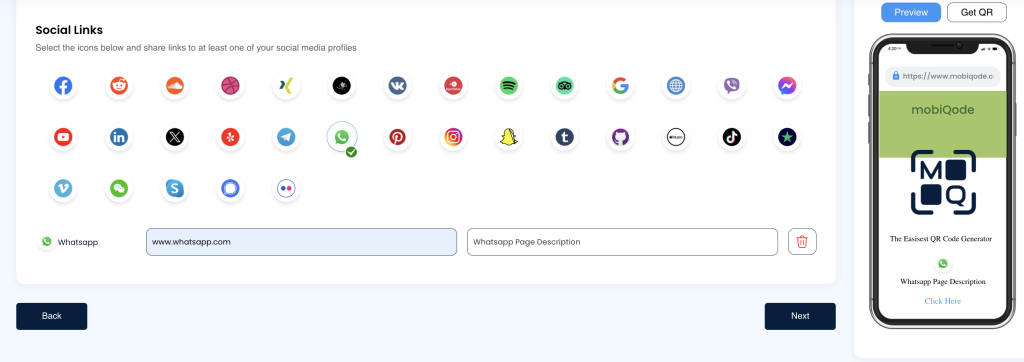
Add WhatsApp Link and Description
Choose the WhatsApp icon, add your WhatsApp group invite link, and optionally add a custom description.
Customize and Finish
Customize the QR code design — colors, logo, frame — then click Finish to create your WhatsApp Social Media QR code.
Option 2: Link QR Code Generator
Get Your WhatsApp Group Link
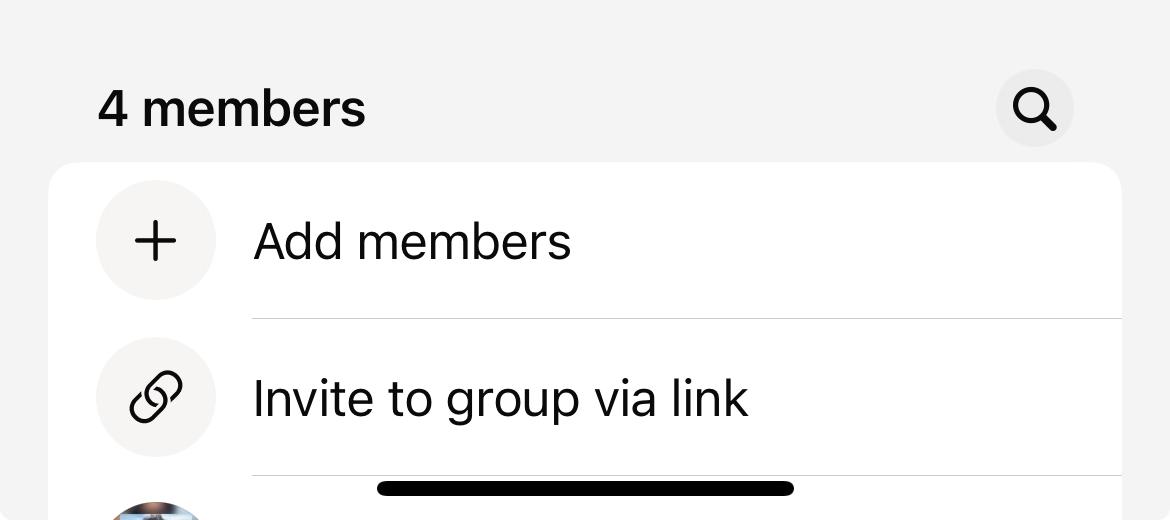
Open WhatsApp, go to your group, tap the group name, and select “Invite to Group via Link.” Copy this link.
Sign Up to mobiQode
Sign up and log in to mobiQode. Dynamic QR codes from mobiQode let you edit and track your WhatsApp group link after creation.
Choose the Link QR Code Type
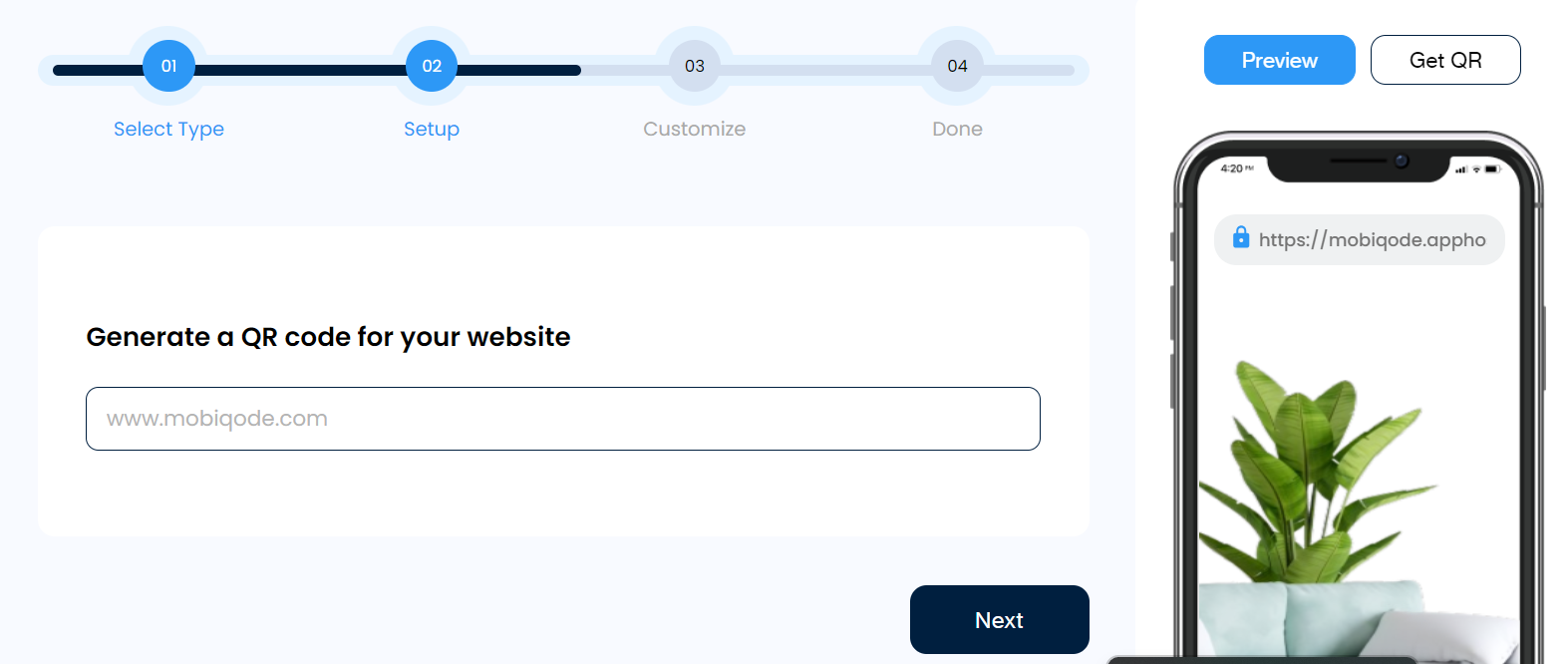
From the dashboard, select the Link QR code option. Paste the WhatsApp group invite link you copied into the input field.
Customize Your QR Code
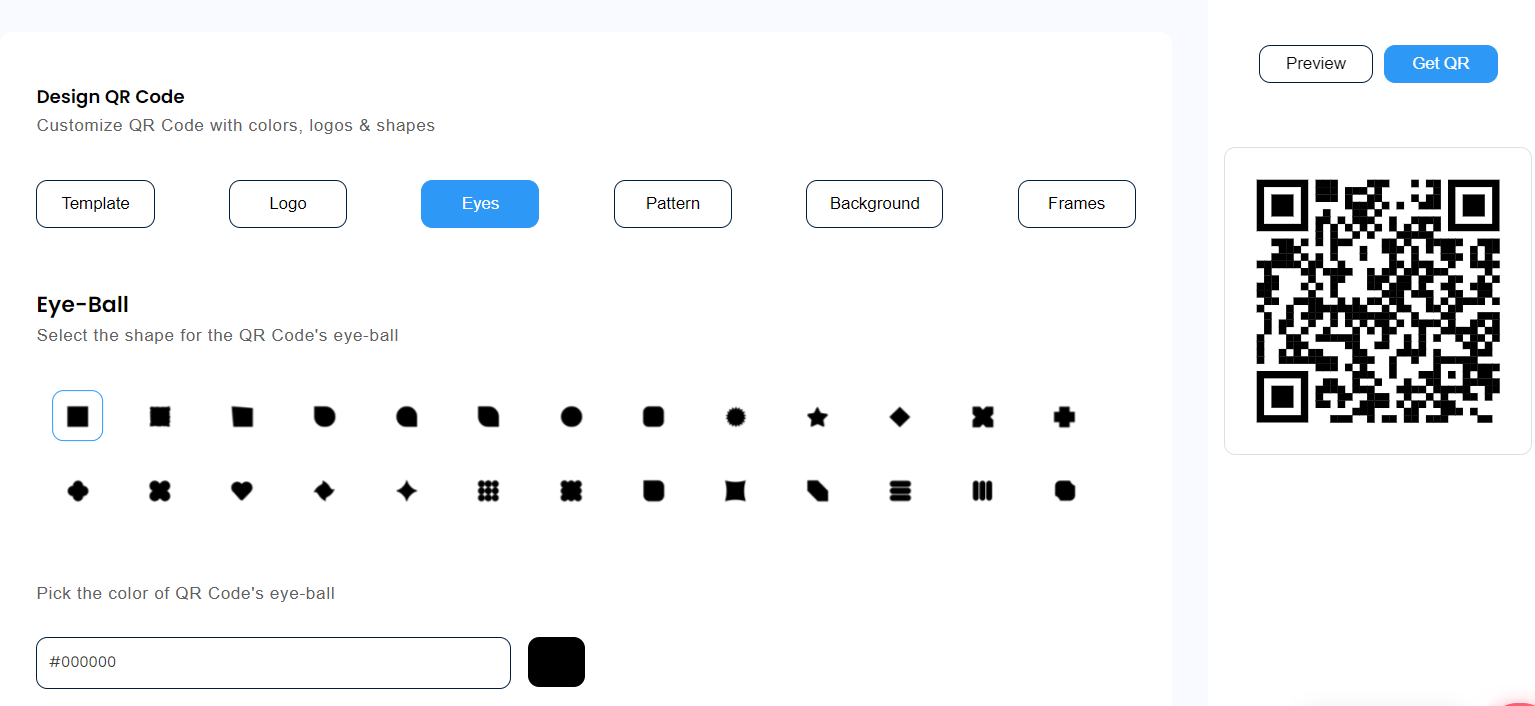
mobiQode lets you:
- Choose colors for the background
- Add your logo or an image to the center
- Select a frame or shape for the code
Download and Share
Once customized, download your QR code and share it — print it on invitations, display it at the venue, or post it digitally.
Use Cases for WhatsApp Group QR Codes
1. Event Organisation
Print a QR code on event invitations or display it at the venue. Attendees can instantly join the group to receive updates, share photos, or coordinate meetups — perfect for conferences, weddings, or music festivals.
2. Business Networking
Share your company or industry group QR code at trade shows or business meetings. Attendees can join discussions, share insights, or follow up on opportunities — ideal for startups building a community or firms engaging with clients.
3. Education Support
Teachers can create QR codes for class groups, allowing students to join easily and access study materials, submit assignments, or ask questions. Post the code in the classroom or share it digitally for remote learners.
4. Community Building
Local communities can use QR codes to grow neighbourhood watch groups, hobby clubs, or support networks. Place the code on community boards or local shops to help residents connect effortlessly.
5. Customer Service
Include a QR code on product packaging or user manuals, letting customers join a support group and get help from staff and other users quickly.
6. Team Management
Create QR codes for each team or project group. New members can join instantly and access important discussions and files without waiting for individual invites.
Conclusion
Sending individual WhatsApp invites takes time that most people do not have. A QR code handles the whole thing with one scan. mobiQode lets that code stay editable, tracked, and on-brand for however long it gets used.
QR codes are the bridge between the physical and digital world. We’re making it simple for everyone to create, share, and connect.
Founder, mobiQode
Create WhatsApp Group QR Codes — Invite Members Instantly
Start Free Trial →14-Day Free Trial · Plans from $5/mo · No Credit Card Required
Frequently Asked Questions
How do I create a QR code for a WhatsApp group?
Go to the WhatsApp group, tap the group name at the top, and hit Invite via Link. Copy the link. Head to mobiQode, paste that link in, sort the design, and download the code.
Can people join my WhatsApp group by scanning a QR code?
Yes. The person points their camera at the code, and WhatsApp opens with a join button. One tap and they are in the group — nothing else is required from either side.
Does the QR code expire if the group invite link changes?
Yes, a static QR code stops working the moment the invite link resets or gets turned off. A dynamic QR code from mobiQode does not have that problem — the link updates from the dashboard and the printed code keeps working as it is.
Can I track how many people scanned the QR code?
Yes. Every scan gets logged in the mobiQode dashboard — running total, rough location, device type, and time. Check it whenever needed to see where the code is getting used and where it is being ignored.
Can I use the same QR code for different WhatsApp groups?
Yes. Change the destination link inside mobiQode to point to whichever group invite is currently active. The code never needs to be reprinted or replaced.