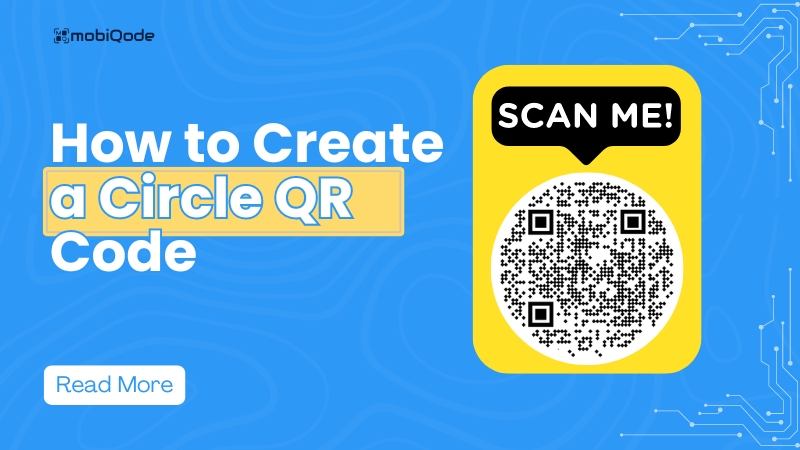
Square QR codes have been useful for a long time, but now there’s a new option: Circle QR codes.
Circular QR codes are functional and visually appealing, and they can help you stand out in a sea of similar-looking square QR codes.
Here’s everything you need to know about round QR codes, including how to create one.
What is a circle QR code?
A circle QR code, as the name suggests, is circular. These QR codes are a variation of traditional QR codes where the usual squares are replaced with circles. They work the same way as a regular QR code.
Circular QR codes can be used for marketing and product packaging. While Denso Wave initially created QR codes in a square shape for functionality, they have since evolved into various shapes and sizes.
Creating your customizable circle QR code
You can generate your customized QR code using any QR code generator. However, choose a QR code generator like mobiQode that has the option to generate round QR codes. Use the following steps to create your customizable QR codes.
1 Visit mobiQode and log in to your account
Visit mobiQode’s site and log in to your account. If you don’t have one, you can create a free account.
2 Choose the type of QR code
Once logged in, visit your account dashboard and choose the type of QR code you want to generate. mobiQode has around 12 options, from a digital business card to a restaurant menu.
3 Enter the relevant information
Once you have chosen the type of QR code you want to generate, enter the relevant information needed to create your QR code.
4 Customize your QR code
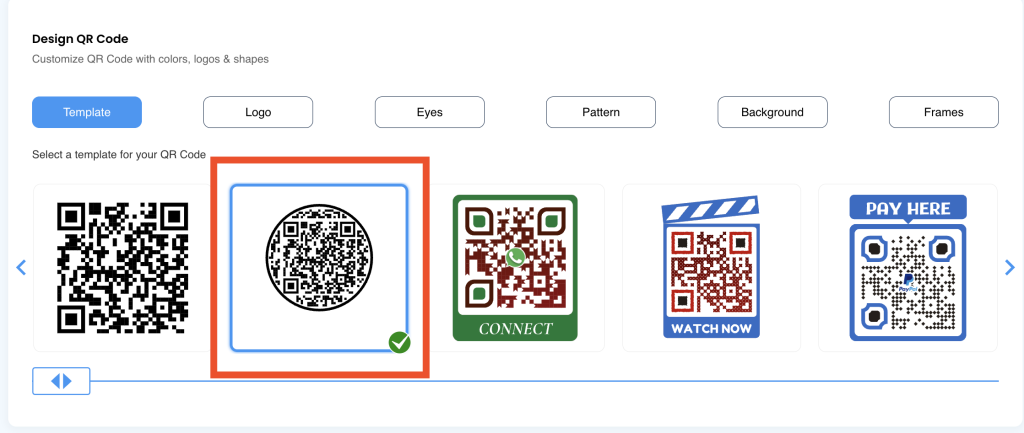
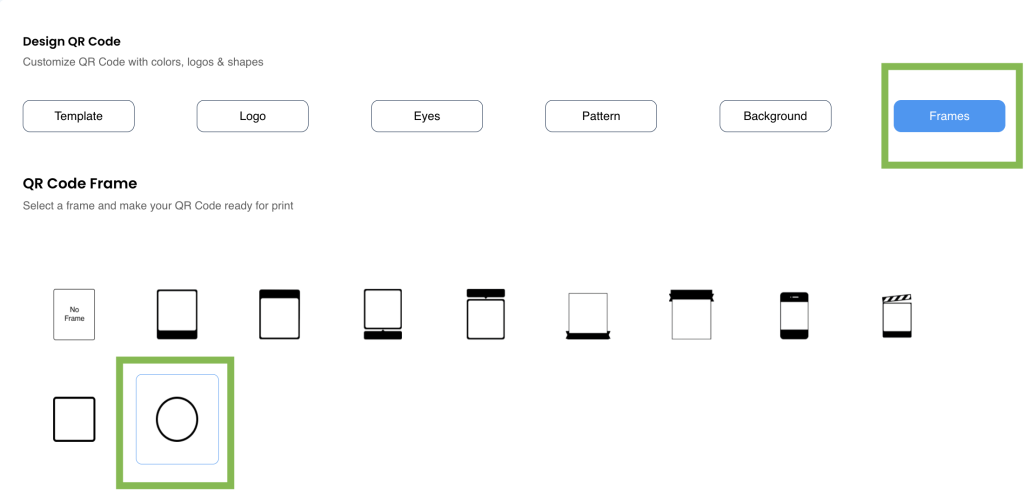
After creating your QR code, you can customize it. mobiQode allows you to add your designs, logo, background, and frames to your QR code. You can choose the customization you need and personalize your QR code. To design a circular QR code, select the ’round QR code’ template.
Method 1: Select a round QR code template directly (shown below).
Method 2: Select any template, then change the frame to circular in the “Frames” section during customisation.
5 Download your QR code
Once you have personalized your QR code, you can download it in multiple file formats (SVG/PNG/JPG) and use it on all your marketing and promotional materials (both in print and digital formats).
Designing your customizable round QR code: Top tips
Here are some top tips for you to consider while designing your custom QR code:
Use colors
Most QR codes are black and white, but you can also create colored QR codes. Choose a single color for the entire QR code or different colors for various parts. Select the color theme based on your brand strategy.
Use a high-contrast background
Keep the background and foreground of your round QR codes in contrast. QR code scanners may not recognize a QR code if the foreground and background colors are too similar. Some colors may appear darker in print than on screen, so choose wisely.
Use call-to-action (CTA) stickers
Add CTA stickers with your round QR codes so viewers know what they’ll gain. Stickers like “scan to get 10% off” or “scan to know more about our membership” will help you get more scans and make the QR code look more catchy.
Add a logo and branding
Adding a logo and using your brand colors helps you stand out. Placing a logo in the center of your QR code is a sure-shot way to attract more users. You can also use images like “scan me” as your QR code’s center — it doubles as a CTA.
Optimize the shape of your QR code
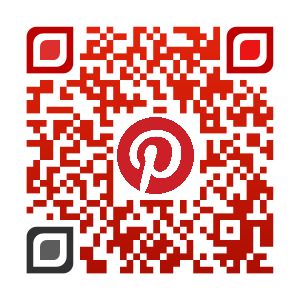
Try redesigning parts of your QR code to make it more attractive. For example, Pinterest redesigned its QR code to be both visually appealing and easily scannable. After reshaping, always test to ensure it’s still scannable.
Maintain symmetry
Don’t overstretch or contract the actual code too much — this can make it unscannable. Keep proportions balanced.
Best practices for circle QR code design
Avoid over-customizing
Too much design can make the code hard to scan. Ensure the QR code has enough contrast with its background and keeps a clear space around it (the quiet zone). Subtly add branding elements and always test on different devices.
Avoid common design mistakes
Don’t use inverted colors (light QR on dark background) — scanners are optimized for dark modules on light backgrounds. Avoid using external images or complex graphics that can obstruct key elements.
Test your QR code
Always test after customization to confirm it scans correctly across various devices and apps. Focus on maintaining high contrast and a clear structure.
Ensure excellent scannability
Place it without distortion, select a contrasting background, and keep the design clutter-free.
Add a logo
A recognizable logo helps users quickly identify the QR code as legitimate, reducing concerns about scams. It provides an extra layer of branding that encourages more users to scan confidently.
Position the circle QR code correctly
Ensure your circular QR code is prominently displayed and not obstructed. Proper placement makes it easily accessible, increasing the likelihood of engagement.
Design the QR code in the correct size
A QR code should be at least 1cm × 1cm. Use the 10:1 ratio formula to determine optimal size for your use case.
Use cases of circle QR codes
Round QR codes have varied applications across different industries. Here’s how you can use them:
Product Packaging
Enhance visual appeal and give customers quick access to product info, nutritional details, or promotions.
Event Promotion
Feature on posters, flyers, and tickets. Use dynamic QR codes for detailed scan tracking and geo-location data.
Digital Business Cards
Add a modern flair to your digital business cards. Share contact info or link to social profiles.
Art & Creative Projects
Incorporate into artworks or installations. Link to digital content, artist bios, or behind-the-scenes videos.
Luxury Branding
Maintain an elegant aesthetic while offering digital engagement like exclusive content or loyalty programs.
Interactive Signage
Provide additional information at museums, galleries, or tourist attractions for enhanced visitor engagement.
Restaurant Menus
Link to digital menus, nutritional info, or ordering platforms to streamline the dining experience.
Educational Materials
Offer students supplementary content, interactive quizzes, or video lectures in textbooks.
Fashion & Apparel
Print on clothing tags or tote bags for styling tips, care instructions, or links to related products.
Real Estate Listings
Link to virtual tours, floor plans, or property details for a comprehensive view of listings.
Novelty Marketing
Stand out on billboards or digital signage, capturing attention for exclusive offers or information.
Creating a custom QR code lets you combine style with function. Focus on keeping it easy to scan, adding branding in a subtle way, and placing it where it’s visible and properly sized. Test your design on different devices to ensure it works well.
Want to create your own circle QR code?
With the mobiQode QR code creator, making stylish round QR codes for static and dynamic QR codes is easier than ever.
Ready to stand out with a unique circle QR code?
Start Your 14-Day Free Trial →No credit card required