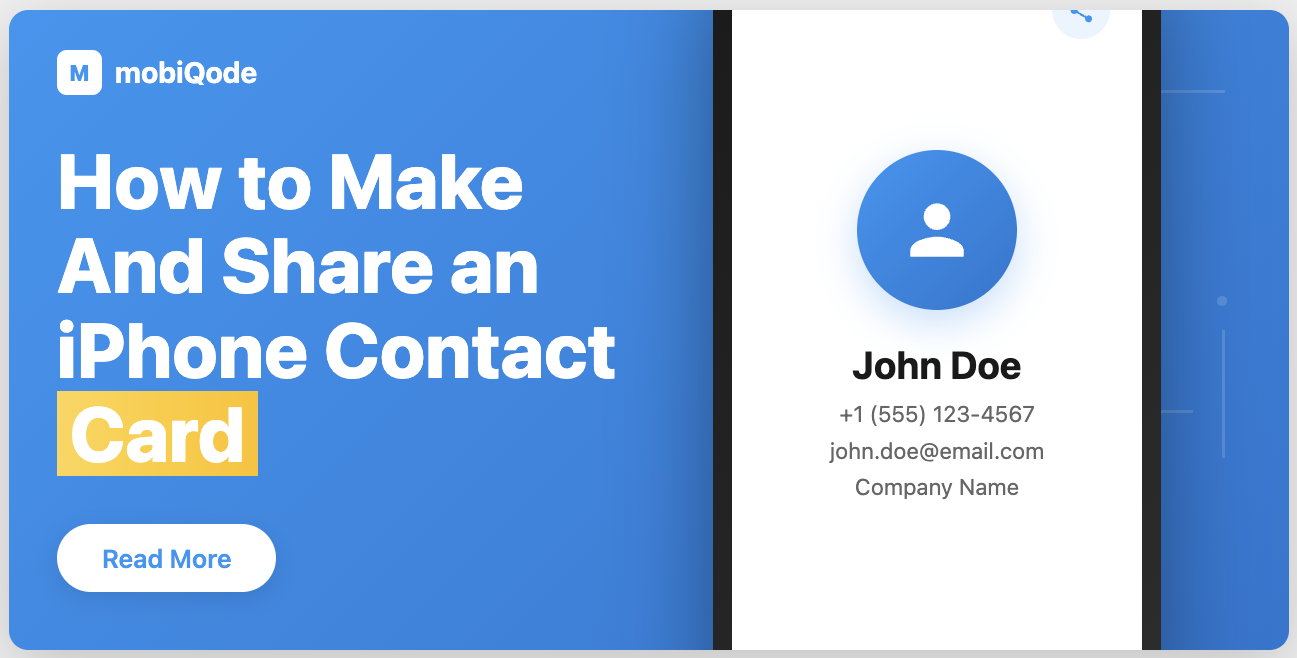
Ever scribbled your information on a napkin only to realize the other person forgot to save it? Not anymore. Welcome to the future of contact sharing, where your iPhone becomes your business card.
In this guide, we’ll walk you through how to make and share a sleek contact card on your iPhone, so you look more professional and tech-savvy. And if you want a solution that works not just for iPhone-to-iPhone but also for Android, web, and every device in between, mobiQode has you covered.
What is an iPhone contact card?
An iPhone contact card is essentially a digital business card. It holds your key details—name, title, company, phone number, email, and even a photo. All of this is stored in your iPhone’s Contacts app or a digital business card app.
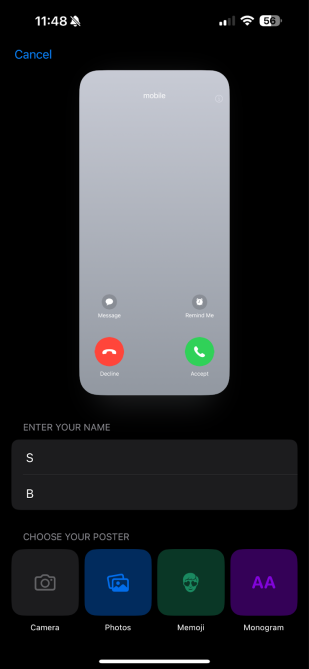
You can use Apple’s built-in NameDrop feature for quick iPhone-to-iPhone sharing. But for more flexibility, a third-party app like mobiQode lets you share across any platform, customize your design, and add richer features. Android users can receive your info just as easily. You can customize your card with your logo, brand colors, social links, and interactive CTAs—making it polished and consistent with your professional identity.
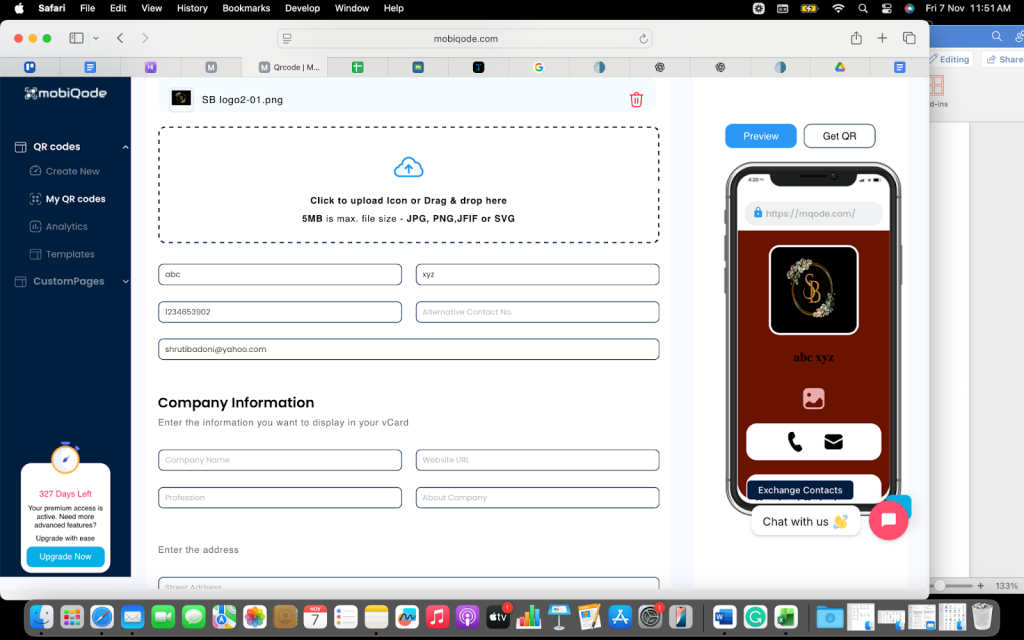
How to create and customize your contact card on iPhone (and Android)
Step 1: Sign up or log in
Go to mobiQode.com and sign up for free. You can access it directly from your mobile browser—no app download required.
Step 2: Create your card
Once you’re in, select “Create Digital Business Card.” Add your details—name, job title, phone number, and email. You can also include custom fields such as your website, social profiles, or portfolio links.
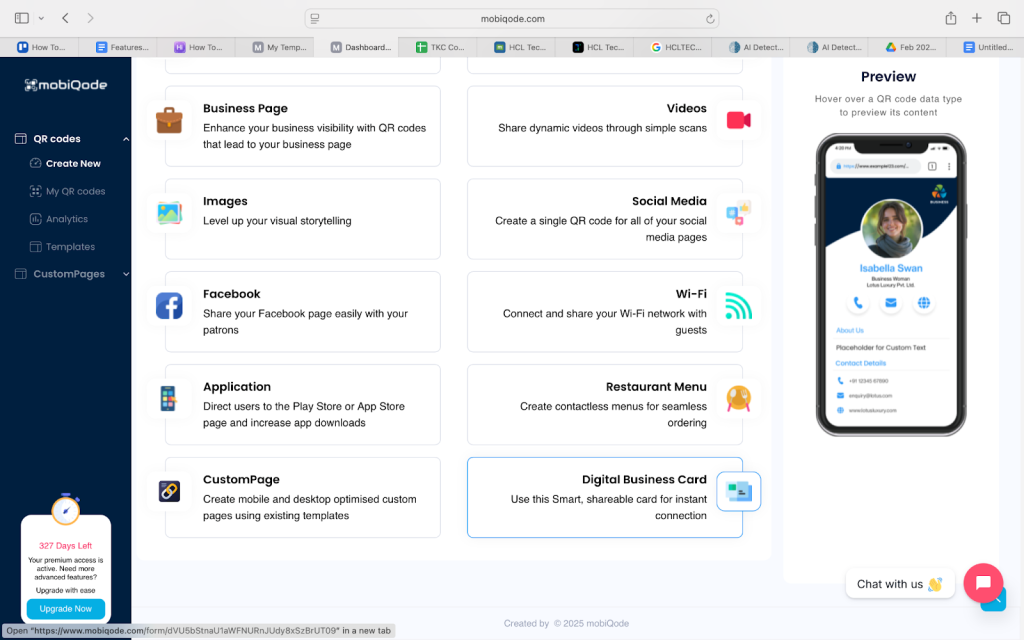
Step 3: Add your brand personality
This is where mobiQode shines. Customize your card by:
- Uploading your profile photo or company logo
- Choosing from multiple design layouts and color themes to match your brand
- Adding your tagline, pronouns, or company description for a personalized touch
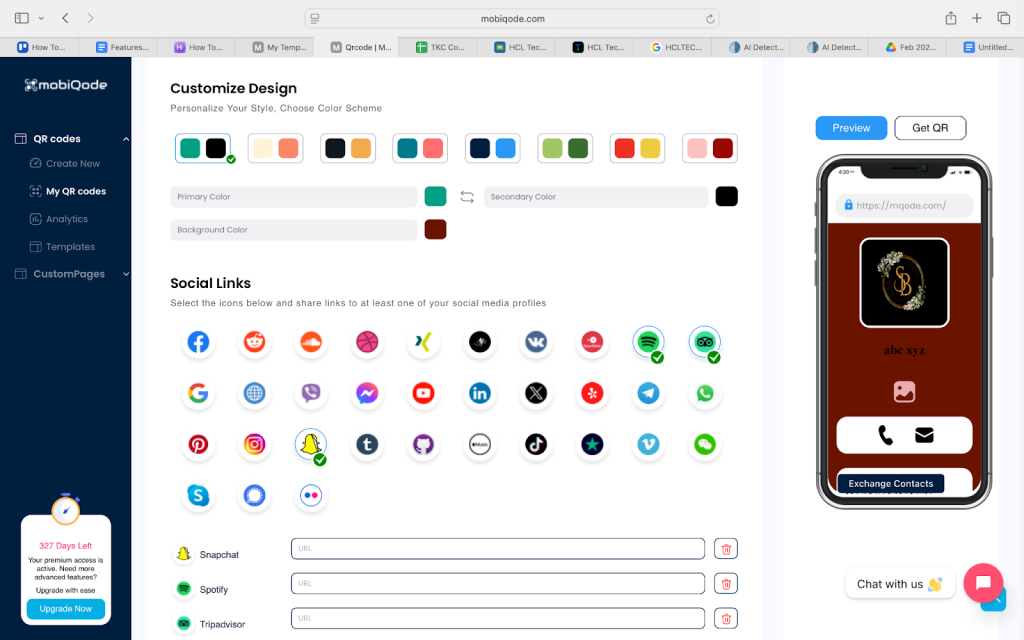
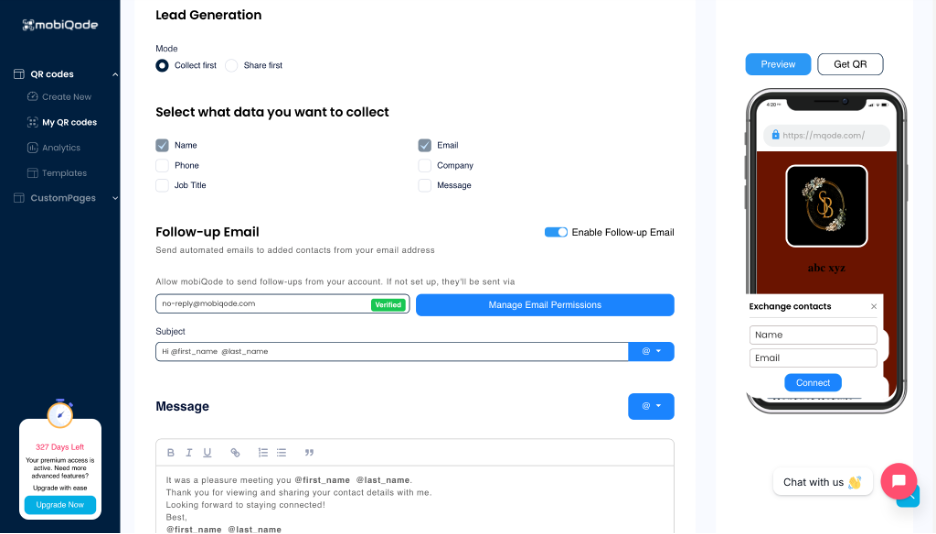
Step 4: Make it interactive
mobiQode cards go beyond basic info. You can embed videos, PDFs, or presentation links, add lead capture forms, and link to appointment booking or portfolio pages for instant engagement.
Step 5: Save and share instantly
Once customized, your card is live. You’ll get a unique link and dynamic QR code you can share anywhere. Recipients can open and save your contact instantly, whether they use an iPhone, Android, tablet, or desktop.
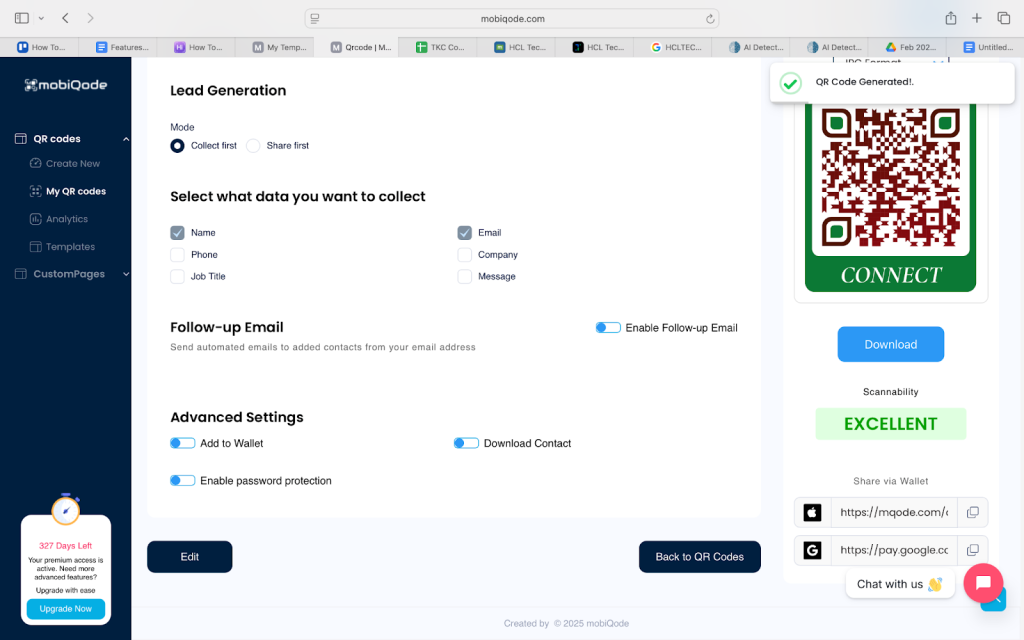
Note: You can update your card anytime. Every shared link auto-updates, so your contacts always have your latest details without you needing to resend anything.
Create Your iPhone Contact Card — Free for 14 Days
Start Free Trial →How to share your iPhone contact card
With mobiQode, you have multiple ways to share your digital business card:
- QR code scan: Show your QR code for anyone to scan—works on iPhone, Android, and web
- Direct link: Send via SMS, email, or chat for the recipient to click and view on any device
- Email signature: Embed your card in your email signature so every email becomes a touchpoint
- Wallet pass: Add directly to Apple Wallet (iPhone) or Google Wallet (Android) for one-tap access
Note: Your recipient does not need an iPhone or a specific app installed. With mobiQode, they can just click or scan and view your card directly.
Built-in iPhone card vs digital business card app
Use the built-in iPhone card if:
- You mostly connect with other iPhone users
- You only need to share basic info (name, phone, email)
- You don’t need branding, analytics, or cross-device sharing
- You network occasionally and don’t need advanced features
Use a digital business card app like mobiQode if:
- You meet people with mixed devices (Android, web, iPhone)
- You want your card to reflect your brand (logo, colors, links)
- You want to embed richer content (videos, payments, portfolio)
- You want to update your info once and have all shared cards update automatically
- You attend events, collect contacts, and want analytics
- You care about branding, versatility, and broad compatibility
Top 5 use cases for iPhone contact cards
Real estate agents at property showings
Share your contact card with potential buyers or renters during showings. They can save your number, listings page, and office address instantly. It’s faster than exchanging paper flyers and ensures clients can reach you easily for follow-ups.
Healthcare professionals and consultants
Doctors, therapists, and consultants can share their digital cards with patients after appointments. Include your clinic location, booking link, and emergency contact number to make scheduling the next visit simple.
Event organizers and speakers
After a conference or workshop, speakers can share their contact card via QR code on slides or badges. Attendees scan to save your details, view your website, and connect on LinkedIn—keeping engagement going beyond the event.
Small business owners and service providers
From salon owners to fitness trainers, sharing an iPhone contact card lets customers save your details, business hours, and booking link with one tap. Update it anytime so clients always have your most current info.
Influencers and content creators
Creators can use iPhone contact cards to share all their social links—Instagram, YouTube, TikTok, and personal websites. One scan lets fans or collaborators connect instantly, making brand partnerships easier to manage.
mobiQode — Works on iPhone, Android, and Every Device
Start Free Trial →Go beyond iOS and share your contact across platforms
Making and sharing a contact card on your iPhone takes just 2 minutes. The built-in Contacts app works fine for simple exchanges, but it stops at Apple’s ecosystem. With mobiQode, you create a single card that works on any device, updates automatically, and reflects your brand everywhere.
Build your digital contact card today with mobiQode.
Your contact card shouldn’t be limited to one ecosystem. With mobiQode, one card works everywhere—iPhone, Android, web, and beyond.
Founder, mobiQode
Create Your iPhone Contact Card with mobiQode
Start Free Trial →14-Day Free Trial · Plans from $5/mo · No Credit Card Required